TOUCHPAD FUNCTION
Notice: Make sure bluetooth connected and touchpad function turned on !
t
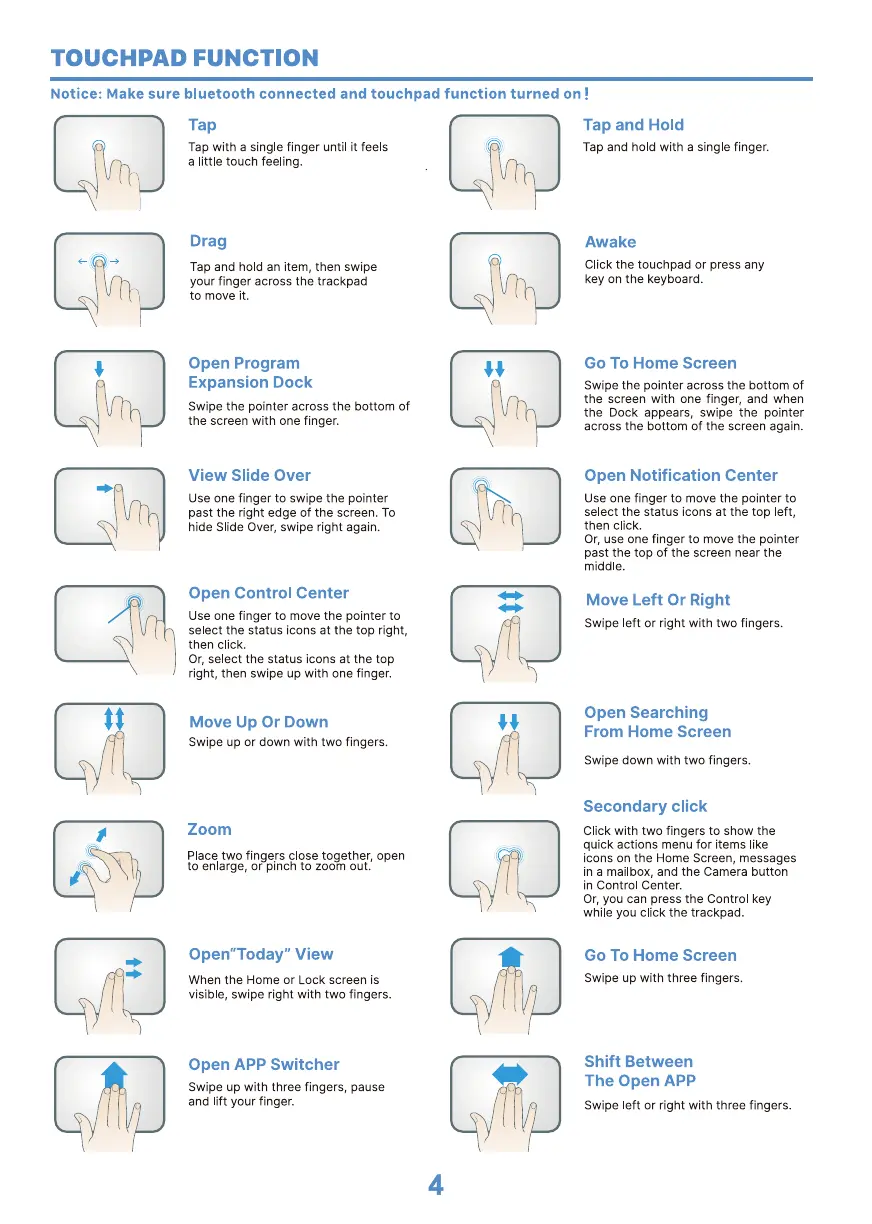
Tap
Tap with a single finger until it feels
a little touch feeling.
Drag
Tap and hold an item, then swipe
your finger across the trackpad
to move it.
Open Program
Expansion Dock
Swipe the pointer across the bottom Of
the screen with one finger.
View Slide Over
Use one finger to swipe the pointer
past the right edge of the screen. To
hide Slide Over, swipe right again.
Open Control Center
Use one finger to move the pointer to
select the status icons at the top right,
then click.
Or, select the status icons at the top
right, then swipe up with one finger.
Move Up Or Down
Swipe up or down with two fingers.
Zoom
Place two fingers close together, open
to enlarge, or pinch to zoom out.
Open" Today" View
When the Home or Lock screen is
visible, swipe right with two fingers.
Open APP Switcher
Swipe up with three fingers, pause
and lift your finger.
4
Tap and Hold
Tap and hold with a single finger.
Awake
Click the touchpad or press any
key on the keyboard.
Go To Home Screen
Swipe the pointer across the bottom Of
the screen with one finger, and when
the Dock appears, swipe the pointer
across the bottom of the screen again.
Open Notification Center
Use one finger to move the pointer to
select the status icons at the top left,
then click.
Or, use one finger to move the pointer
past the top Of the screen near the
middle.
Move Left Or Right
Swipe left or right with two fingers.
Open Searching
From Home Screen
Swipe down with two fingers.
Secondary click
Click with two fingers to show the
quick actions menu for items like
icons on the Home Screen, messages
in a mailbox, and the Camera button
in Control Center.
Or, you can press the Control key
while you click the trackpad.
Go To Home Screen
Swipe up with three fingers.
Shift Between
The open APP
Swipe left or right with three fingers.


 To Next Page
 Loading...