TROUBLESHOOTING
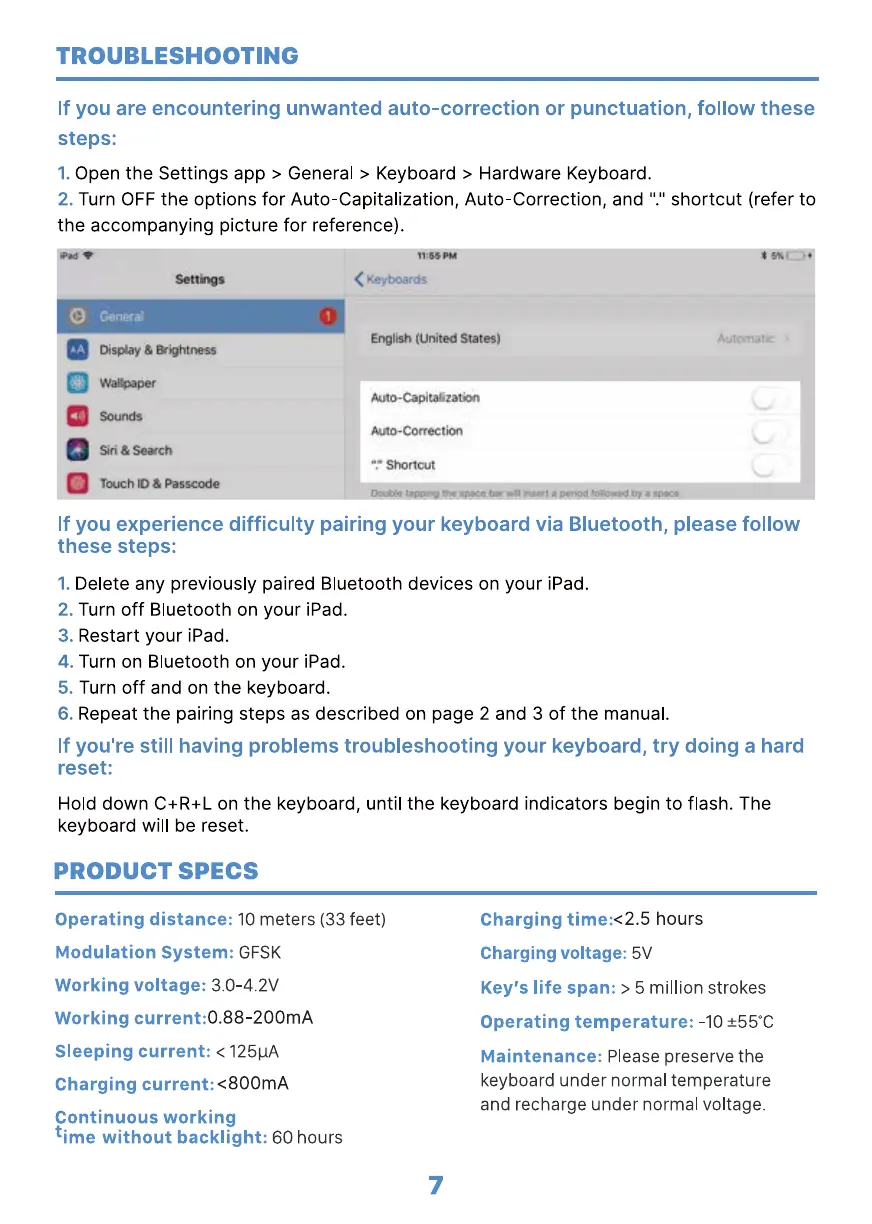
If you are encountering unwanted auto-correction or punctuation, follow these
steps:
1.
Open the Settings app > General > Keyboard > Hardware Keyboard.
Turn OFF the options for Auto-Capitalization, Auto-Correction, and
2.
the accompanying picture for reference).
. shortcut (refer to
Settögs
General
Ois*y 8 mghtness
O Sounds
Siri &
TOuch 10 & Passcode
< Keyboards
English (United States)
Auto-Capita«zatbn
Auto-Correction
".t Shortcut
If you experience difficulty pairing your keyboard via Bluetooth, please follow
these steps:
Delete any previously paired Bluetooth devices on your iPad.
Turn off Bluetooth on your iPad.
2.
Restart your iPad.
3.
Turn on Bluetooth on your iPad.
4.
Turn off and on the keyboard.
5.
Repeat the pairing steps as described on page 2 and 3 of the manual.
6.
If you're still having problems troubleshooting your keyboard, try doing a hard
reset:
Hold down C+R+L on the keyboard, until the keyboard indicators begin to flash. The
keyboard will be reset.
PRODUCT SPECS
Operating distance: 10 meters (33 feet)
Modulation System: GFSK
Working voltage: 3.0-4.2V
Working current:
0.88-200mA
Sleeping current: < 125uA
Charging current: <800mA
Continuous working
ime without backlight: 60 hours
Charging time:<2.5 hours
Charging voltage: 5V
Key's life span: > 5 million strokes
Operating temperature:
-10 ±550C
Maintenance: Please preserve the
keyboard under normal temperature
and recharge under normal voltage.
7


 To Next Page
 Loading...