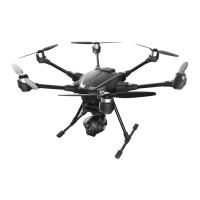
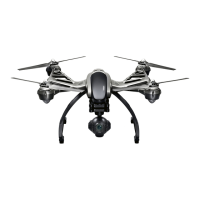
TEAM MODE ( TWO ST16 Ground Stations )
STEP 1) Switch on the original and the new ST16 Ground Stations first, and then
power on Typhoon H. Do not touch it until the initialization completes. Wait a few
seconds for the camera to align and all system (RC and video link) connected.
STEP 2)
Tap the 'Model' icon on the new ST16 Ground Station, select TYPHOON H,
and if required press 'OK' to accept any pop up warnings/alerts.
STEP 3)
Tap the System Settings icon [ ] on the new ST16 Ground Station.
STEP 4)
Tap the camera settings icon [ ] on the original ST16, switch from single
mode to team mode. When the Typhoon H Main LED Status Indicator starts to blink
orange, the aircraft enters binding mode.
STEP 5)
Tap the 'Refresh' icon on the new ST16, select the 'SR24_XXXXX' receiver
listed in the column under 'Model', and CGO 3P_XXXXX WiFi listed in the column
under 'camera', type 'Bind' and enter the password '1234567890' to connect the
WiFi, and then tap 'OK' after the connection has been established.
STEP 6)
Tap the 'Camera Select' and choose C-GO3-Pro, and then tap 'Select', if
required press 'OK' to accept any pop up warnings/alerts.
STEP 7)
Tap the back button [ ] once, you will hear two long beeps, which means
the binding is successful.
NOTICE:
After the binding completes, the original ST16 Ground Station controls
the CGO3+ gimbal camera, and the new ST16 Ground Station controls the aircraft.
NOTICE:
Under the team mode, the new ST16 can't control the gimbal pan and tilt
directions.
If you need to switch back to single mode, the
operation steps are as follows:
STEP 1: Tap the settings icon [ ] on the original ST16 and then switch from team
mode to single mode.
STEP 2:
When the Typhoon H Main LED Status Indicator starts to blink, the aircraft
enters binding mode.
STEP 3:
Wait for a few seconds, as the remote control will automatically bind to the
camera and aircraft. You will hear two beeps from the aircraft when the binding is
successful.
TEAM MODE (Wizard™&ST16)
BINDING TYPHOON WIZARD™ TO TYPHOON H
STEP 1) Power on the ST16 Ground Station first, and then switch on Typhoon
H. Do not touch it until the initialization completes. Wait a few seconds for
the camera to align.
STEP 2)
Tap the settings icon [ ] and then switch from single mode to team
mode.
STE
P 3) When the Main LED Status Indicator starts to blink, the copter enters
binding mode.
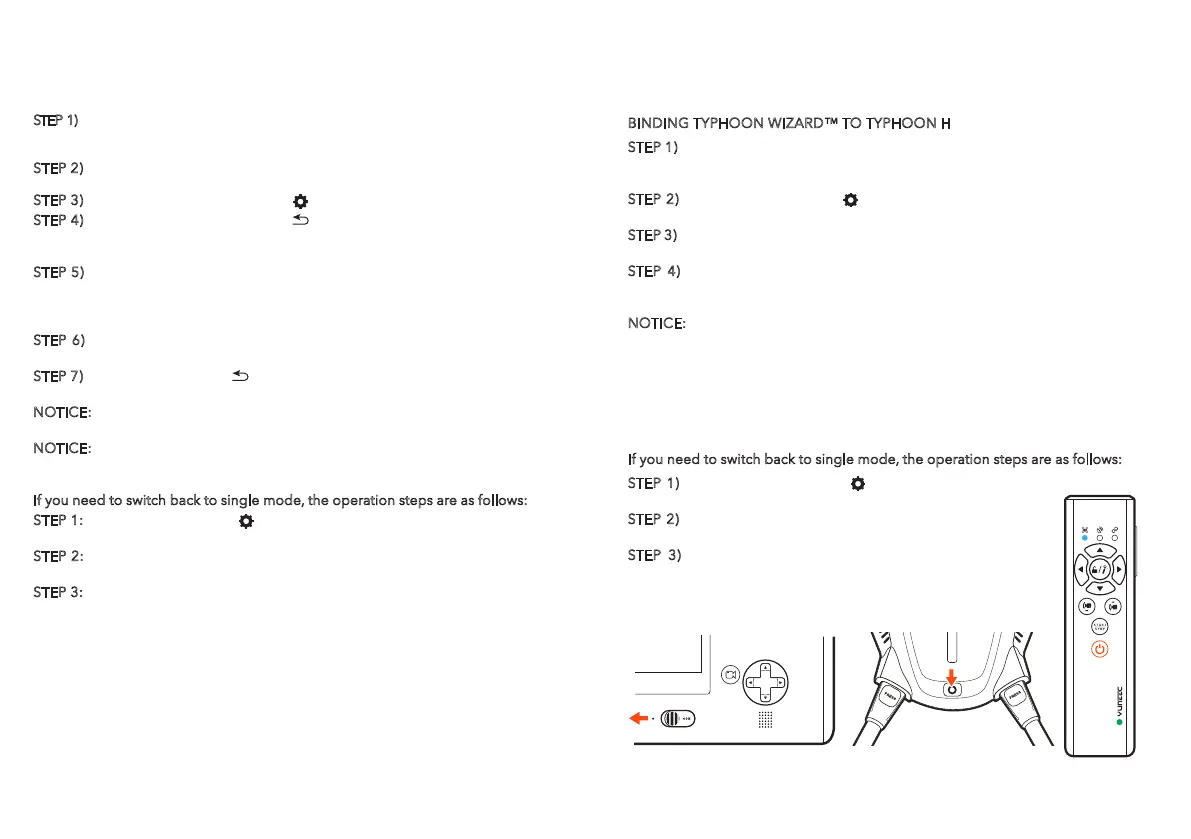
STEP 4)
Press and hold the Power Button of the Wizard until the Aircraft
Mode LED glows solid blue. Do not release the Power Button until hearing
two beeps from the aircraft, then release it.
NOTICE:
When Typhoon H is in team mode (Wizard and ST16), the Wizard
must be bound to the copter and the ST16 Ground Station must be bound
to the camera.The default mode of Typhoon H is single mode. The ST16
Ground Station comes bound to the copter from the factory and controls
both the copter and the CGO3+ Gimbal Camera.
When using the Wizard and ST16 Ground Station in team mode, the Wizard
controls the copter and the ST16 Ground Station controls the CGO3+
Gimbal Camera.
If you need to switch back to single mode, the
operation steps are as follows:
STEP 1) Tap the settings icon [ ] on the ST16 and then
switch from team mode to single mode.
STEP 2)
When the Main LED Status Indicator starts to blink,
the copter enters binding mode.
STEP 3)
Wait for a few seconds, as the remote control will
automatically bind to the camera and copter. You will hear
two beeps from the aircraft when the binding is successful.
13


 To Next Page
 Loading...