GIMBAL CAMERA TILT CONTROL
There is a gimbal tilt mode switch on ST16---S1. When the switch is in
up/middle position, the CGO3+ gimbal camera is in Angle Mode. Use
the slider (C) on the left side of the ST16 to set the tilt position of the
gimbal camera. When the S1 is in bottom position, the gimbal camera is
in Velocity Mode. When the Elevator joystick is in the middle position,
it means the velocity rate is 0 for the CGO3+, and it will stop tilting
up/down. When the Elevator joystick is above the middle position, the
CGO3+ will start tilting up. When the Elevator joystick is below the
middle position, the CGO3+ will start tilting down. The distance
between the Elevator joystick and the middle position decides the
velocity rate, the further distance, the higher velocity it would be.
NOTICE:
Only in the velocity mode, the camera can tilt upwards
15°maximum.
GIMBAL CA
MERA PAN CONTROL
There is a gimbal pan mode switch on ST16---S2. When the switch
position is up, the gimbal camera is in Follow Mode. The pan control of
the gimbal camera is now disabled. The gimbal camera will adjust its
17
TAKING PHOTOS AND RECORDING VIDEO
The ST16 seamlessly integrates control of the CGO3+ so you can easily
take still photos and start/stop video recording using the correspond-
ing buttons located on the face.
To Take A Still Photo
Press the button located near the bottom left corner of the ST16. You'll
hear an audible ‘shutter’ sound from the ST16 and the LED indicator on
the front of the CGO3+ will change from glowing solid green to glowing
solid blue. It will take approximately 1-2 seconds to capture the photo
and before you can take another still photo.
To STAR
T/STOP Recording Video
Press the button located near the bottom right corner of the ST16. You'll
hear an audible indication from the ST16 each time the recording
starts/stops. And while video is recording the LED indicator on the front
of the CGO3+ will flash blue and green, and there will be a red dot next
to the time length of the recording near the upper right-hand corner on
the screen of the ST16.
NOTICE:
CGO3+ camera is the default selection in ST16. You can take
still photos in the video recording mode. The resolution is set by the
video resolution. In this mode, you will capture still photos from the
video.
CAUTION:
Do not change settings when aircraft is further than 1,000
feet from ST16.
fusers are professionals in photography and videography, and want to
adjust manual settings, please follow the steps below:
STEP 1)
Press System Settings, choose Camera Select, press CGO3+,
press Select, and press OK.
STEP 2)
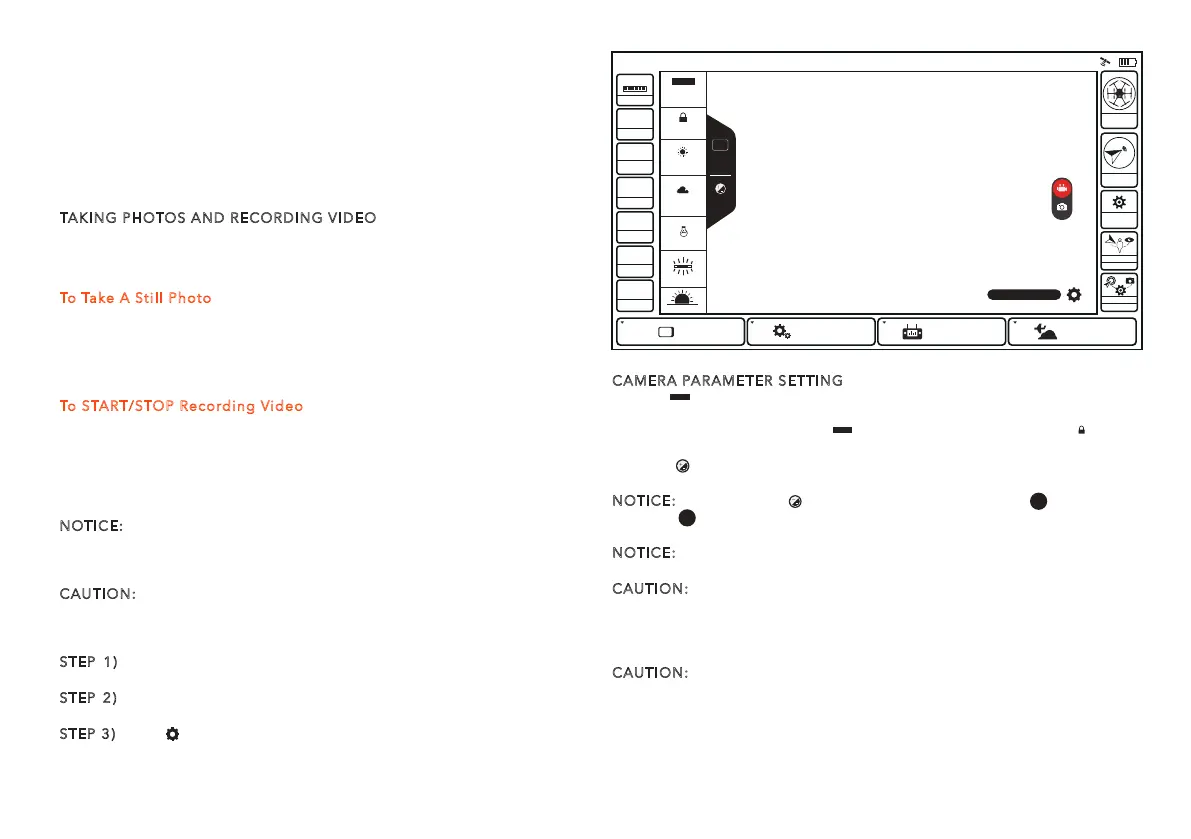
The second left column is available for adjusting the camera
settings, like white balance, exposure, shutter speed and ISO, etc.
STEP 3)
Press[ ], and press Video Settings, different video resolutions
are available.
CAMERA PARAMETER SETTING
In the [ ] menu, the user can choose different mode based on the
situation. The camera will adjust parameter according to the light
automatically when tapping [ ]. When tapping the button [ ], the
parameter at that time will be locked.
In the [ ]menu, the exposure and shutter speed can be adjusted
manually or automatically.
NOTICE:
Tap the icon [ ] and you can press the Auto [ ] to change
it to M [ ], which means you can adjust the shutter speed and ISO
manually.
NOTICE:
In the taking-picture mode, the resolution is 12,400,000. In
the video recording mode, resolution needs to be applied when taking pictures.
CAUTION:
ALWAYS stop recording video before turning off Typhoon
H/CGO3+ to avoid data loss. If you accidentally turn off Typhoon
H/CGO3+ before you stop recording, re-insert the micro SD card (if
removed) and turn the system on again. Wait until the camera LED
starts to glow solid green indicating the last video file was recovered.
CAUTION:
When entering the photo capturing mode, video recording
is disabled. You MUST switch to video recording to start recording
videos. During video recording, picture taking (Button A) is accessi-
ble. The resolution is set by the video resolution. In this mode, you will
capture still photos.
Model: Typhoon H welcome,Pilot 12:27 AM 12
VOLTS
GPS
SAT
POS
ALT
G-SPD
DIS
N/A
N/A
N/AE
N/AN
N/AV
N/Am
N/A KPH
N/Am
System SengsPad
Channel Sengs
Model Select
TASK
CAMERA
GPS
CALIBRATION
FOLLOW
WATC H
ANGLE
G
Disabled
OBS
WB
ISO 32
1/250s
Auto
Auto
Lock
Sunny
Cloudy
Fluorescent
AWB
Incandescent
Sunset/sunrise
3840 x 2160 F30
Auto
WB
Auto
AWB
Lock
Auto
M
pan direction according to the aircraft’s movements. When the switch
is in the middle position, the gimbal camera is in Follow Pan Controlla-
ble Mode, the gimbal camera will adjust its pan direction according to
the aircraft’s movements. Meanwhile, the pan control is activated, use
the aileron joystick to set the pan position of the gimbal camera.
When the switch position is down, the gimbal camera is in Global Mode.
The pan direction of the gimbal camera will be fixed regardless of the
aircraft’s movements. Use the aileron joystick to set the pan position of
the gimbal camera.


 To Next Page
 Loading...