EasyManua.ls Logo

TZUMI On Air WaveMixer - User Manual

TZUMI On Air WaveMixer
5 pages
Print Icon
To Next Page IconTo Next Page
Loading...
CONTENTS
SPECIFICATIONS
IMPORTANT SAFEGUARDS
INTRODUCTION & FEATURES
PRODUCT OVERVIEW
USAGE AND CHARGING
USAGE - CONNECTING
CONNECTING WIRED DEVICES
LIVE BROADCASTING
ADDITIONAL TIPS
TROUBLESHOOTING
2
3
4
5
6
7
7
8
8
1
DISCLAIMER
Please read all instructions and warnings prior to using the tzumi On Air Wave
Mixer. By using this product, you agree to the terms and conditions listed here.
You agree that you are solely responsible for your own conduct while using
this product, and for any consequences that may occur. You agree to use
this product only for purposes that are in accordance with the guidelines and
warnings/cautions listed in this manual.
Tzumi® accepts no liability for damage, injury or any legal responsibility
incurred directly or indirectly from the use of this product. Users must follow
directions listed in this manual in order to properly operate this device.
PodCastSeries
User Manual
WaveMixer
Multi-Channel Interface
Audio EQ / Sound Effects
Question and Answer IconNeed help?

Do you have a question about the TZUMI On Air WaveMixer and is the answer not in the manual?

Summary

Specifications

Important Safeguards

Lithium-Ion Battery Warning

Safety warnings regarding potential hazards of lithium-ion batteries, including heat, explosion, and injury.

Getting Started

Introduction and Features

Overview of the Wave Audio Mixer's multifunctional capabilities, including sound effects and voice altering.

Package Contents

Lists the items included in the product package, such as cables and the user manual.

Voice Controls

Details the 6 voice altering features available on the mixer, such as Pitch Bend and Magic effects.

Control Knobs

Explains the function of each control knob on the mixer, including Treble, Bass, Record, Music, and Monitor.

Product Overview

Device Diagram and Features

Illustrates the mixer's ports and lists key features like 12 sound effects, 6 voice altering options, and battery life.

Usage and Charging

Using Your Audio Mixer

Instructions on how to turn the audio mixer unit on and off using the power button.

Charging Your Audio Mixer

Guidance on charging the unit, including indicators for low battery and full charge.

LED Indicator Meanings

Explanation of the different states and meanings of the mixer's LED indicators.

Usage - Connecting

Device Connection Instructions

Details the layout of all ports on the mixer for connecting various devices.

Bluetooth Connections

Step-by-step guide to pairing the mixer with smart devices via Bluetooth.

Connecting Wired Devices

Port Descriptions

Detailed explanation of each numbered port and its function for wired connections.

Live Performances, Studio Recording & Broadcasting

Guidance on using the mixer for live performances, recording, and broadcasting with external equipment.

Live Broadcasting

Additional Tips

Tips for Use

Advice on potential sound issues with condenser mics and headsets, and how to resolve them.

Troubleshooting

Eliminating Noise

Troubleshooting steps for common noise issues, including power source and interference checks.

Overview

The tzumi On Air Wave Mixer is a multi-channel interface audio EQ/sound effects device designed for recording live performances, broadcasting, and vocal and instrumental recording and editing. It offers a unique sound and creative effects for audio projects, featuring 12 live sound effects, 6 voice altering features, and volume adjustments suitable for various recording environments. The mixer is compatible with both dynamic and condenser microphones and offers plug-and-play functionality. It comes with both AUX and USB cables to support various mixing software. The unit boasts a sturdy aluminum build and a compact, travel-friendly design, making it convenient for recording on the go. A full charge provides up to 8 hours of use, and it is compatible with most smartphones, headphones, speakers, and computers, capable of connecting to multiple devices simultaneously.

Function Description

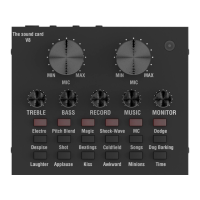
The Wave Mixer serves as a multifunctional live sound card, allowing users to achieve unique audio effects and control various aspects of their sound. It features a range of controls including:

  • Mic Volume: Adjusts the input volume of the connected microphone.
  • Record Volume: Controls the master volume when the mixer is connected to a PC, affecting the audience's perceived volume during live performances or recorded songs.
  • Treble Level: Increases or decreases the higher spectrum of sound tones.
  • Bass Level: Increases or decreases the lower spectrum of sound tones.
  • Echo: Adjusts the echo effect applied to the audio.
  • Monitor Volume: Serves as the master volume for all sound, controlling the output to headphones or speakers.
  • Music Volume: Controls the master volume of all connected inputs, including instrumental accompaniment and other audio sources.
  • Sound Effect Buttons: These buttons trigger 12 live sound effects, enhancing performances and broadcasts.
  • Voice Altering Features: These buttons provide 6 voice altering options, allowing users to modify their voice in various ways.

Voice Controls:

  • Electro: Offers 10 modes that can be cycled through by pressing the button. Pressing and holding the button turns the effect on or off.
  • Pitch Bend: Provides 3 modes: High Pitch, Low Pitch, and Super-High Pitch, allowing for vocal pitch manipulation.
  • Magic: Deepens the user's voice, creating a "magic" effect.
  • Shock Wave: Highlights and slightly amplifies a user's voice for a dramatic tone.
  • Dodge: Intelligently recognizes a user's voice and automatically reduces the volume of background music while the user is speaking. This feature is ideal for interactive broadcasting, ensuring the speaker's voice remains clear.

Usage Features

Turning On/Off:

To turn the unit on, press and hold the Power button for 3 seconds. Upon activation, all 6 voice altering buttons will flash red for 2 seconds, and the power button will illuminate red. To turn the unit off, press and hold the power button for 3 seconds; all 6 voice altering buttons will flash red for 2 seconds, and all lights will turn off.

Device Connection Instructions:

The mixer features several input/output ports on its side:

  • Live Input 1 (Smartphone/PC): For inputting live music/instruments via a 3.5 to micro USB cable.
  • Live Input 2 (Smartphone/PC): Another port for inputting live music/instruments via a 3.5 to micro USB cable.
  • Instrumental Accompaniment: For inputting a musical accompaniment with a 3.5 to micro USB cable.
  • Charging Port (Charging/PC): Used for charging the unit and for connecting to a PC. When connected to a PC via the micro USB to USB cable, users can open their Digital Audio Workstation (DAW) to capture, edit, and record audio from the Wave Mixer.
  • Headset: Connect a headset to listen to audio from the Wave Mixer.
  • Earphone Speaker: Connect the Wave Mixer to earbuds, headphones, speakers, or any other source (e.g., a computer).
  • Condenser Mic: Connect a condenser microphone to this port.
  • Dynamic Mic: Connect a dynamic microphone to this port.

Bluetooth Connections:

Once turned on, the unit automatically enters Pairing mode. Users can open the Settings menu on their smart device (smartphone, tablet, etc.), enable Bluetooth pairing, and wait for the device to locate "Wave Mixer." The device and the mixer should be kept within 3 feet of each other for optimal pairing. Select "Wave Mixer" from the device list and follow the prompt to pair the unit. Once a connection is established, the LED indicator will change from solid red to red and blue.

Live Performances, Studio Recording & Broadcasting:

When using the mixer for live performances or recorded songs, the Record volume knob must be increased to control the volume heard by the audience. When broadcasting with a smartphone or other additional equipment (such as a PC), the sound volume should be controlled via the smartphone or external device.

Additional Tips for Use:

Some condenser microphones and headsets are highly sensitive and may produce whistling or howling sounds if the selected sound level is too high. This can be due to factors like the microphone sound card, reverberation, very high or very low sounds, or the paired monitor settings. To fix this, users should slowly adjust the levels until the howling sound subsides.

Troubleshooting - Eliminating Noise:

  • If experiencing noise, try switching power sources by plugging into a different electrical outlet or using a USB power bank.
  • Check for interference from other equipment connected to the same power circuit.
  • Input device volume control should be set around 70%. If distortion is heard, lower the channel volume until no distortion is present, then increase volume using the Monitor Volume, headphone volume wheel, or volume control on the speakers.
  • Increase the input device's volume first. Only increasing volume settings on the mixer may cause a high noise level.
  • Additional static noises may arise due to interference from other connections in close proximity. Avoid powering the mixer from a charging hub that also powers other devices, especially if those devices are also plugged into the mixer.

Maintenance Features

Charging the Audio Mixer:

When the unit's battery runs low, the sound quality will become distorted, and the 6 red illuminating buttons will flash repeatedly. To charge the unit, connect the included Micro-USB cable to the charging port on the back of the unit. Connect the USB side to a reliable power source such as a PC, AC adapter, or power bank. The unit will begin to charge once connected. When connected to a wall outlet, the unit may emit a sound as it charges; this is a normal occurrence indicating an unstable power supply. The red LED indicator will turn off automatically when the unit is fully charged.

LED Indicator Meanings:

  • Solid Red: The unit is on.
  • Bottom Half of LED Solid Red: The unit is charging.
  • Solid Red/Blue: The unit is connected to a Bluetooth device.
  • Flashing Red Buttons: The unit is low on power and needs to be charged.

Cleaning:

To clean the device, wipe it down with a soft dry or damp cloth. Do not use cleaning agents or other chemical solutions.

Repair and Warranty:

If the audio mixer malfunctions, do not attempt to repair the unit yourself. Doing so will violate the tzumi Warranty and may cause physical injury or permanent damage. Instead, contact the Customer Support team at tzumi.com/support for assistance.

Lithium-Ion Battery Safety Warnings:

Lithium-ion cells and battery packs can get hot, explode, or ignite, causing serious injury if exposed to abuse conditions. Users must follow these safety warnings:

  • Do not attempt to pierce, strike, or apply strong pressure with sharp or heavy objects, as strong impact or shocks could cause irreversible damage.
  • Do not operate the mixer if it has been exposed to any liquid or if it is visibly wet or moist.
  • The battery should be charged under adult supervision at all times and never left alone with children.
  • Always remember to shut the unit off when not in use.
  • Do not expose the battery to extremely high or extremely low temperatures or high pressure. Avoid exposing the unit to fire, direct sunlight, or other hot locations such as the inside of a hot car, as this may cause the battery to generate heat, ignite, or explode, potentially leading to performance loss or shortened life expectancy.
  • This unit is not waterproof; do not expose it to water, moisture, extreme temperatures, or high levels of humidity.
  • Do not attempt to disassemble or modify the battery in any way, as it contains safety and protective devices that, if damaged, may cause the battery to generate excess heat, leading to ignition or explosion and injury.
  • Immediately discontinue use of the battery if, while using, charging, or storing, the unit emits an unusual odor or smoke, feels hot, has changed color or shape, or appears visibly abnormal. If this occurs, immediately cease use and contact the tzumi Customer Support Team at tzumi.com/support.

TZUMI On Air WaveMixer Specifications

General IconGeneral
Frequency Response20Hz - 20kHz
ConnectivityBluetooth
InputsUSB, Bluetooth
OutputsHeadphone
Power SupplyUSB