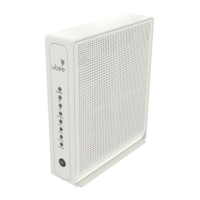
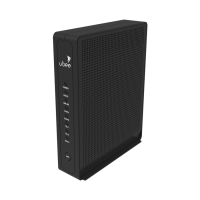
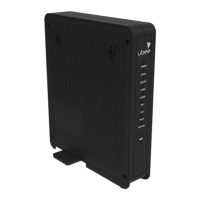
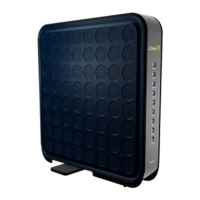
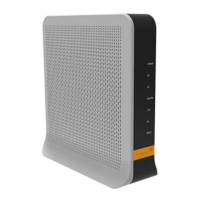
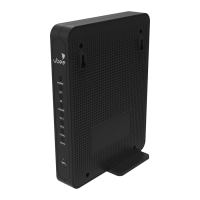
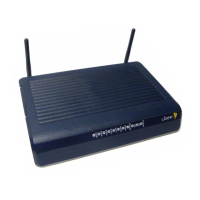
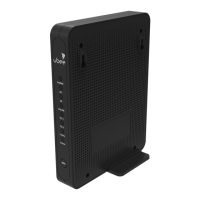
Rear and front panel connections/buttons are explained below:
RESET: Use to reset the device. Take a small object like the end of
a paper clip and insert it into the RESET opening. To power cycle
the device, hold for less than 5 seconds. To reset to factory default
settings, hold for more than 5 seconds. The UBC1310BA10 will
reset and reboot. WARNING: Resetting to factory defaults will
erase ANY and ALL settings that you have made and will restore
the device to factory default settings.
TEL1-TEL2: Use to connect analog telephones to the device.
Telephone service must be enabled by your service provider.
ETHERNET 1-4: Use to connect to Ethernet-enabled devices such
as computers or gaming consoles using RJ45 Ethernet cables.
Each Ethernet port on the back panel of the device has two LEDs
to indicate its status.
When an Ethernet device is connected to the cable modem:
•
The Orange LED is lit when connected at 10/100 Mbps speeds.
•
The Green LED is lit when connected at 1000 speeds (Gigabit
Ethernet).
•
LED blinks (either Orange or Green) when data is passed
between the cable modem and the connected device.
CABLE: Use to connect to the coaxial cable from your Internet
service provider.
POWER: Use to connect to the power adapter. Plug the other end
into the wall power outlet.
WPS: Located on the front panel of the device, this button is used
for the Wi-Fi Protected Setup (WPS) method to connect a PIN-
protected Wi-Fi device to the cable modem.
DOCSIS 3.0/2.0/1.1/1.0 certified
PacketCable 1.5/2.0 compatible
Ethernet 10/100/1000 Mbps
Wireless 802.11a/b/g/n/ac
“Ubee” plus the last 4 characters of the
Cable Modem MAC address (in upper
case). “-2.4G” is added for the 2.4GHz
band, and “-5G” is added for the 5GHz
band.


 To Next Page