MEDIASTUDIO PRO USER GUIDE
136
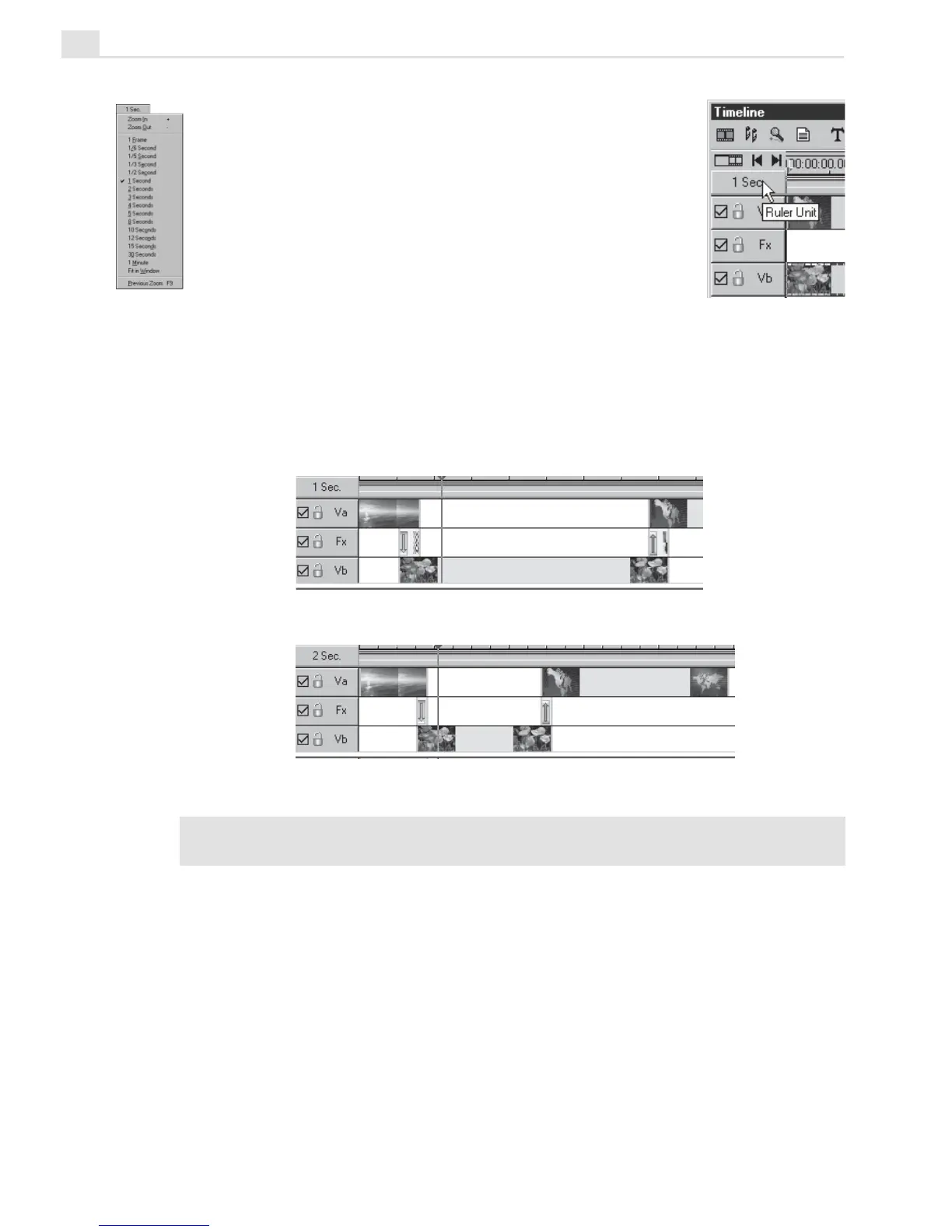
• Click the Ruler Unit button to open the pop-up menu
and choose the preferred time unit to do your editing.
You can also select Zoom In/Out, single Frame, Fit In
Window, or Previous Zoom to toggle between the
previous zoom ratio and the current one.
• Click the Zoom tool and then click on the Timeline.
Each mouse click zooms in one ruler unit (toward
displaying each frame). Holding down the [
SHIFT] key as you click
zooms out one ruler unit (toward Fit in Window). This method is best if
you are zooming in on a particular clip or frame and want it to remain in
view at all times. You can also use the "+" and "-" keys found on the
keyboard to zoom in and out.
General Timeline and Summary Timeline
Ulead MediaStudio Pro provides two types of timeline views: General
Timeline and Summary Timeline.
Tip:
Press and hold the [Z] key on your keyboard to temporarily switch to the Zoom
tool. The [
SHIFT+Z] allows you to zoom out.
Clips viewed at one second
Clips viewed at two seconds



 To Next Page