4. To boot a guest speaker from the party, just drag and drop in back into the drawer or
just turn it off.
NOTES:
• If the guest speaker is not set as a public speaker, you will see a message with an
extra step before that guest speaker can join the party. The owner of that speaker will
need to press the Bluetooth button twice on their speaker.
• If the guest speaker’s Bluetooth Standby is turned off, it cannot be found in the Party
Up drawer.
The following speakers can join the party:
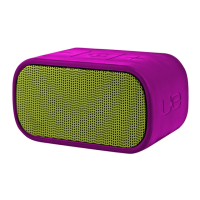
• ULTIMATE EARS BOOM 4
• ULTIMATE EARS BOOM 3
• ULTIMATE EARS BOOM 2
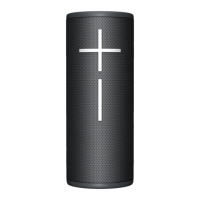
• ULTIMATE EARS MEGABOOM 4
• ULTIMATE EARS MEGABOOM 3
• ULTIMATE EARS EVERBOOM
• ULTIMATE EARS EPICBOOM
• ULTIMATE EARS HYPERBOOM
Volume control
When your speakers first enter the party, the volume of each guest speaker will sync
up to the volume of the host speaker. If the volume of the host speaker is adjusted, the
volume of all host speakers will also be adjusted. The volume of each guest speaker
can also be adjusted individually. If you want the volume of all speakers in the party to
sync up again, you can tap the volume sync icon in the Party Up screen of the app.
Public settings
The privacy setting in the Party Up Settings allows you to control your speaker’s privacy
and visibility. If you want your speaker to be able to join any party, make sure the
setting is ON. If you’d rather keep your speaker hidden, turn the setting off. But don’t
worry, if you still want to join a party, just double tap the Bluetooth button once the host
asks your speaker to join the party.
Customize the EQ
Go to the EQ setting on the UE | BOOM app, and drag to adjust the EQ balance. You
can name and save one custom EQ.
Check MEGAPHONE
MEGAPHONE allows you to broadcast your voice from your speakers by speaking into
your device’s microphone. Press the remote icon in the UE | BOOM app to enable the
MEGAPHONE feature, and speak out loud while playing music.


 To Next Page
 Loading...