10
For iMac/iMac DV and New Power Mac G3/G4 users
Configuring the Scan button Values
1. Click on the VistaAccess icon
in the control strip with one
mouse click. A pop -up menu as
shown on the right appears.
2. Click the Push button
Configuration option. The Push Button
3. configuration window appears.
4. To Configure the Scanner button values. Select the image editing software
you want to scan to when you press the Scan Push button, and the type of
image you are scanning, the desired resolution, the scanning intensity
level, the size of the original image by clicking on the arrow to the right in
each field.
5. You could also click the check box “ Intelligent Image Process Engine” in
the “Push button Configuration” dialogue box to let the scanner do all the
settings for you automatically.
When you click the check box, all
relevant fields will turn gray and the scanner does the correct Brightness
setting.
6. Click the OK button to save the Scan Push Button configuration settings.
These settings will be used whenever you press the Scan button on the
front of the scanner.
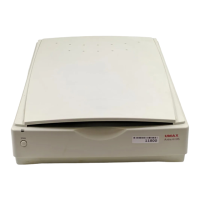
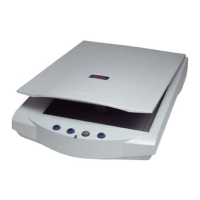
7. Push the Scan button. The scanner will start the scanning process and
scan the image to the specified image editing software.


 To Next Page
 Loading...