Unicorn series User Manual
3.4.2 Connecting the Console
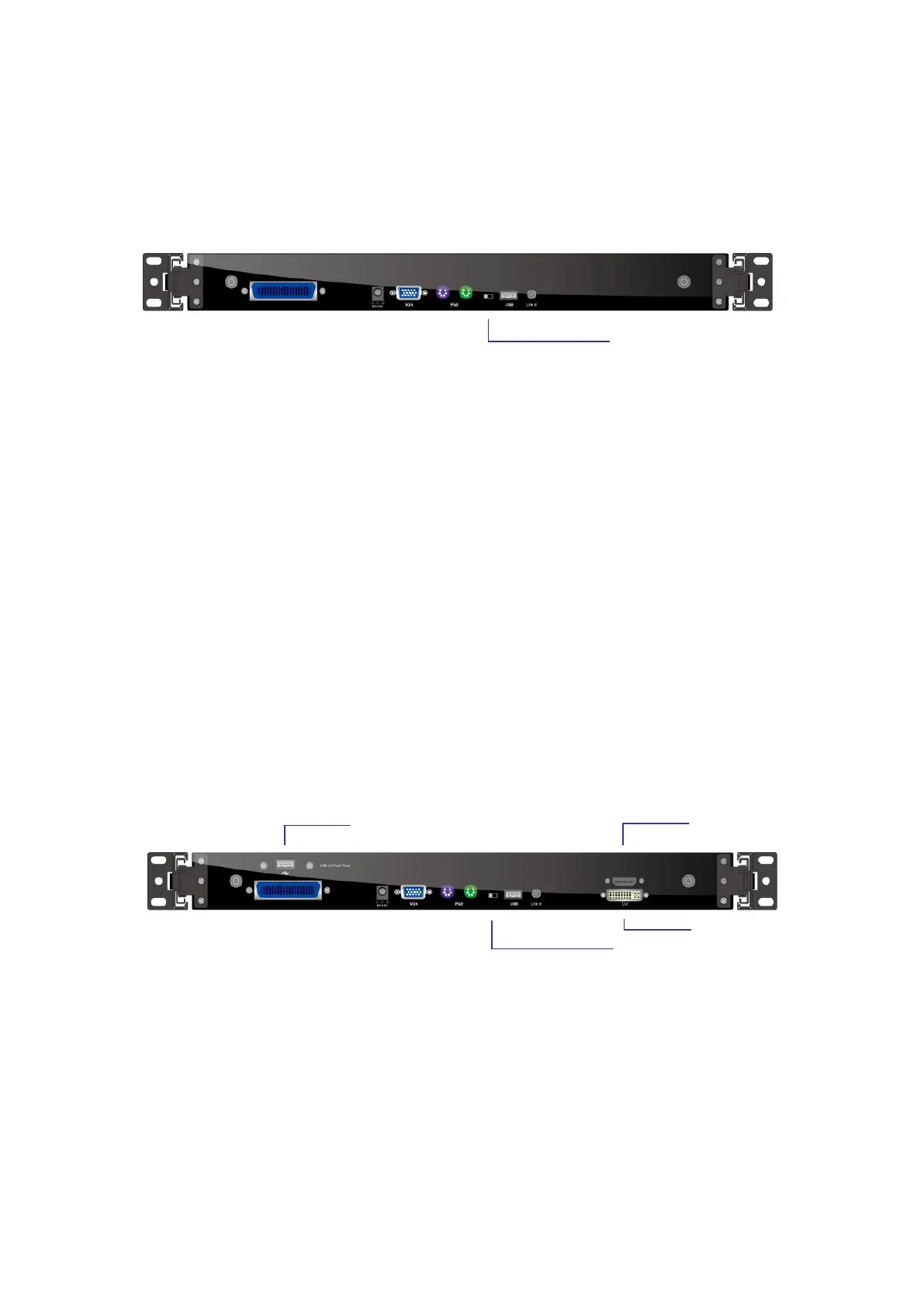
To connect an LCD console to a computer, perform the following steps
Figure 3-1. The Rear View of LCD Console
1. Turn off your computer. You should always turn off your computer before
connecting or disconnecting a device.
2. Connect the video (VGA) connector of the KVM cable to the video card connector
on the rear panel of your computer.
3. Identify and connect the PS/2 mouse and PS/2 keyboard connector to the correct
PS/2 ports on the rear panel of your computer. Or you can use USB interface to
connect your computer. ( Use PS/2-USB switch to select your interface. The
switch has to be on PS/2 side when you use PS/2 interface connector.)
4. Connect the AC to DC power adapter to the power inlet on the console and then to
a power outlet.
With USB Hub
Figure 3-2. The rear view of console (USB Hub)
1. Turn off your computer. You should always turn off your computer before
connecting or disconnecting a device.
2. Connect the video (VGA / DVI / HDMI) connector of the KVM cable (DVI / HDMI)
to the video card connector on the rear panel of your computer.
3. Identify and connect the PS/2 mouse and PS/2 keyboard connector to the correct



 To Next Page