EasyManua.ls Logo

Unify US-8-60W - User Manual

Unify US-8-60W
11 pages
Print Icon
To Next Page IconTo Next Page
Loading...
UniFi Switch Mounting Screws (Qty. 2) Screw Anchors (Qty. 2)
Power Adapter Power Cord
Package Contents
System Requirements
Linux, Mac OS X, or Microsoft Windows 7/8/10
Java Runtime Environment 1.8 or above recommended
Web Browser: Google Chrome (Other browsers may have limited functionality)
UniFi Controller software v5.3.x (or newer), available at:
ui.com/download/uni
IMPORTANT:
We strongly recommend using UPS backup and power regulation to
prevent equipment damage due to stability issues with local AC power.
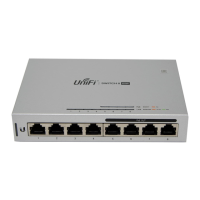
Hardware Overview
Front Panel
US-8-60W Quick Start Guide
Question and Answer IconNeed help?

Do you have a question about the Unify US-8-60W and is the answer not in the manual?

Summary

System Requirements

Hardware Overview

Front Panel Components

Details the RJ45 ports and their functions on the front panel of the device.

Top Panel Indicators

Explains the PoE and RJ45 Speed/Link/Act LEDs on the top panel.

Rear Panel Connections

Describes the ground, power, and reset button connections on the rear panel.

Hardware Installation

Wall Mounting

Instructions for optionally mounting the UniFi Switch on a wall.

Grounding Procedure

Details how to connect an ancillary ground wire for enhanced ESD protection.

Connecting Power

Connecting Ethernet

Software Installation

UniFi Controller Software

Instructions for downloading and installing the UniFi Controller software.

Adopting the UniFi Switch

Steps to add the UniFi Switch to the UniFi Controller management interface.

Specifications

Safety Notices and Compliance

Electrical Safety Information

Guidelines for safe electrical connection and operation of the equipment.

Limited Warranty

Information regarding the limited warranty and dispute resolution.

FCC Compliance

Details compliance with FCC rules for radio frequency emissions.

ISED Canada

Information regarding compliance with Industry Canada regulations.

Australia and New Zealand

Compliance information for Australia and New Zealand standards.

CE Marking

Indicates the product complies with applicable EU directives.

WEEE Compliance Statement

Statement regarding Waste Electrical and Electronic Equipment compliance.

Declaration of Conformity

Formal declaration of the product's compliance with relevant standards.

Online Resources

Links to additional helpful resources and documentation.

Summary

System Requirements

Hardware Overview

Front Panel Components

Details the RJ45 ports and their functions on the front panel of the device.

Top Panel Indicators

Explains the PoE and RJ45 Speed/Link/Act LEDs on the top panel.

Rear Panel Connections

Describes the ground, power, and reset button connections on the rear panel.

Hardware Installation

Wall Mounting

Instructions for optionally mounting the UniFi Switch on a wall.

Grounding Procedure

Details how to connect an ancillary ground wire for enhanced ESD protection.

Connecting Power

Connecting Ethernet

Software Installation

UniFi Controller Software

Instructions for downloading and installing the UniFi Controller software.

Adopting the UniFi Switch

Steps to add the UniFi Switch to the UniFi Controller management interface.

Specifications

Safety Notices and Compliance

Electrical Safety Information

Guidelines for safe electrical connection and operation of the equipment.

Limited Warranty

Information regarding the limited warranty and dispute resolution.

FCC Compliance

Details compliance with FCC rules for radio frequency emissions.

ISED Canada

Information regarding compliance with Industry Canada regulations.

Australia and New Zealand

Compliance information for Australia and New Zealand standards.

CE Marking

Indicates the product complies with applicable EU directives.

WEEE Compliance Statement

Statement regarding Waste Electrical and Electronic Equipment compliance.

Declaration of Conformity

Formal declaration of the product's compliance with relevant standards.

Online Resources

Links to additional helpful resources and documentation.

Overview

The UniFi Switch US-8-60W is a compact and versatile network switch designed for small to medium-sized deployments, offering a blend of Ethernet connectivity and Power over Ethernet (PoE) capabilities. It is managed through the UniFi Controller software, providing a centralized platform for network administration and monitoring.

Function Description:

The UniFi Switch US-8-60W serves as a core component for extending network connectivity and powering compatible devices. It features eight RJ45 Gigabit Ethernet ports, with four of these ports (5-8) supporting auto-sensing 802.3af PoE, allowing it to power devices such as UniFi Access Points or IP cameras directly over the Ethernet cable. The switch is designed for non-blocking throughput, ensuring efficient data transfer across all ports. Its management is handled by the UniFi Controller, which offers a graphical interface for configuration, monitoring, and adoption of UniFi devices. This centralized management simplifies network setup and maintenance, making it suitable for users who prefer a unified approach to their network infrastructure.

Important Technical Specifications:

  • Dimensions: 148 x 99.5 x 30.7 mm (5.83 x 3.92 x 1.21")
  • Weight: 432 g (15.24 oz)
  • Networking Interfaces: (8) 10/100/1000 Mbps RJ45 Ports
  • PoE Interfaces: (4) Ports 5, 6, 7, 8: IEEE 802.3af
  • Power Method: 48VDC, Max. 2A
  • Power Supply: External AC/DC Adapter: 100-240VAC, 50/60 Hz; 48V, 1.25A
  • Max. Power Consumption: 12W (Excluding PoE Output)
  • Max. PoE Wattage per Port: 15.4W
  • PoE Output (Ports 5 to 8): IEEE 802.3af 2-Pair (Pins 1, 2+; 3, 6-)
  • Line Rate: 8 Gbps, Non-Blocking
  • ESD/EMP Protection: ± 24kV Air, ± 24kV Contact
  • Operating Temperature: -5 to 45° C (23 to 113° F)
  • Operating Humidity: 5 to 95% Noncondensing
  • Certifications: CE, FCC, IC
  • System Requirements: Linux, Mac OS X, or Microsoft Windows 7/8/10; Java Runtime Environment 1.8 or above recommended; Web Browser: Google Chrome; UniFi Controller software v5.3.x (or newer).

Usage Features:

  • RJ45 Ports (1-4): These ports support 10/100/1000 Ethernet connections, providing standard network connectivity for various devices.
  • RJ45 Ports (5-8) with PoE: These ports also support 10/100/1000 Ethernet connections but additionally feature auto-sensing 802.3af PoE. This allows the switch to automatically detect and provide power to compatible PoE devices, simplifying cabling and power management for devices like IP phones, wireless access points, and surveillance cameras.
  • LED Indicators: The switch includes LEDs for both PoE status and Speed/Link/Act.
    • PoE LED (Ports 5-8): An "Off" state indicates PoE is off, while "Amber" signifies PoE is on (IEEE 802.3af).
    • RJ45 Speed/Link/Act LED (Ports 1-8): "Off" means no link. "Amber" indicates a link established at 10/100 Mbps, with flashing indicating activity. "Green" indicates a link established at 1 Gbps, with flashing indicating activity. These LEDs provide quick visual feedback on network status and activity.
  • UniFi Controller Management: The switch is managed through the UniFi Controller software, which provides a comprehensive interface for network configuration, monitoring, and device adoption. This allows for centralized control over all UniFi devices in a network. The adoption process is straightforward: after installing the UniFi Controller software, users can locate the UniFi Switch in the device list and click "Adopt." The System LED on the switch will turn blue upon successful adoption.
  • Wall Mounting (Optional): The device supports wall mounting, offering flexibility in placement. The installation involves marking and drilling holes, inserting screw anchors, securing mounting screws, and then hanging the switch. The required distance between mounting points is 73.5 mm, and the drill bit size is 6 mm.
  • Grounding Point: An optional ancillary grounding point is available to enhance ESD protection. While the UniFi Switch is grounded through its power adapter, connecting an additional ground wire to a grounding block or other grounded structure can further improve protection against electrostatic discharge.

Maintenance Features:

  • Reset Button: The reset button serves two primary functions:
    • Restart: A quick press and release of the button will restart the UniFi Switch.
    • Restore to Factory Default Settings: Pressing and holding the reset button for more than five seconds will restore the device to its factory default configuration. This is useful for troubleshooting or reconfiguring the switch from scratch.
  • Software Updates: The UniFi Controller software, which manages the switch, is regularly updated. Users are encouraged to download and install the latest version of the UniFi Controller software from ui.com/download/unifi to ensure optimal performance, security, and access to new features.
  • System Requirements for Controller: Maintaining the recommended system requirements for the UniFi Controller (Linux, Mac OS X, or Microsoft Windows 7/8/10, Java Runtime Environment 1.8+, and Google Chrome browser) ensures smooth operation and management of the switch.
  • Power Regulation Recommendation: It is strongly recommended to use UPS backup and power regulation to prevent equipment damage due to stability issues with local AC power. This proactive measure helps protect the switch from power fluctuations and outages, contributing to its longevity and reliable operation.
  • Ventilation: Proper ventilation is crucial for the device's operation and to prevent fire hazards. It is important to maintain at least 20 mm of clearance next to the ventilation holes for adequate airflow.
  • Environmental Considerations: The device should not be exposed to rain or moisture, used in locations that can be submerged by water, or used during electrical storms to avoid the risk of electric shock. These precautions are essential for the safety and proper functioning of the equipment.
  • Qualified Service Technician: The equipment contains no operator-serviceable parts. Any service or repair should only be performed by a qualified service technician to ensure safety and prevent damage.

Unify US-8-60W Specifications

General IconGeneral
BrandUnify
ModelUS-8-60W
CategoryNetwork Hardware
LanguageEnglish