The Untangle z6 is a network appliance designed for deploying and managing NG Firewall, a comprehensive network security solution. This guide outlines the installation, connection, and initial configuration of the z6 appliance, as well as providing information on its features, warranty, and support resources.
Function Description
The Untangle z6 serves as a dedicated hardware platform for running Untangle's NG Firewall software. NG Firewall provides a suite of network security applications designed to protect networks from various threats, manage internet access, and optimize network performance. The z6 appliance is engineered to deliver reliable and efficient operation of these security services. It acts as a central point for network traffic inspection, filtering, and management, ensuring that all connected devices are protected and that network policies are enforced. Its primary function is to provide a robust and secure gateway for network traffic, offering features such as intrusion prevention, web filtering, virus blocking, VPN, and bandwidth management. The appliance is designed to be easily integrated into existing network infrastructures, providing a scalable and manageable security solution for businesses and organizations.
Important Technical Specifications
While specific hardware specifications like CPU, RAM, and storage capacity are not explicitly detailed in the provided manual, the Untangle z6 is presented as a purpose-built appliance for network security. Key physical features and connectivity options include:
- Ports:
- Rear Panel:
- Power switch: For turning the appliance on and off.
- Power input: Connects to a power source using the provided power cable.
- Video out (HDMI): Allows for direct connection of a display for local administration.
- Front Panel:
- LCD Controls (ESC, DOWN, ENTER): For navigating the appliance's local interface.
- Reset button: For resetting the appliance.
- USB ports: For connecting peripherals like a keyboard and mouse for local administration.
- Internet port: Connects to the internet modem or router.
- LAN ports: Connects to the local area network switch.
- Indicators:
- Power LED (Front Panel): Indicates the power status of the appliance.
- Storage activity LED (Front Panel): Indicates activity on the storage drive.
- Storage power LED (Front Panel): Indicates power status of the storage drive.
- Form Factor: The appliance is designed for rack installation, indicated by the inclusion of rack mounting hardware. This suggests a standard rack-mountable chassis, suitable for data center or server room environments.
- Software: The z6 runs Untangle's NG Firewall software, which includes various applications for network security. The software offers a 14-day trial for recommended apps, which convert to a subscription upon license application.
Usage Features
The Untangle z6 offers several features to facilitate its deployment, configuration, and ongoing management:
- Rack Installation: The appliance comes with bracket ears and hardware for secure rack mounting, ensuring a professional and organized installation in server environments.
- Flexible Connectivity Options:
- Command Center Portal: The primary and recommended method for provisioning and managing the z6 is through the online Untangle Command Center portal (https://untangle.com/cmd). This cloud-based platform allows for remote setup, configuration, and monitoring of the appliance, simplifying deployment for new hardware. Users can log in with an existing account or create a new one, then add the appliance by entering its serial number. This method is ideal for remote management and centralized control of multiple appliances.
- Local Network Connection: For scenarios where internet access is unavailable or local administration is preferred, the appliance can be accessed via the local network. By connecting a management system to LAN port 1, users can access the NG Firewall management interface through a web browser (https://192.168.2.1) after ensuring their system receives an IP address in the 192.168.2.0/24 subnet. This method is crucial for initial setup or troubleshooting when remote access is not feasible.
- Direct Connection: In situations where neither internet nor local network access is possible, the z6 supports direct connection. Users can attach a display to the HDMI port and a keyboard and mouse to the USB ports on the rear panel. From the local menu, the "Launch Client" option opens the administration interface in a browser, allowing for direct configuration. This provides a failsafe method for accessing the appliance's settings.
- Setup Wizard: Upon initial connection, a guided setup wizard assists users in configuring essential parameters, ensuring the appliance is quickly brought online and operational. This simplifies the initial configuration process, making it accessible even for users who may not be deeply familiar with network security appliances.
- NG Firewall Applications: The z6 leverages the full suite of NG Firewall applications, which include premium features for comprehensive network protection. These apps are presented during the first login, with a 14-day trial period for recommended ones. This allows users to experience the full capabilities of the software before committing to a subscription.
- Serial Number Identification: The appliance's serial number, located on the top right front, is essential for registering and managing the device via the Command Center.
Maintenance Features
The Untangle z6 is designed with ease of maintenance and support in mind:
- Warranty: The appliance is covered by a manufacturer warranty, with options for one, two, or three years, depending on the purchase choice. Details of the warranty policy are available online at http://www.untangle.com/refund-return-policy. This provides assurance and protection against hardware defects.
- Support & Documentation: Untangle offers comprehensive support resources:
- Technical Support: Contact information and troubleshooting tips are available at http://support.untangle.com. This portal serves as a central hub for users seeking assistance with their appliance.
- Online Help System: Extensive help resources and documentation are provided through the online help system at http://wiki.untangle.com. This wiki offers detailed guides, FAQs, and troubleshooting articles to assist users in resolving issues and understanding the appliance's functionalities.
- Reset Button: The front panel includes a reset button, which can be used for system resets, a common troubleshooting step for electronic devices.
- LED Indicators: The various LED indicators (Power, Storage activity, Storage power) provide visual cues about the appliance's operational status, aiding in quick diagnosis of potential issues. For example, a non-illuminated Power LED would indicate a power supply problem, while a blinking Storage activity LED would confirm disk operations.
In summary, the Untangle z6 is a robust, rack-mountable network appliance designed to host the powerful NG Firewall software. It offers multiple flexible methods for installation and management, from cloud-based remote access to direct local connections, ensuring ease of deployment and configuration. With its comprehensive security features, clear status indicators, and strong support infrastructure, the z6 provides a reliable and manageable solution for network security needs.

 Need help?
 General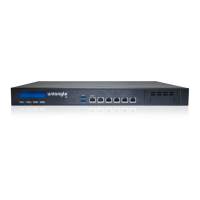

 To Next Page