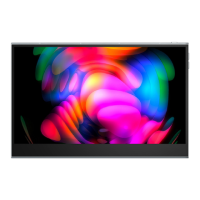
This document is a user manual for the "15.6 Inch Portable Monitor Touchscreen," model M156E08, from UPERFECT. It provides comprehensive information on the monitor's features, setup, specifications, connectivity, and troubleshooting.
Function Description:
The UPERFECT M156E08 is a 15.6-inch portable touchscreen monitor designed to extend or duplicate the display of various devices, including laptops, smartphones, and gaming consoles. It supports both power supply and signal transmission via Type-C ports, and signal transmission via a Mini HDMI port. The touchscreen functionality enhances user interaction, allowing for direct manipulation of content on the screen. It also includes a USB-C OTG port for connecting peripherals like a mouse and keyboard, and a 3.5mm audio port for external audio output. The monitor is designed for portability, making it suitable for on-the-go use, and aims to provide a larger work area or an additional display for various applications.
Important Technical Specifications:
- Model: M156E08
- Panel Type: IPS Screen
- Size: 15.6 inches
- Aspect Ratio: 16:9
- Resolution: 1920 * 1080
- Viewing Angle: 178°
- Contrast Ratio: 800:1
- Brightness: 250 cd/m²
- Built-in Speakers: 8Ω/1W*2
- Input Interface: Mini HDMI*1, Type-C *2, Micro USB 1, 3.5mm HP port1
- Response Time: 3-5ms
- Refresh Rate: 60 Hz
- Number of Colors: 262K (6bit)
- Power Supply: Requires at least 30W, with the provided adapter being 45W.
Usage Features:
- Connectivity:
- Type-C Ports (A & B): Two Type-C ports support both power supply and signal transmission. For devices with low power, an external power supply is recommended. These ports are crucial for connecting to compatible laptops and smartphones that support USB 3.1 for audio and video signal transmission.
- Mini HDMI Port (C): One Mini HDMI port is dedicated to signal transmission only.
- USB-C OTG Port (E): This port allows for extended connection of a mouse and keyboard, enhancing productivity. It is available when connecting to Type-C devices but not when connecting via HDMI.
- 3.5mm Audio Port (F): For connecting headphones or external speakers.
- Power Button (D): Press and hold for 1 second to turn on, and for 3 seconds to turn off.
- OSD Menu Introduction: The On-Screen Display (OSD) menu is accessed via a button and allows users to adjust various settings:
- First Setting: Source selection (HDMI, Type-C), Mute, Eye Protection, Delay Sleep, Brightness, Contrast, Volume.
- Second Setting: Saturation, Color Temperature (9300, 7500, 6500, 5800), and RGB adjustments (SRGB, User) to customize the display's color profile.
- Third Setting: Language, Ultra HDR, 3D Sound, Game Mode, Sharpness, Crosshair, BatInfo, and Reset options.
- Display Modes (Windows 10):
- Extend Mode: Expands the desktop across multiple screens, providing a larger work area.
- Duplicate Mode: Mirrors the primary display onto the portable monitor.
- Display Mode: Allows selection of which monitor to display content on (e.g., "Show monitor only on 1," "Show desktop only on 2").
- Rotation: The screen orientation can be adjusted between Landscape and Portrait modes via Windows Display settings.
- Touchscreen Functionality: The monitor features a touchscreen, which is responsive when connected to compatible devices (e.g., mobile phones supporting USB3.1, computers). For game devices, the touch function is unresponsive.
- Power Supply Recommendation: For stable operation, especially with Type-C connections, it is recommended to use the original power adapter. If a device's Type-C port is only for charging, an HDMI port must be used for signal transfer.
Maintenance Features:
- Troubleshooting (Q&A section):
- Flickering/Insufficient Voltage: If the monitor flickers or switches, it may be due to insufficient voltage. Users should ensure factory-packed cables are used and an external PD power supply (at least 30W, 45W recommended) is connected, especially for 4K monitors.
- Power Bank Compatibility: The monitor requires at least 30W from a power bank; a 45W output is recommended for optimal performance.
- Saving Settings: When using the HDMI port with Type-C power, all settings (brightness, volume, etc.) are saved automatically. However, when using the Type-C port for display without external power, settings are not saved after power-off to prevent issues with phones that cannot provide enough power for high brightness settings. To retain brightness settings, an external Type-C power supply should be used.
- Resolution Issues: If the output resolution is less than 4K 60Hz, users should check device display settings, try another device, and verify if the device's graphics card supports 4K.
- Gravity Sensing: If gravity sensing is not available, users should check the monitor's menu bar to enable it and refer to the manual for detailed instructions.
- Touchscreen Unresponsiveness:
- Mobile Phones: If connecting to a USB3.1-supporting phone and the touchscreen is unresponsive, a display program upgrade may be needed. Users should confirm their phone supports USB3.1.
- Game Devices: Touch functionality is not supported for gaming consoles (Nintendo, XBOX, PS4, etc.).
- Computer/Micro-host: Users should ensure genuine cables are used and connections are correct. If issues persist, trying another computer or replacing the touch cable is advised.
- Service Support: UPERFECT offers a 100% money-back guarantee within 30 days, 90-day replacement, and a 12-month warranty. For any queries or problems, customers are encouraged to contact help@uperfectmonitor.com. The manual provides a flowchart for addressing various issues, including damaged/missing items, quality problems, dissatisfaction, and user manual inquiries, directing users to contact support for free replacement, refund, instructions, or compensation.

 Need help?
 General

 To Next Page