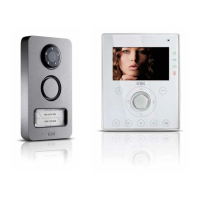
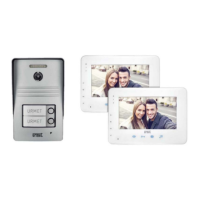
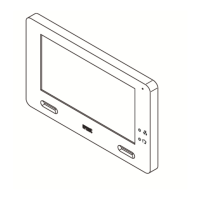
This document describes the Urmet Mikra2 + CXModo two-wire, single-family, hands-free colour video door phone kit, model 1722/851. It covers configuration and usage of its virtual buttons for home automation control.
Function Description
The Urmet Mikra2 + CXModo kit allows users to control home automation functions through a maximum of 12 virtual buttons on the video door phone. These buttons are divided into two groups:
- Yokis Buttons (first 8 buttons): These are equivalent to the 8 buttons on a Yokis remote control model TLC8CP. They enable timely control or implementation of first-level scenarios.
- Composite Buttons (last 4 buttons): These are additional logic buttons created by grouping several Yokis controls to form second-level scenarios.
The system supports various configuration modes for the Yokis Buttons:
- Direct Configuration: Buttons are configured directly via the video door phone's wizard-type interface, which automatically manages the necessary pulses for Yokis button configuration. This requires pressing the 'Connect' button on the receivers.
- Configuration via Remote Control: A physical TLC8CP remote control is first configured to control home automation, and then its configuration is 'copied' to the virtual Yokis Buttons on the video door phone. This method simplifies connecting to receivers.
- Mixed Configuration: A TLC8CP remote control is used solely to establish 'Connections' with receivers, after which the remote control is 'copied' to the video door phone's Yokis Buttons, and the configuration is completed via the video door phone. This combines the advantages of both direct and remote control methods.
Each Yokis Button can be configured to control one or more activation modules (Scenario or Centralisation Scenario) in either Direct Mode or Radio Bus Mode. The video door phone automatically sends the required configuration pulses, simplifying the process for the installer.
Composite Buttons allow for the simultaneous control of several Yokis Buttons, effectively executing a sequence of individual Yokis Button actions to create higher-level scenarios. For example, a "Good Evening" Composite Button could simultaneously close all shutters and turn on specific lights.
A dedicated Stair Lights Button Configuration allows the called user during a video door phone call to activate a pre-configured button (one of the 12 available) to turn on outdoor lights, typically in a timed manner.
Other functions include:
- Exporting Yokis Buttons to a remote control: This allows duplicating a configuration to another video door phone.
- Resetting all Radio Bus Access Points: This deletes all Access Points for all buttons on the monitor simultaneously.
- Button Resetting: This deletes the configuration parameters for all 13 buttons (8 Yokis, 4 Composite, and the Stair Light button) and resets their names.
Important Technical Specifications
- Number of Virtual Buttons: Up to 12 (8 Yokis, 4 Composite).
- Yokis Button Control: Can control up to 4 receivers in Direct Mode.
- Radio Bus Mode: Supports Centralised mode for controlling groups of lights or shutters.
- Connectivity: Two-wire system.
- Display: Colour video display.
- User Interface: Wizard-type interface for configuration, on-screen keypad for naming.
- Feedback: Blue LED on the video door phone provides notification flashes, similar to the red LED on a Yokis remote control.
- QR Code Help: A QR code is available in the settings for accessing the configuration guide.
- IP Rating: IP55 (protection against dust and low-pressure water jets).
- IK Rating: IK07 (protection against mechanical impacts).
Usage Features
- User-Friendly Configuration: The video door phone's interface simplifies the configuration of Yokis buttons, managing pulse sequences automatically.
- Scenario Creation: Users can create first-level scenarios with Yokis buttons and more complex, second-level scenarios with Composite buttons.
- Flexible Control Modes: Buttons can operate in Direct Mode (controlling individual receivers) or Radio Bus Mode (for centralised control of groups like lights or shutters).
- Timed Outputs: Specific modules like the MTR2000ERP relay can be configured for timed outputs (e.g., 15 minutes for irrigation) or impulsive mode (e.g., 0.5-second pulse for gate opening).
- Remote Control Integration: Existing Yokis TLC8CP remote control configurations can be imported, allowing for consistent control across devices.
- Button Naming: Users can assign custom names to each virtual button for easy identification.
- Test Functionality: A 'TEST' button is available on all configuration screens to verify button behavior after configuration.
- Stair Lights Activation: A dedicated button allows for convenient activation of outdoor lights during a video call.
Maintenance Features
- Button Reset: Individual Yokis buttons can be reset to their initial settings without affecting their icon or name.
- Delete Unused Connections: This option is useful when a receiver is replaced, allowing the connection to the old receiver to be deleted after connecting the new one.
- Reset All 13 Buttons: A comprehensive reset function deletes all configuration parameters for all Yokis, Composite, and Stair Light buttons, and resets their names.
- Reset Yokis Radio Bus Access Points: This function allows deleting all Access Points for all buttons on the monitor simultaneously, useful for rectifying errors in Access Point definitions.
- Configuration Duplication: The export function facilitates duplicating a video door phone's configuration to another device, simplifying setup for multiple units.
- Troubleshooting Assistance: The QR code provides quick access to the configuration guide for help and detailed information on available options.
- Notification Flashes: The blue LED provides visual feedback on configuration pulses, aiding installers in verifying successful operations.

 Need help?
 General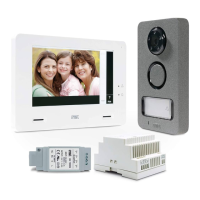



 To Next Page