This document is the Quick Start Guide for the IPerCom IP Video door entry system, manufactured by Urmet. It outlines the initial setup, installation, and commissioning process for the system, emphasizing the use of specific tools and documentation provided with the product.
Function Description:
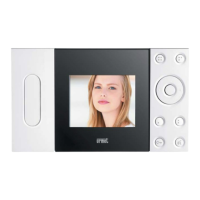
The IPerCom IP Video door entry system is a comprehensive IP-based solution for door entry and communication. It integrates video and audio communication, access control, and potentially other building management functions into a unified system. The system is designed for both residential and commercial applications, offering advanced features for security and convenience. Key components include outdoor entry panels, indoor monitors, network switches, and specialized decoders. The system leverages IP technology for flexible installation and scalability, allowing for integration with existing network infrastructure.
Important Technical Specifications (Inferred from the guide):
- IP-based System: Utilizes standard IP networking protocols for communication between devices. This implies compatibility with Ethernet networks and potentially Power over Ethernet (PoE) for simplified wiring.
- Firmware Upgradable: Devices within the system can have their firmware updated to ensure they are running the latest versions, providing access to new features, bug fixes, and security enhancements. This is managed via the "IPerUpgrade tool."
- Configuration via Software Tool: The system requires a dedicated "IPerCom Installer tool" for configuration, suggesting a software-driven setup process that allows for detailed customization of device parameters, call routing, and access control settings.
- MAC Address/QR Code Identification: Each device is identified by a unique MAC address and/or QR code, which are crucial for system commissioning and record-keeping. This facilitates accurate tracking and configuration of individual components.
- USB Flash Drive for Tools and Documentation: The system relies on USB flash drives ("Installer USB flash drive" and "Client USB flash drive") to distribute necessary software tools, user guides, and commissioning records. This indicates a portable and standardized method for system deployment and handover.
- Support for Various Components: The system supports a range of components including:
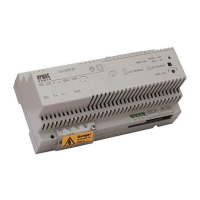
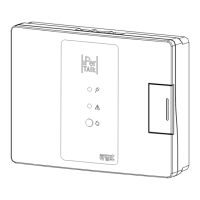
- 1060/84 Special Decoder: A specific decoder unit, likely for integrating with existing systems or handling specialized video streams.
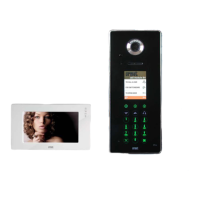
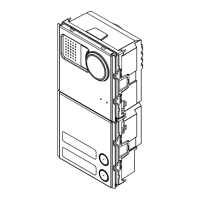
- 1060/74 Entry Panel: An outdoor entry panel, which typically includes a camera, microphone, speaker, and call buttons.
- RTSP Camera Setup: Capability to integrate with Real-Time Streaming Protocol (RTSP) cameras, suggesting support for third-party IP cameras or advanced video streaming features.
- Proximity Access Control: Integration of proximity readers for keyless entry, enhancing security and convenience.
- Call Forwarding: A feature that allows calls from the entry panel to be redirected, possibly to mobile devices or other internal stations.
- PC Switchboard Setup: Implies the ability to manage calls and system functions from a PC-based switchboard, suitable for concierge or reception desks.
- Lift Control: Integration with elevator systems, allowing for controlled access to specific floors based on door entry events or access credentials.
Usage Features:
- Video Door Entry: Provides visual and audio communication with visitors at the entry point.
- Access Control: Allows for controlled entry using various methods, including potentially keypads, proximity cards, or remote unlocking from indoor monitors.
- Intercom Functionality: Enables communication between indoor monitors within the system.
- Call Management: Features like call forwarding enhance flexibility in handling incoming calls from the entry panel.
- System Monitoring: The PC Switchboard setup suggests centralized monitoring and management capabilities for larger installations.
Maintenance Features:
- Firmware Updates: The "IPerUpgrade tool" allows for easy updating of device firmware, ensuring the system remains current and secure. This is a critical aspect of long-term system maintenance.
- Commissioning Records: The emphasis on peeling and sticking MAC address/QR code stickers onto commissioning forms highlights the importance of detailed record-keeping for future maintenance, troubleshooting, and system expansion. These records provide a clear inventory and configuration baseline for each device.
- Dedicated Installer Tool: The "IPerCom Installer tool" is used for initial configuration and likely for ongoing adjustments and diagnostics, simplifying maintenance tasks for trained technicians.
- Comprehensive Documentation: The provision of "IPerCom Hardware installation guide," "IPerUpgrade tool user guide," "IPerCom Installer tool user guide," and "Client USB flash drive" with End User information (including O&M manuals and user instructions) ensures that all necessary information for installation, operation, and troubleshooting is readily available. This facilitates both professional maintenance and end-user understanding of the system.
- Test and Commissioning Sheets: The "Commissioning Test Result sheets" provided on the Installer USB flash drive are essential for verifying proper system functionality after installation and for documenting the system's operational status, aiding in future maintenance and fault diagnosis.



 Need help?
 General

 To Next Page