computer uses).
Linux users: Open the CD- ROM, browse to \plat f orms\linux, and double- click on inst all.bin.
2. Select your preferred language and click OK.
3. If you are using Windows, the installer runs a qualification test to verify that your system meets the minimum requirements for installation. When done, a Result s
screen displays green flags next to system components that meet requirements and red flags next to any that do not. If your system passes the qualification,
click Next . If any of your system components do not meet the requirements, click View Report to identify them.
Setup now installs the EasyConfigurator.
S t e p 4 . C o n f i g u r e t h e G a t e w a y w i t h E a s y C o n f i g u r a t o r
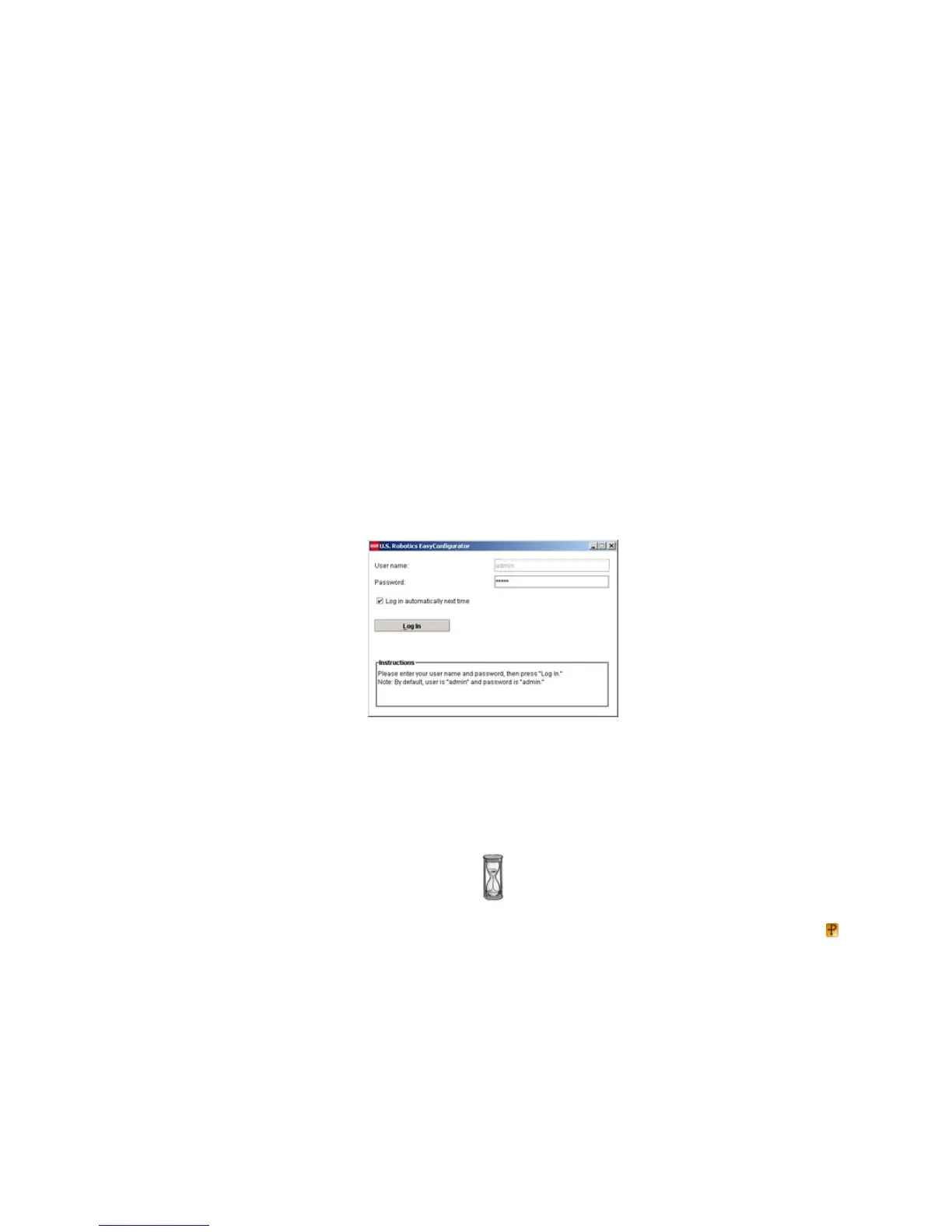
1. This is the EasyConfigurator login window:
If EasyConfigurator does not start up automatically, you can open it yourself.
Windows Vista users: Click Windows St art > All Programs > U.S. Robot ics EasyConf igurat or.
Windows users: Click St art and select Programs and U.S. Robot ics EasyConf igurat or.
Macintosh and Linux users: Double- click on the EasyConfigurator icon on the desktop.
The default user name and password are already entered for you. Click Log In and wait a few moments.



 To Next Page