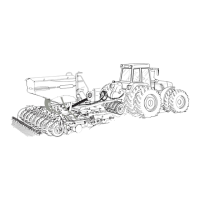
Creating eld boundary
• Begin Seeding
• Tap red Record button to begin recording the boundary
• Once the implement comes back to the beginning of the eld boundary, a notication ring and
a green check mark will allow you to tap Close Boundary.
• If you need to stop in the middle of recording the boundary, tap the Pause button
• Ensure to press the resume button once you begin seeding again
View QuickStart video
Advanced Features
Edit headland mode
• This mode will automatically show up if you entered a “false” headland and once you have
closed the boundary
• If you would like to remove headlands from two edges of the eld do the following:
• Tap and Hold from the black edge around the outside of the eld and drag your nger to the
inside of the eld
• Do the same for how many cuts you would like to make in the eld
• Tap the Pencil at the top of the screen in order to nish Edit Headland mode
Creating obstacles
• Seed around the Obstacle
• Double tap the gray portion of the eld that is the Obstacle
• This will adjust any acreage that has and will be seeded in the Job information
View QuickStart video
Other tips and tricks for seeding
• In Field calibration works best when your starting static calibration number is close. If you are
having trouble getting in eld cal to settle, try doing or redoing a static calibration
• Set up jobs in the eld, not before. There is a 10km buer, outside of that, the job won’t open
• DO NOT turn outside the eld when mapping a eld boundary
• Start eld boundaries after 50+ feet of seeding, so you have room to close the boundary
• A LWAYS dig to double check your product turn on/o times
• ONLY use t to eld when you are close to nished (less than 20 acres)
• DO NOT recongure the machine with product in the tanks, no way to tare tanks to zero


 To Next Page
 Loading...