0020285487_05 Installation instructions 7
4 Installation
4.1 Checking the assembly and
installation prerequisites
▶ Check:
– WLAN signal available (if operation
with WLAN is selected)
– LAN cable available (if operation with
LAN is selected)
– eBUS line accessible, if required
– Free plug socket available, if required
– Routing and security parameters in
the IP network: Ports 80, 123, 443
and 8443 enabled for outgoing con-
nections
– Dynamic IP addressing (DHCP)
available
– The installation site and cabling for
the product with the heat generator is
not publicly accessible
– Internet connection for permanent
Internet communication is available
– The IP network has an activated fire-
wall and is encrypted, see technical
data
4.2 Wall installation, electrical
connection to the plug socket
▶ Observe the installation steps in the
illustrated instructions at the end of this
document.
4.3 Alternative electrical
connection to the heat
generator (extra accessory
required)
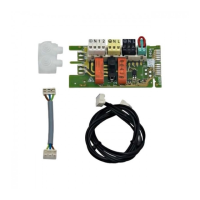
1. Remove the power supply unit and
the eBUS connection cable.
2. Install the connection cable (article
number: 0020284732) for the direction
connection to the heat generator.
4.4 Connecting the product to the
Internet
1. Ensure that all additional system
components, such as the control, are
operating when you switch on the
product.
2. Briefly press the button in the pro-
duct's terminal block.
◁ The product is now in coupling
mode for ten minutes.
3. For additional instructions, follow the
corresponding app.
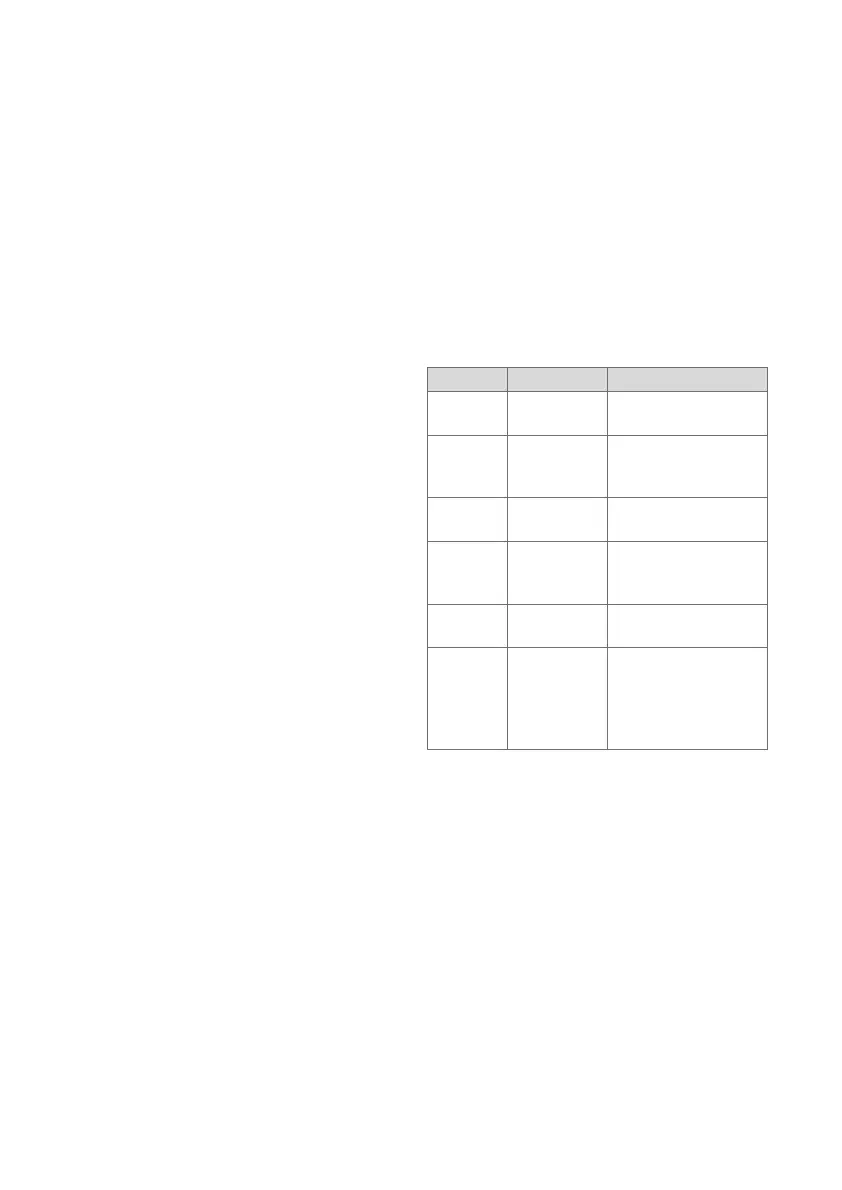
4.5 Meaning of the LEDs
LED Status Meaning
Yellow/
green
Flashing The product starts.
Yellow/
green
Lights up The start process
ends; ready for
coupling
Blue Flickering The coupling mode
(WLAN) is active
Blue Lights up LAN/WLAN is avail-
able. The product is
ready for operation.
Blue Flashing Product software is
updating
Red Lights up Internet connection
was disconnected;
when connecting
via LAN: No Internet
connection available
4.6 Data protection and connecting
the product to the Internet as
well as EEBUS solutions from
third-party providers
You can only use the product's scope of
functions with the corresponding app. To
install the app, you must accept the T&Cs
and Privacy Policy.
If you connect the product to the Internet
via a LAN cable without using the corres-
ponding app, the product automatically
sends the following technical data to the
manufacturer's server:






 To Next Page