EasyManua.ls Logo

Vanin EC4-1200 - User Manual

Vanin EC4-1200
2 pages
Print Icon
To Next Page IconTo Next Page
Loading...
Website : www.juplink.com
Email : Support@juplink.com
Before Setting
To customize your wireless network connection and other
to download EC4-1200 updated Firmware and User Guide
Operating Conditions
Tech Support
Working Temperature: 0~45°C / 32~113°F
Working Humidity: 10%~90% RH (Non condensation)
Storage Temperature:-40~85°C / -40~185°F
Storage Humidity: 5%~95% RH (Non- condensing)
Mail: support@juplink.com
Tell : +1 (833) 923 - 2468 (Toll Free)
Service Time : EST : 09:00-17:00/PDT: 06:00
advanced repeater settings, please go to www.Juplink.com/Support/
for more information.
Quick Start Guide
V A N I N
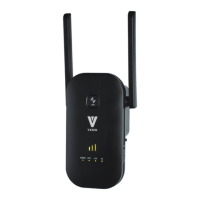
EC4-1200
Wi-Fi Extender
LED Status Indicators
Wi-Fi Signal Strength
Indicator LED
WPS
LED
2.4G / 5G Signal LED
PWR
On WPS is enabled and connected
WPS is enabled and connection being established
Off
Flashing
On
Off
Powered on
Powered off
Status Description
Function not enabled or Powered off
Normal connection but No transmissing data
Transmissing data
One LED on Weak reception, strength below 25%
Two LEDs on Good receiving, strength of 50~75%
Three LEDs on Excellent receiving, strength above 75
No Wifi signal or Powered off
On
Off
Flashing
Method 1 : Extending Your Wi-Fi Network Using Web UI
Extend Your Wi-Fi Network
1. Connect your Wi-Fi device to the extender ’s Wi-Fi network
Juplink-EC4-1200_5G or Juplink-EC4-1200.
3. Username:admin / Password:admin
4. Modify your SSID and Password
( Note :It may takes a few seconds to scan the network )
Ensure that Mobile Data ( if any ) is disabled.
WLAN
Juplink-EC4-1200
Juplink-EC4-1200_5G
Login VANIN EC4-1200 extender
Username
Password
admin
admin
Cancel Login
6. Scroll to the lower part of the page, and enter the password of the Wi-Fi network you want to extend,
7. Scroll to the bottom of the page and Click “Save&Apply”.
Extend Your Wi-Fi Network
Relocate the
Extender
CancelSave&Apply
Wait until the Change setting successfully! page appears
Method 2 : Extending Your Wi-Fi Network Using WPS
You can use Method 2 if your router has a WPS button. otherwise, use Method 1
Extend Your Wi-Fi Network
WPS
POWER
WPS
2.4G
5G
WPS
1. For better performance, plug the extender into an outlet between
the router and the Wi-Fi dead zone.
The location you choose must be within the range of your existing
Wi-Fi network
2. Wait until the 2.4G / 5G Signal LED turns solid green, or the
Wi-Fi Signal Strength Indicator shows at least Two LEDs on
POWER
WPS
2.4G 5G
POWER
WPS
2.4G 5G
POWER
WPS
2.4G 5G
POWER
WPS
2.4G 5G
5. Select a Wi-Fi network (SSID) you want to extend
NoteDefault SSID and password are automatically copied from those of the router for both 2.4 GHz and 5 GHz networks. If you wish to modify
these settings, Select the check box and then enter the SSID and password that you wish to apply to the extended Wi-Fi network(s).
Juplink-RX4-1800
Juplink-RX4-1800_5G
Juplink-Router
Relocate the
Extender
1. For better performance, plug the extender into an outlet between
the router and the Wi-Fi dead zone.
The location you choose must be within the range of your existing
Wi-Fi network
2. Wait until the 2.4G / 5G Signal LED turns solid green. or the
Wi-Fi Signal Strength Indicator shows at least Two LEDs on
1. Press the WPS button on the router and then press the WPS button on the extender within 2 minutes
2. Wait until the 2.4G / 5G Signal LED turns solid green
Within 1 ft
2. Run a web browser on the device which is connected
to the extender,Enter router.juplink.com
or 192.168.0.2
http://192.168.0.2 router.juplink.comor
Power on the Extender
1. Plug the extender into a power outlet near the router
2. Wait until the 2.4G / 5G Signal LED turns solid green
Note : When the distance between the router and the extender is
less than 1 ft , pairing is easier to succeed
NOTE:
Before using
please turn
the right side
switch to ON

Power on the Extender
1. Plug the extender into a power outlet near the router
2. Wait until the 2.4G / 5G Signal LED turns solid green
Note : When the distance between the router and the extender is
less than 1 ft , pairing is easier to succeed
NOTE:
Before using
please turn
the right side
switch to ON

Question and Answer IconNeed help?

Do you have a question about the Vanin EC4-1200 and is the answer not in the manual?

Summary

Before Setting

Method 1: Extending Wi-Fi Via Web UI

Method 2: Extending Wi-Fi Via WPS

Power On Extender

Plug in the extender and wait for the signal LED to turn solid green.

Extend Wi-Fi Network

Press WPS buttons on router and extender, then wait for connection.

Troubleshooting

Resetting the Repeater

Press and hold the RESET button for 8 seconds to restore factory settings.

Web Page Login Issues

Verify connection, IP address, and browser cache for login problems.

Extension Failure Issues

Verify signal indicator, encryption, network name, and password settings.

Overview

The VANIN EC4-1200 Wi-Fi Extender is a device designed to expand the coverage of an existing Wi-Fi network, eliminating dead zones and improving signal strength. It operates as a repeater, taking an existing Wi-Fi signal and rebroadcasting it to extend its range.

Function Description:

The primary function of the EC4-1200 is to extend a Wi-Fi network. It can be configured using two main methods:

  1. Web UI (User Interface): This method involves connecting a device to the extender's Wi-Fi network (e.g., "Juplink-EC4-1200" or "Juplink-EC4-1200_5G"), then accessing a web browser to navigate to router.juplink.com or 192.168.0.2. Users can then log in with default credentials (admin/admin), select the Wi-Fi network to extend, and enter its password. The extender automatically copies the SSID and password from the router, but users have the option to modify these settings for the extended network.
  2. WPS (Wi-Fi Protected Setup): This method offers a quicker setup for routers equipped with a WPS button. Users simply press the WPS button on the router and then on the extender within two minutes to establish a connection.

Once configured, the extender creates an extended Wi-Fi network, allowing devices to connect to it for improved signal strength and coverage.

Important Technical Specifications:

  • Operating Temperature: 0~45°C (32~113°F)
  • Operating Humidity: 10%~90% RH (Non-condensing)
  • Storage Temperature: -40~85°C (-40~185°F)
  • Storage Humidity: 5%~95% RH (Non-condensing)
  • Wi-Fi Standards: Supports 2.4G and 5G networks, including WPA2-PSK encryption.
  • Power: The device is powered via a standard electrical outlet.

Usage Features:

  • LED Status Indicators:
    • PWR (Power): Off (Powered off), On (Powered on).
    • 2.4G/5G Signal LED: Off (No Wi-Fi signal or Powered off), On (Normal connection but No transmitting data), Flashing (Transmitting data).
    • WPS: Off (Function not enabled or Powered off), On (WPS is enabled and connected), Flashing (WPS is enabled and connection being established).
    • Wi-Fi Signal Strength Indicator LED: One LED (Weak reception, strength below 25%), Two LEDs (Good receiving, strength of 50~75%), Three LEDs (Excellent receiving, strength above 75%). These LEDs help users determine the optimal placement for the extender.
  • Relocation Guidance: After initial setup, the extender should be plugged into an outlet between the router and the Wi-Fi dead zone. The goal is for the 2.4G/5G Signal LED to turn solid green or for the Wi-Fi Signal Strength Indicator to show at least two LEDs, indicating good reception.
  • Dual-Band Support: The extender supports both 2.4 GHz and 5 GHz Wi-Fi networks, allowing for flexibility in extending different types of networks.
  • SSID and Password Customization: Users can choose to keep the default SSIDs and passwords (copied from the router) or customize them for the extended network.
  • Troubleshooting: The manual provides extensive troubleshooting tips for common issues such as:
    • No power or LED indicators.
    • Inability to find the Wi-Fi network of the repeater.
    • Difficulty logging into the web page.
    • Failure to extend the SSID.
    • No internet access after extension.
    • Poor signal strength.
    • Repeater not working after a period of time.
    • Issues with the repeater's IP address.
    • Problems with the repeater's channel.
    • Inability to find the repeater's Wi-Fi network.
    • Issues with the repeater's authentication and encryption.
    • Problems with the repeater's signal indicator.
    • WPS button not working.
    • Repeater not connecting to the router.
    • Mobile device losing connection to the repeater.
    • Repeater not receiving strong signal.
    • Repeater changing its channel.
    • Repeater not remembering settings.
    • Repeater not working with Comcast/telecom router.

Maintenance Features:

  • Firmware Updates: Users are advised to visit www.Juplink.com/Support/ to download updated firmware and user guides, ensuring the device operates with the latest features and improvements.
  • Reset Functionality: A reset button is available to restore the extender to factory settings. This can be useful for resolving persistent issues or reconfiguring the device. The manual specifies pressing the RESET button for 8 seconds after the device is powered on.
  • Technical Support: Juplink provides technical support via email (support@juplink.com) and phone (+1 (833) 923-2468) during EST: 09:00-17:00/PDT: 06:00.
  • FCC Statement: The device complies with Part 15 of the FCC Rules, indicating it has been tested and found to comply with limits for a Class B digital device. Users are reminded that any changes or modifications not expressly approved by the party responsible for compliance could void the user's authority to operate the equipment. The device should be installed and operated with a minimum distance of 20 cm between the radiator and your body.

Vanin EC4-1200 Specifications

General IconGeneral
BrandVanin
ModelEC4-1200
CategoryExtender
LanguageEnglish