EasyManua.ls Logo

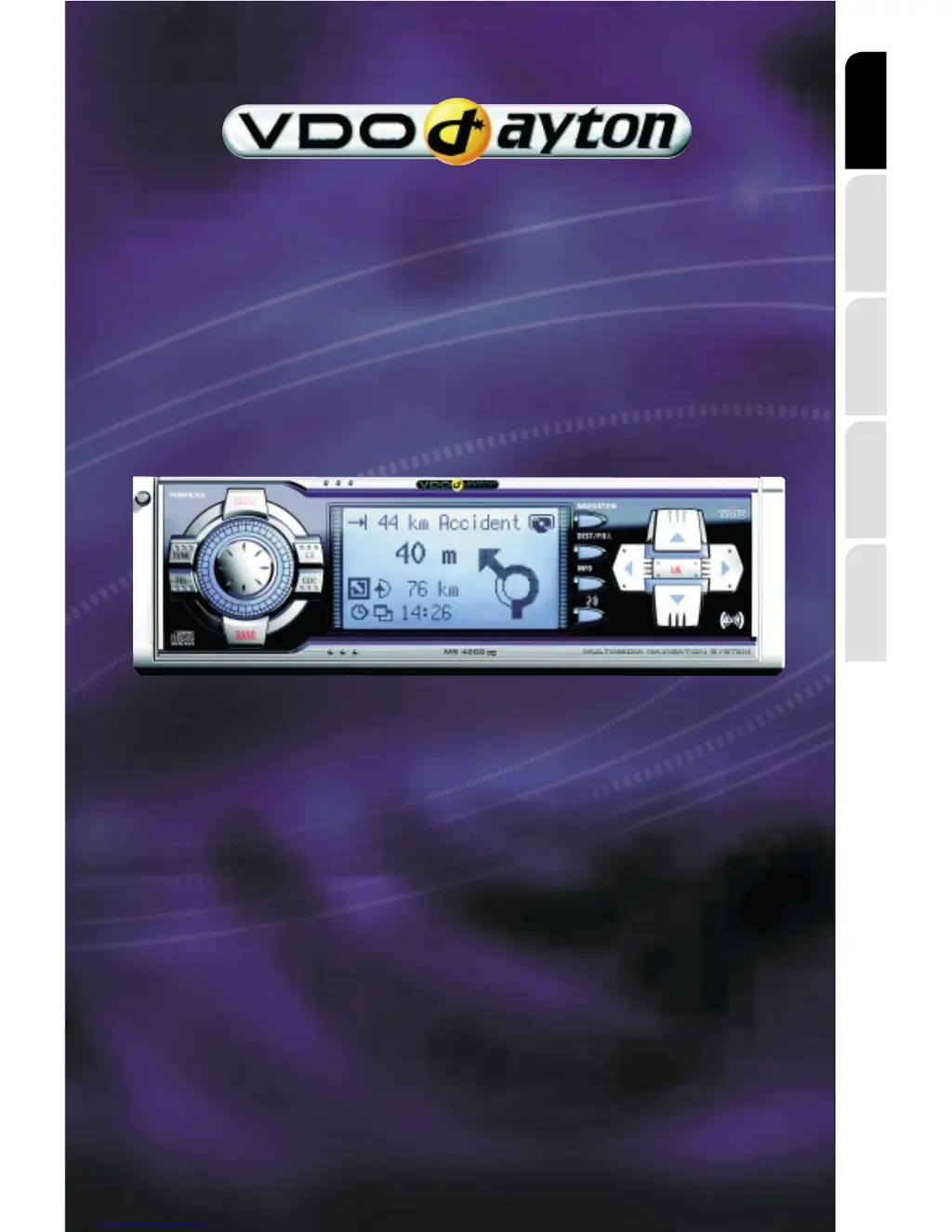
VDO MS 4200 RS - User Manual

VDO MS 4200 RS
74 pages
Print Icon
To Next Page IconTo Next Page
Loading...
MS 4200 RS
www.vdodayton.com
Operating Software
MO 4254
English
Français
Deutsch
Nederlands
Italiano
Owner’s manual and mounting instruction
Mode d’emploi et manuel d’installation
Bedienungs- und Einbauanleitung
Gebruiksaanwijzing en inbouwhandleiding
Istruzioni d’uso e d’installazione

Table of Contents

Questions and Answers

  • D
    David DavilaAug 20, 2025
    How to fix a VDO MS 4200 RS with no display?
    • F
      francesjamesAug 20, 2025
      If your VDO Car Navigation system's radio isn't working and the display is blank, check the fuse (both in the unit and the vehicle) and ensure all connections are properly secured, referring to the installation instructions for guidance.
  • W
    Walter MillerAug 22, 2025
    How to improve radio reception on VDO MS 4200 RS Car Navigation system?
    • I
      ireynoldsAug 22, 2025
      To improve poor radio reception on your VDO Car Navigation system, make sure the antenna is fully extended and correctly connected. Also, check that the supply power negative pole (brown lead) is properly connected to the vehicle chassis (earth).
  • S
    Sydney HensonAug 25, 2025
    Why is the ETA wrong on my VDO Car Navigation system?
    • W
      Whitney DuncanAug 25, 2025
      If the estimated time of arrival is incorrect on your VDO Car Navigation system, check the time zone in the “INITIALISATION - CLOCK SETTINGS” menu, especially if the GPS clock is activated.
  • J
    Justin RodriguezAug 26, 2025
    What to do if VDO MS 4200 RS Car Navigation system rejects CD?
    • O
      owensrobertAug 27, 2025
      If your VDO Car Navigation system rejects audio or map CDs, the CD may be dirty. Clean the CD with a special CD cleaning fluid.
  • A
    Anthony BarnesAug 27, 2025
    What does 'Temperature too high' mean on VDO Car Navigation display?
    • A
      Amy KnappAug 28, 2025
      When your VDO Car Navigation system displays “Temperature too high” and lowers the volume, it means a safety circuit is preventing the unit from overheating. Allow the unit to cool down by setting a lower volume and wait until the message disappears from the display.
  • D
    Dominique DanielAug 29, 2025
    What to do if VDO Car Navigation system says 'Please insert map CD'?
    • E
      Ernest WhiteAug 29, 2025
      If your VDO Car Navigation system displays “Please insert map CD”, insert the C-IQ map CD into the radio CD drive with the label facing upwards.
  • M
    Michelle HoltAug 31, 2025
    How to enable traffic announcements on VDO MS 4200 RS Car Navigation system?
    • K
      Karen RyanAug 31, 2025
      If your VDO Car Navigation system isn't making traffic announcements, activate the “TA Scan” function in the “Information” menu.
  • J
    johnsonbrianSep 2, 2025
    Why does my VDO MS 4200 RS Car Navigation system say 'Please insert correct CD'?
    • V
      Vanessa RamirezSep 2, 2025
      If your VDO Car Navigation system displays “Please insert correct CD”, ensure you are using a map CD that contains C-IQ data, as map CDs without C-IQ data will not be accepted.
  • M
    margaret82Sep 4, 2025
    Why is my phone not detected by VDO MS 4200 RS?
    • S
      Steven SmithSep 4, 2025
      If your VDO Car Navigation system isn't detecting the connected telephone, access the initialisation menu, select “Telephone ON,” and choose “12 V” for Nokia hands-free units.
  • B
    Brian CaseSep 6, 2025
    Why does my VDO MS 4200 RS Car Navigation system mute during driving?
    • N
      Natasha WarnerSep 6, 2025
      If your VDO Car Navigation system switches off the sound or displays “PHONE IN/MUTE” while driving, the speedometer signal might be connected to the wrong pin of the power supply connector. Check the pin setting ISO chamber A in the installation instructions.

Summary

New Functions and Features

Additional New Functions

Speed Information and Warnings

New C-IQ Functions and Info Points

Other Software Changes

INSTALLATION INSTRUCTIONS

General Installation Precautions

Covers essential warnings like professional installation, fire hazards, correct connections, and battery disconnection.

Vehicle Connector Types

Differentiates installation for vehicles with standard ISO connectors versus those without.

Electrical Connection Guidelines

Details on routing wires, referencing diagrams, and managing unused wires.

Installation Details

ISO Chamber A Connection Overview

Lists pin connections for ISO chamber A, detailing signals like speedometer, reversing, and power.

Further Installation Connections

Optional Connections and Antenna Installation

Radio Mounting and Initial Setup

Post-Installation Checks and Service

SAFETY

Removable Operating Panel Security

Instructs on securing the removable panel when leaving the vehicle.

Security Code and Anti-Theft Measures

Explains the security code for theft protection and the anti-theft LED indicator.

Safety Stickers Application

Advises affixing safety stickers to vehicle windows for visibility.

INFORMATION MENU

SOUND SETTINGS

INITIALISATION

C-IQ - INTELLIGENT CONTENT ON DEMAND

NAVIGATION

Navigation Main Control Overview

Lists primary functions accessible from the main control screen, including destination input, guidance, and system settings.

Destination Input Methods

Details various ways to enter a destination, including address, POIs, GPS coordinates, and travel info.

Entering New Addresses and Quick Access

Guides through address entry using a wizard, country change, and road name shortcuts.

Completing Address Entry and Route Selection

Covers entering road names, house numbers, selecting route criteria, and initiating guidance.

Special Destinations (Points of Interest)

Guides on inputting destinations by selecting special facilities like airports, hotels, and petrol stations.

Nearby Facilities and GPS Coordinate Input

Covers selecting nearby facilities and entering destinations using GPS coordinates.

Via Point Input and Management

Explains how to add via points to a route and the options for entering them.

Guidance Screen Information and Elements

Explains elements on the guidance screen, status fields, and traffic obstruction alerts.

Audible Guidance Messages and Advice

Explains voice messages for turns, 'turn now' advice, and repeating/ignoring guidance.

Navigation in Areas Without Digitised Roads or Limited Info

How guidance works beyond digitised roads and in areas with incomplete map data.

Route Selection Criteria and Dynamic Planning

Allows modifying route criteria, including dynamic planning and toll road avoidance.

Information During Guidance

How to access route lists, traffic events, and car position information during guidance.

Via Points, Destination, GPS;Compass, and Trip Computer

Covers managing via points, viewing destination, checking GPS, and using the trip computer.

Traffic Information Categories

Explains how to obtain traffic info at car position, destination, or along the route.

Viewing Traffic Information Details

Shows how to view detailed traffic obstruction info and data from the TMC provider.

Dynamic Guidance with TMC and Screen Display

How TMC accounts for traffic for route planning and guidance, including voice messages and screen alerts.

Bypassing Traffic Obstructions and Dynamic Route Planning

Covers local detours around traffic obstructions and dynamic route planning based on traffic conditions.

Planning and Managing Alternative Routes

Explains how to plan alternative routes and change their distance during guidance.

Address Manager Functions

Covers storing, deleting, and renaming addresses in the address book and managing via points.

Address Book and Last Destinations Management

Details storing current location, deleting last destinations, renaming addresses, and address book capacity.

System Settings Customization

Explains customizing navigation functions, including speed settings, guidance screen, dynamic route, and language.

Dynamic Route Planning Settings

Details settings for dynamic route planning like re-route level, horizon, and delay thresholds.

TROUBLESHOOTING

General, Radio, and CD Player;Changer Issues

Solutions for common issues related to the unit, radio reception, and CD playback.

Navigation System Troubleshooting

Addresses problems like missing map CD, slow response, GPS issues, and guidance inaccuracies.

GPS, Audio, and Traffic Information Issues

Covers GPS reception, audio problems, and traffic information display issues.

VDO MS 4200 RS Specifications

General IconGeneral
Audio PlaybackMP3, WMA
BluetoothYes
USB PortYes
SD Card SlotYes
Display Resolution480 x 272 pixels
Display Size4.3 inches

Related product manuals