3
4.Tablet Connection
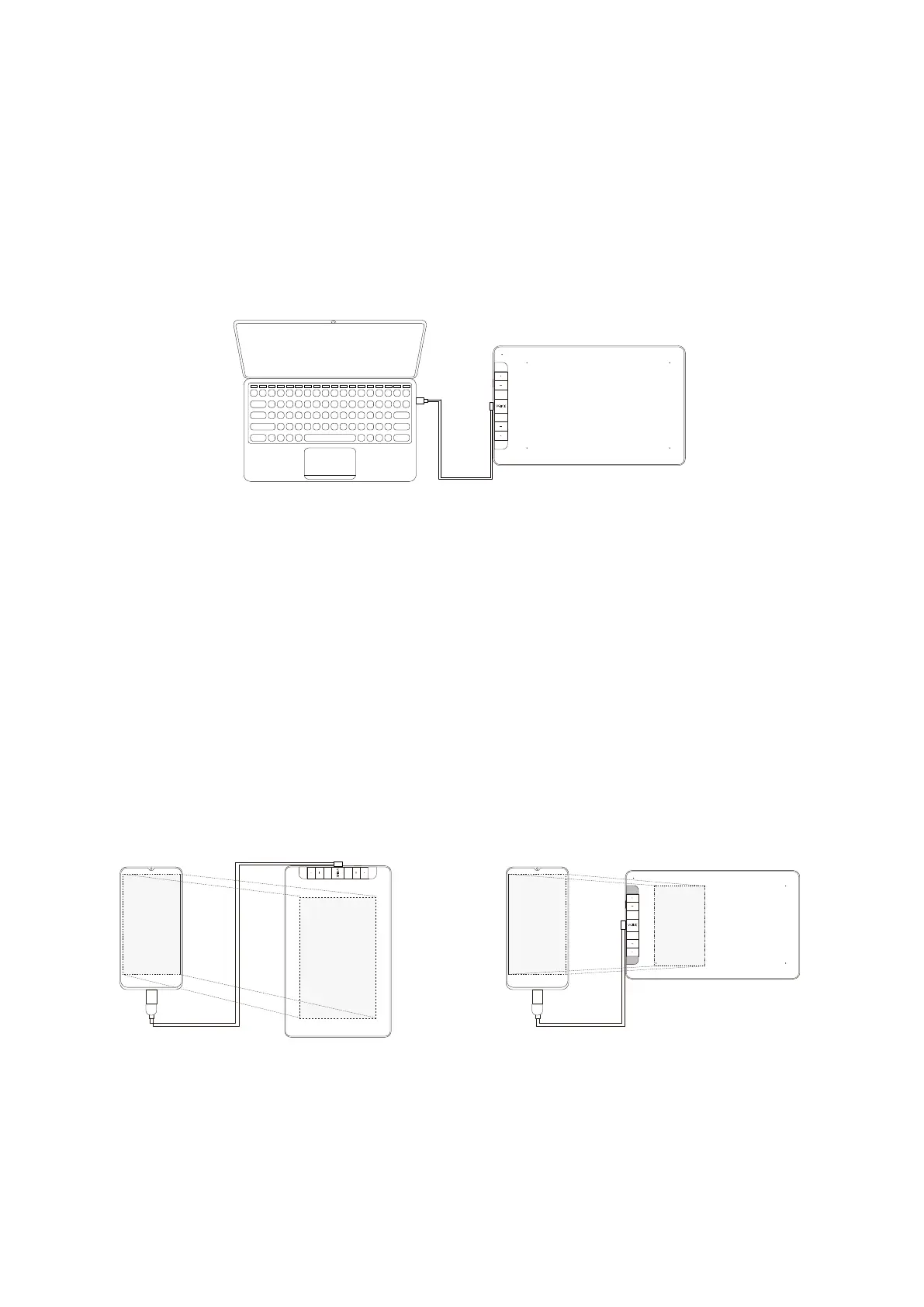
Figure 1 Figure 2
For Android mobile phone:
1. PleaseconnectthetablettoyourmobilephonewiththeOTGadapter.
2. Choosethemostcomfortablewayyouliketousethetablet.
A. By default, theworkingareaofthetabletis10*6inch,butyouneedtorotate
thetabletasshowninFigure1.
B.PressK1andK8atthesametime,theworkingareaofthetabletis3*6inch,
butyoucanusethetabletinthenormaldirectionasshowninFigure2.
For Mac OS, Windows and Linux OS computer:
1. Connect the tablet to your computer with USB cable.
2. Openthedriverinterface.Iftheproductmodelshowsattheupperleftcorner,
thisindicatesthatthetablethasbeenconnectedsuccessfully.Youcanstart
usingyourtablet.
For Chrome OS computer:
Connect the tablet to your Chrome OS computer with the USB cable, then you
can start using your tablet.
Note: The shortcut keys of the pen and tablet can't work on the Chrome OS computer.
Note1:Worksinmobilephoneverticalscreenmodeonly.
Note2:Forsomemobilephones,youneedtoenabletheOTGfunctionmanually
inthephone’ssettings.
Note3:The shortcut keys of the pen and tablet can't work on Android mobile phone.


 To Next Page