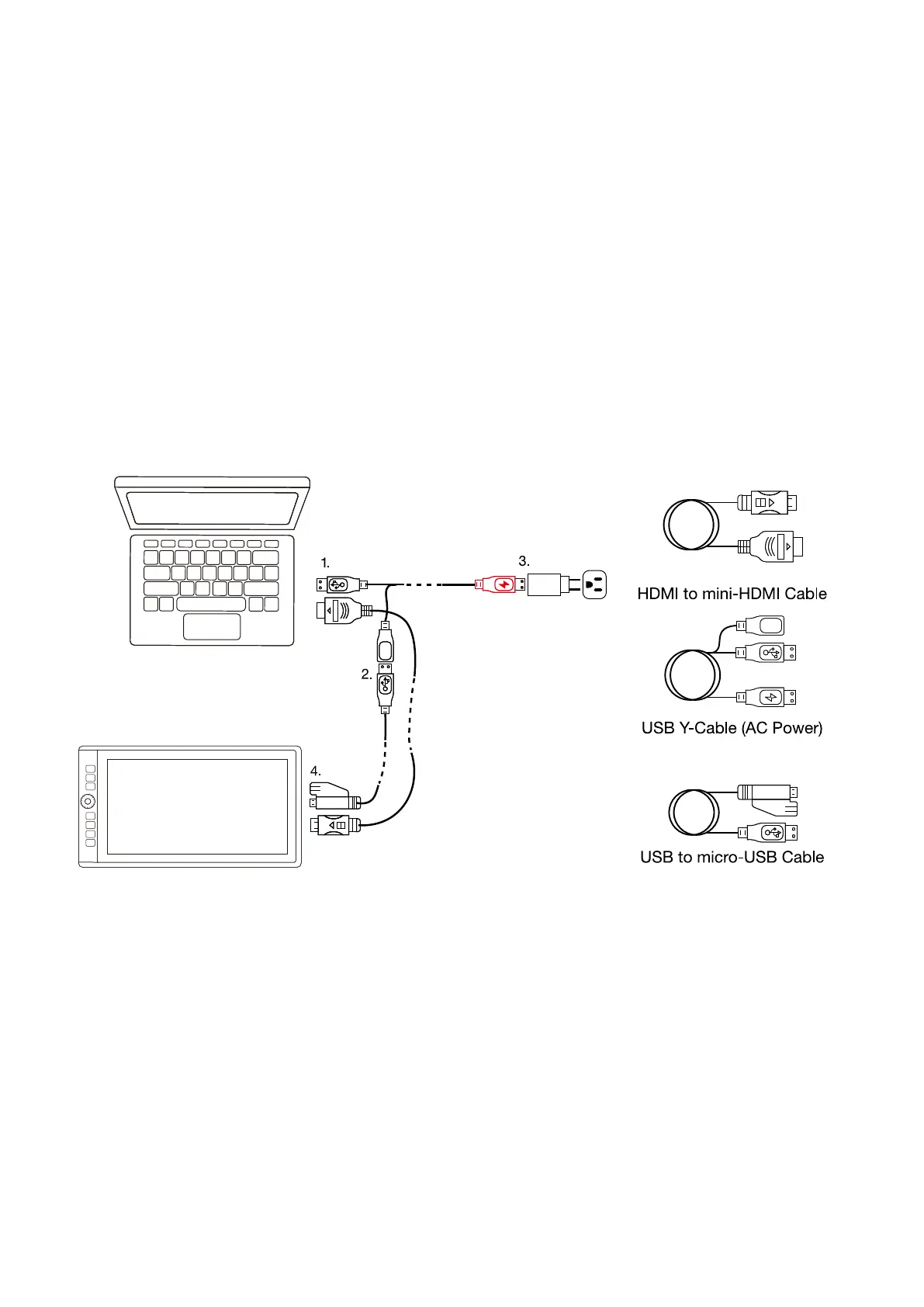
1.4 Display Connection
1. ConnectmaleendofUSBY-cabletocomputer.
2. ConnectfemaleportofUSBY-cabletoUSBcable.
3. ConnectredendofUSBY-cabletoACAdapter.
4. Connectmicro-USBendofUSBcabletoVK1560Pro.
5. Connectmini-HDMIendofHDMIcabletoVK1560Pro.
6. ConnectHDMIofHDMIcabletocomputer.
7. PlugACadapterintopoweroutlet.
8. Ifconnectedproperly,afterpressingthepowerbuttontheVK1560Pro logowillappearandyou
willsoonseeyourcomputermonitordisplay.
Note 1:WerecommendyouinserttheVK1560ProUSBcabletothehostUSBportofyourcomputer.
YoumayuseaUSBhubwithanattachedexternalpowersupplytoadequatelypoweryourVK1560 Pro
ifneeded.
Note 2:Makesureyourcomputersupportsmultiplemonitors.CheckifyourcomputerhasextraHDMI
ports.Ifyourcomputerhasanindependentvideocard, pleaseusetheHDMIportsthere.
Note 3:If there is not any input signal, itmeansthetabletdoesn’t receiveHDMIvideoinput.Please
reconnect the HDMI cable, or change another HDMI cable or change another computer to have a try.
5.
6.
7.
2



 To Next Page