INSTALL DRIVER
See included disc or download from verifisafe.com/downloads.
1. Double-click “Verifi P2000 Driver Installer (Windows10 XXbit).msi”
to run the installer.
2. Click “Next” on the “Welcome to the AuthenTec WinBio Fingerprint
Software Installation Wizard” screen.
3. Click “Next” again to install the driver.
4. Click “Finish” when you see the message “AuthenTec WinBio
Fingerprint Software XX-bit has been successfully installed.”
PLUG IN DEVICE
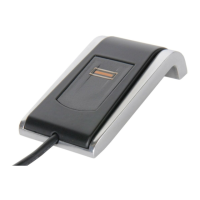
5. Plug the Verifi P2000 Fingerprint Reader into your USB port.
ENROLL FINGERPRINT
6. Press Windows Key + “I” to access Windows Settings.
7. Click “Accounts.”
8. Click “Sign-in options” in the left side colum.
9. Click “Windows Hello Fingerprint” on the right.
10. Click “Set up.”
11. Click “Get started.”
12. Enter your PIN and click “OK”.
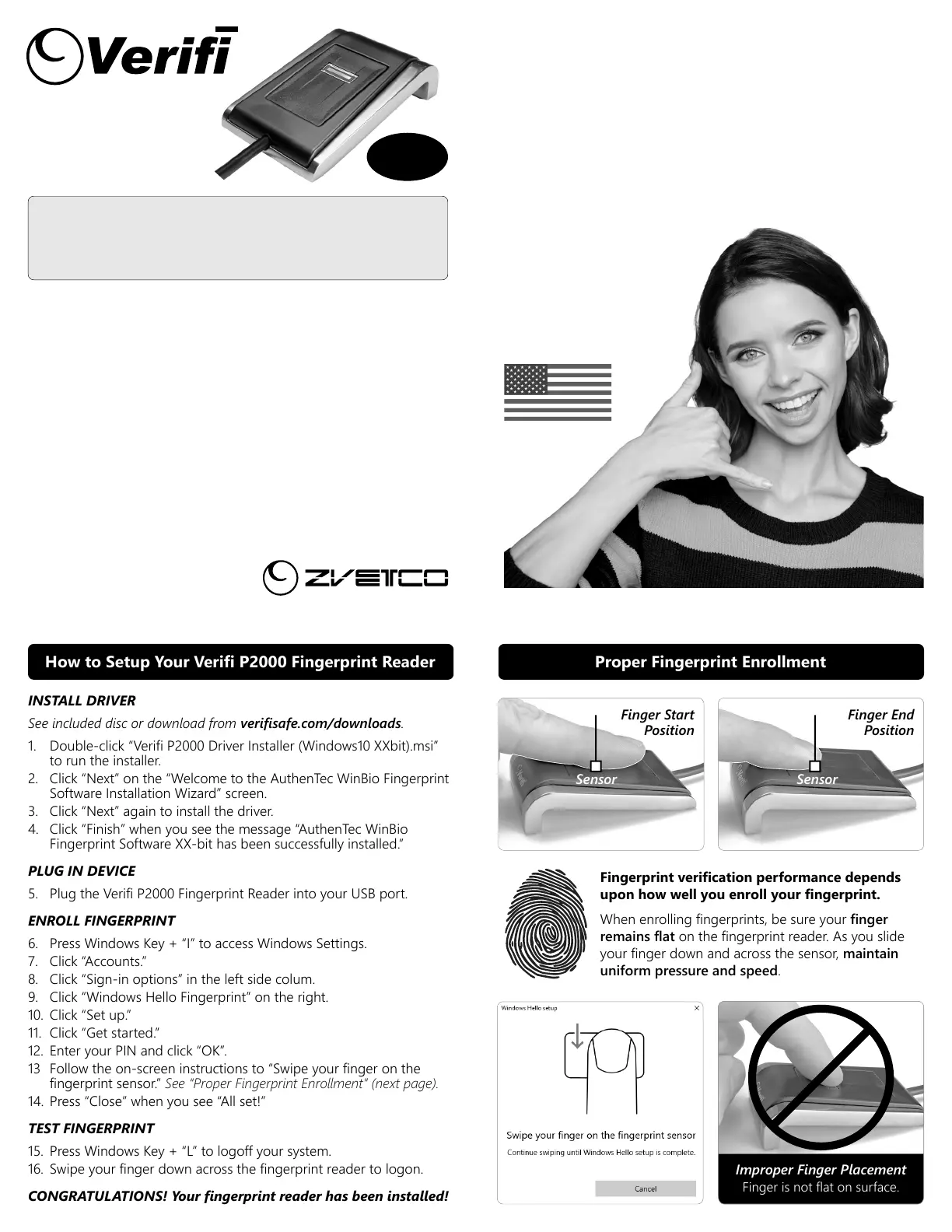
13 Follow the on-screen instructions to “Swipe your finger on the
fingerprint sensor.” See “Proper Fingerprint Enrollment” (next page).
14. Press “Close” when you see “All set!”
TEST FINGERPRINT
15. Press Windows Key + “L” to logoff your system.
16. Swipe your finger down across the fingerprint reader to logon.
CONGRATULATIONS! Your fingerprint reader has been installed!
Fingerprint verification performance depends
upon how well you enroll your fingerprint.
When enrolling fingerprints, be sure your finger
remains flat on the fingerprint reader. As you slide
your finger down and across the sensor, maintain
uniform pressure and speed.
How to Setup Your Verifi P2000 Fingerprint Reader Proper Fingerprint Enrollment
Finger Start
Position
Sensor
Finger End
Position
Sensor
Improper Finger Placement
Finger is not flat on surface.
VERIFI by ZVETCO
489 SR 436 #109, Casselberry, FL 32707 USA
REV B - MAY 2021
TROUBLESHOOTING TIPS
• Windows may ask for your PIN after first login with fingerprint.
• The message "Your device is having trouble recognizing you" is almost
always a false positive generated by Windows and not your reader.
• Connect reader directly to your PC, not through a USB hub.
• Keep sensor clean with a little rubbing alcohol and microfiber cloth.
• If your reader becomes unresponsive, adjust Power Management options:
1. Open Windows Device Manager
2. Right-click “AuthenTec Inc. AES2550” under “Biometric Devices”
3. Select "Properties"
4. Open "Power Management" tab (visible to admins only)
5. Uncheck "Allow the computer to turn off this device to save power"
6. Click "OK"
INSTALL DRIVER BEFORE PLUGGING INTO YOUR PC!
This device is not plug and play. Install the driver according to
the enclosed steps before plugging into your computer.
Administrator privileges and Windows PIN are required for install.
P2000
FINGERPRINT READER
by Zvetco
Casselberry, Florida, USA
WINDOWS
10
How can we help?
We know you’ll love your Verifi P2000 Fingerprint Reader as much
as we do. But we understand not every system is the same, and you
might need additional support to get you up and running. No
problem. We’re here to help!
Our USA-based team has supported thousands of our fingerprint
readers across the globe. Reach out to us today if you need any
help at all. You’ll be glad you did!
(407) 567-7360
Mon-Fri, 9am-7pm EST
support@verifisafe.com
365 days a year
verifisafe.com
24/7
USA SUPPORT


 To Next Page
 Loading...
