INSTALL DRIVER
See included disc or download from verifisafe.com/downloads.
1. Double-click “Verifi P2000 Driver Installer (Windows10 XXbit).msi”
to run the installer.
2. Click “Next” on the “Welcome to the AuthenTec WinBio Fingerprint
Software Installation Wizard” screen.
3. Click “Next” again to install the driver.
4. Click “Finish” when you see the message “AuthenTec WinBio
Fingerprint Software XX-bit has been successfully installed.”
PLUG IN DEVICE
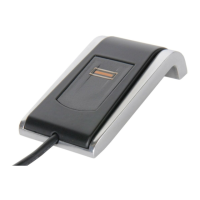
5. Plug the Verifi P2000 Fingerprint Reader into your USB port.
ENROLL FINGERPRINT
6. Press Windows Key + “I” to access Windows Settings.
7. Click “Accounts.”
8. Click “Sign-in options” in the left side colum.
9. Click “Windows Hello Fingerprint” on the right.
10. Click “Set up.”
11. Click “Get started.”
12. Enter your PIN and click “OK”.
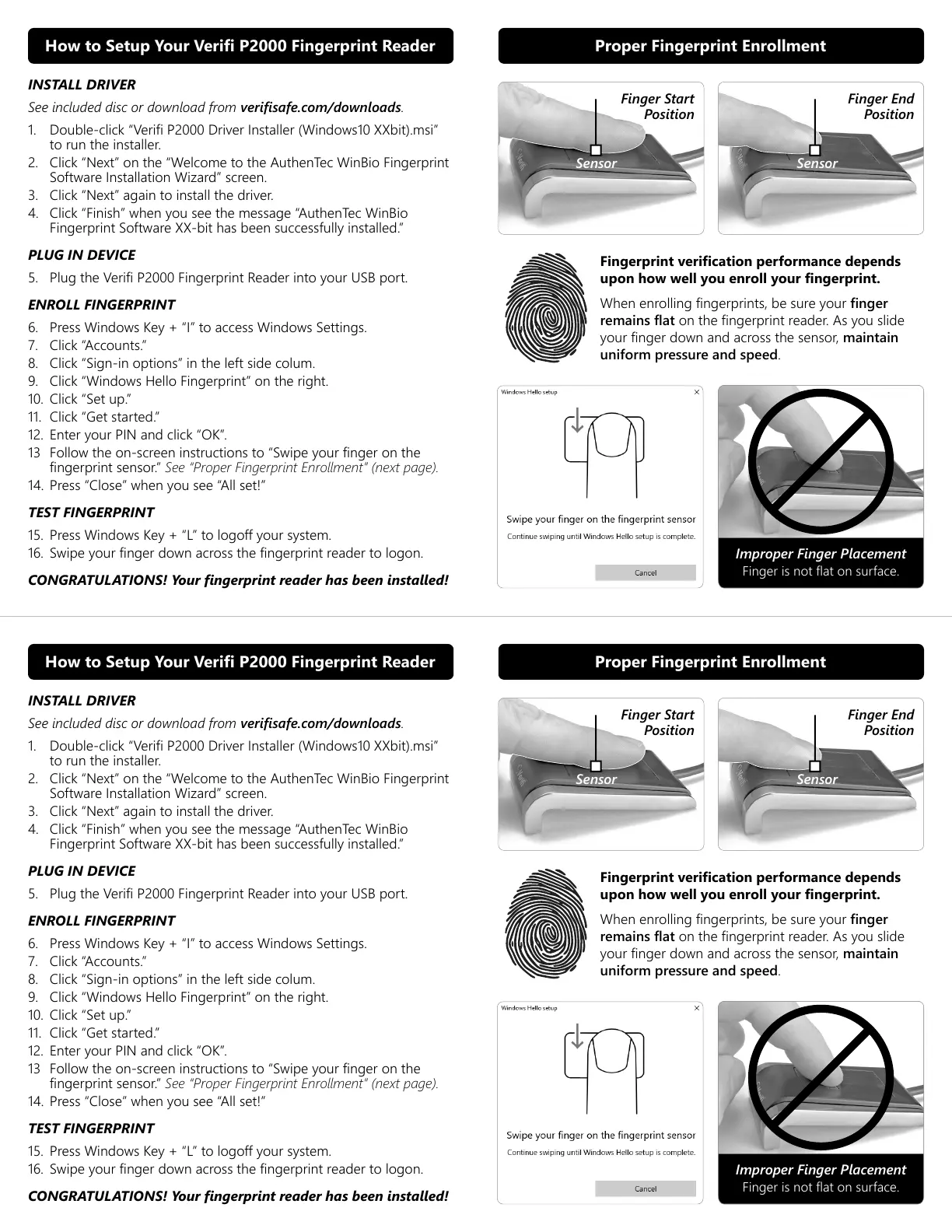
13 Follow the on-screen instructions to “Swipe your finger on the
fingerprint sensor.” See “Proper Fingerprint Enrollment” (next page).
14. Press “Close” when you see “All set!”
TEST FINGERPRINT
15. Press Windows Key + “L” to logoff your system.
16. Swipe your finger down across the fingerprint reader to logon.
CONGRATULATIONS! Your fingerprint reader has been installed!
Fingerprint verification performance depends
upon how well you enroll your fingerprint.
When enrolling fingerprints, be sure your finger
remains flat on the fingerprint reader. As you slide
your finger down and across the sensor, maintain
uniform pressure and speed.
How to Setup Your Verifi P2000 Fingerprint Reader Proper Fingerprint Enrollment
Finger Start
Position
Sensor
Finger End
Position
Sensor
Improper Finger Placement
Finger is not flat on surface.
INSTALL DRIVER
See included disc or download from verifisafe.com/downloads.
1. Double-click “Verifi P2000 Driver Installer (Windows10 XXbit).msi”
to run the installer.
2. Click “Next” on the “Welcome to the AuthenTec WinBio Fingerprint
Software Installation Wizard” screen.
3. Click “Next” again to install the driver.
4. Click “Finish” when you see the message “AuthenTec WinBio
Fingerprint Software XX-bit has been successfully installed.”
PLUG IN DEVICE
5. Plug the Verifi P2000 Fingerprint Reader into your USB port.
ENROLL FINGERPRINT
6. Press Windows Key + “I” to access Windows Settings.
7. Click “Accounts.”
8. Click “Sign-in options” in the left side colum.
9. Click “Windows Hello Fingerprint” on the right.
10. Click “Set up.”
11. Click “Get started.”
12. Enter your PIN and click “OK”.
13 Follow the on-screen instructions to “Swipe your finger on the
fingerprint sensor.” See “Proper Fingerprint Enrollment” (next page).
14. Press “Close” when you see “All set!”
TEST FINGERPRINT
15. Press Windows Key + “L” to logoff your system.
16. Swipe your finger down across the fingerprint reader to logon.
CONGRATULATIONS! Your fingerprint reader has been installed!
Fingerprint verification performance depends
upon how well you enroll your fingerprint.
When enrolling fingerprints, be sure your finger
remains flat on the fingerprint reader. As you slide
your finger down and across the sensor, maintain
uniform pressure and speed.
How to Setup Your Verifi P2000 Fingerprint Reader Proper Fingerprint Enrollment
Finger Start
Position
Sensor
Finger End
Position
Sensor
Improper Finger Placement
Finger is not flat on surface.


 To Previous Page
 Loading...