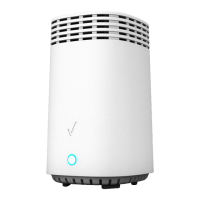
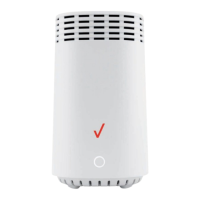
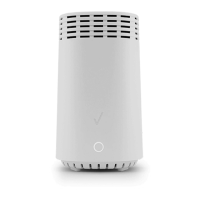
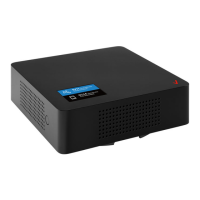
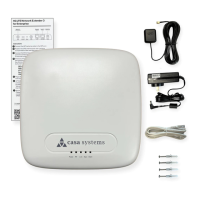
4G LTE Network Extender 3
for Enterprise
Instructions
Visit verizon.com/support/4g-lte-network-extender-enterprise-basics/
or scan the QR code for detailed instructions and device information.
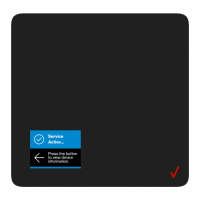
1 Connect the GPS antenna cable to the GPS port.
2 Position the GPS antenna puck near a window
so it provides a clear and open view of the sky.
3 Connect the Ethernet cable to the PoE/WAN
port and connect the other end of the cable
to the local router/switch.
4 If there is a Firewall in the network, please ensure
the following server connections are available to
the eFemto. The servers’ FQDN/IP addresses can
be found in the Network Extender User Guide.
GPS Assistance Server: TCP port 80
DNS Server: UDP port 53
NTP Server: UDP port 123
Security Gateway: UDP port 500/4500
CMP: TCP port 80
5 Plug in the power supply to the Power port and twist to
lock (for installations where PoE is not supported).
.
6 OPTIONAL STEP - For local configuration,
connect a laptop to the LMT port to access
the Web GUI. For detailed instructions refer to
“Admin website access” in the Network Extender
User Guide.
7 Mount the Network Extender to a wall or ceiling.
Please wait up to 30 minutes for the unit to
complete setup and the Status LEDs to turn
GREEN indicating normal operation.
For more information about our privacy
practices, visit verizon.com/about/privacy/
Customer Support: 800-922-0204
DOC-3197-01
Rev 1.0
GPS INT/EXT Reset 1PPS LMT PoE/WAN Power
Connect to
GPS Antenna
Connect to
Web GUI
Connect to
Router
Connect to
Power Cord

 Need help?

 To Next Page
 General