
 Need help?
Do you have a question about the Verizon eFemto and is the answer not in the manual?
Device emits RF energy and requires a minimum separation distance for safe operation. Read all safety warnings before use.
Product contains chemicals known to cause cancer and birth defects. Wash hands after handling.
Device complies with FCC Part 15. Operation subject to conditions to avoid harmful interference.
Unauthorized modifications void authority. Equipment tested for Class B limits, but interference may occur.
Step-by-step guide for wall mounting the eFemto using supplied hardware and anchors.
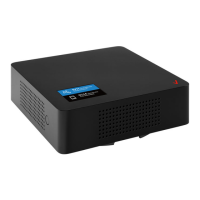
Diagram and list of eFemto ports (GPS, INT/EXT, Reset, 1PPS, LMT, POE/WAN, Power) and their functions.
Optimum performance requires specific backhaul bandwidth and firewall settings as per User Guide.
Requires strong GPS signal. Place unit at least 10 feet from radiation sources, central to users, within 21 feet of an exterior window.
Connect the GPS antenna cable to the GPS port. Antenna must stay connected for operation; initial fix may take up to 60 minutes.
Connect Ethernet cable from router/modem to PoE/WAN port. Plug in power supply to the Power port.
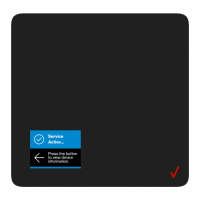
Device self-configures upon startup (30-60 mins). Status LEDs indicate power, RF, Link, Sync, and Alarm status.
Sync and Alarm LEDs indicate no GPS signal. Check 'Status and Alerts' or 'GPS' tabs in Advanced Settings.
Check 'Connected Devices' panel in Advanced Settings web interface for user connections.
Press and hold the RESET button for 10 seconds to reset the system to factory default settings.
Refer to the online 4G LTE eFemto for Enterprise User Guide or call Customer Care for support.
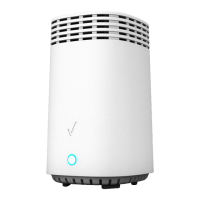
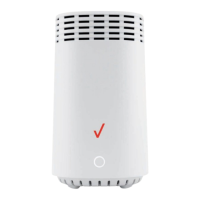
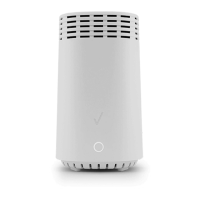
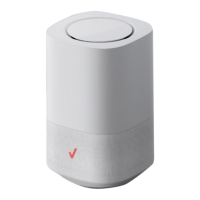
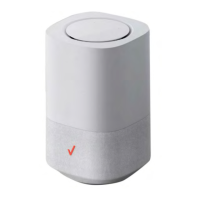
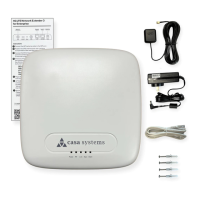
The Verizon 4G LTE Femto for Enterprise (eFemto) is a network extender designed to improve 4G LTE signal coverage within an enterprise environment. This device functions by creating a localized 4G LTE signal, effectively extending the Verizon wireless network indoors.
The eFemto serves as a personal cell tower, connecting to a broadband internet connection (backhaul) and broadcasting a 4G LTE signal. It allows Verizon wireless devices within its coverage area to connect to the Verizon network, improving call quality, data speeds, and overall wireless experience in areas with poor native signal. The device supports both internal and external antenna configurations, indicated by the INT/EXT port. It includes a Reset button for factory default settings and a 1PPS port for connecting to a 1PPS clock source (like an Iridium or GPS receiver) to receive precise timing signals. A Local Monitoring Terminal (LMT) port is available for managing settings and displaying device status. The device can be powered via Power over Ethernet (PoE) through the POE/WAN port or by a dedicated 12V DC power supply.



 To Next Page
 General