6 7
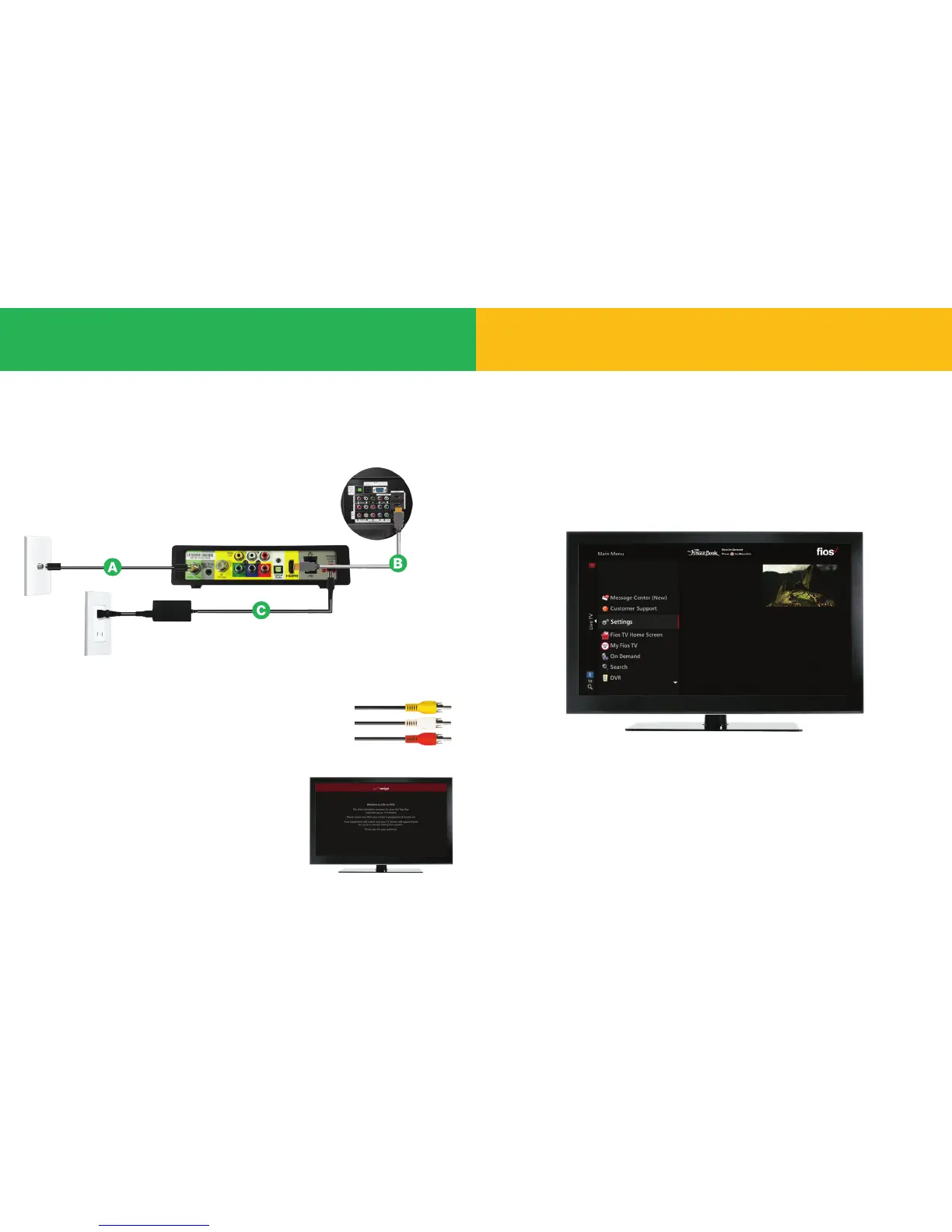
Step 1: Make the connections using HDMI cable (preferred)
A. Connect the coax cable from your Media Client to a coax outlet.
B. Connect the HDMI cable from your Media Client to your TV.
C. Connect the power cord from your Media Client
to an electrical outlet.
Alternate option:
Make the connections using composite cables
TV not HDMI compatible? No problem, connect the
composite cables instead, making sure to match the
cable colors to the back of the Media Client and TV.
Step 2: Complete activation
Turn on your Media Client and TV.
Using your Fios TV remote, follow the
on-screen instructions.
For support, visit Activate.verizon.com.
Back of TV
Text to Speech Feature is available
Verizon oers Text to Speech functionality for the Fios TV
on-screen guide to enhance accessibility to visually impaired
customers. You can easily enable this feature via the settings
menu on your TV: Menu > Settings > System > Accessibility >
Text to Speech > on/o
Add your new Media Client. Text to Speech


 To Next Page