4 5
Step 2: Complete activation
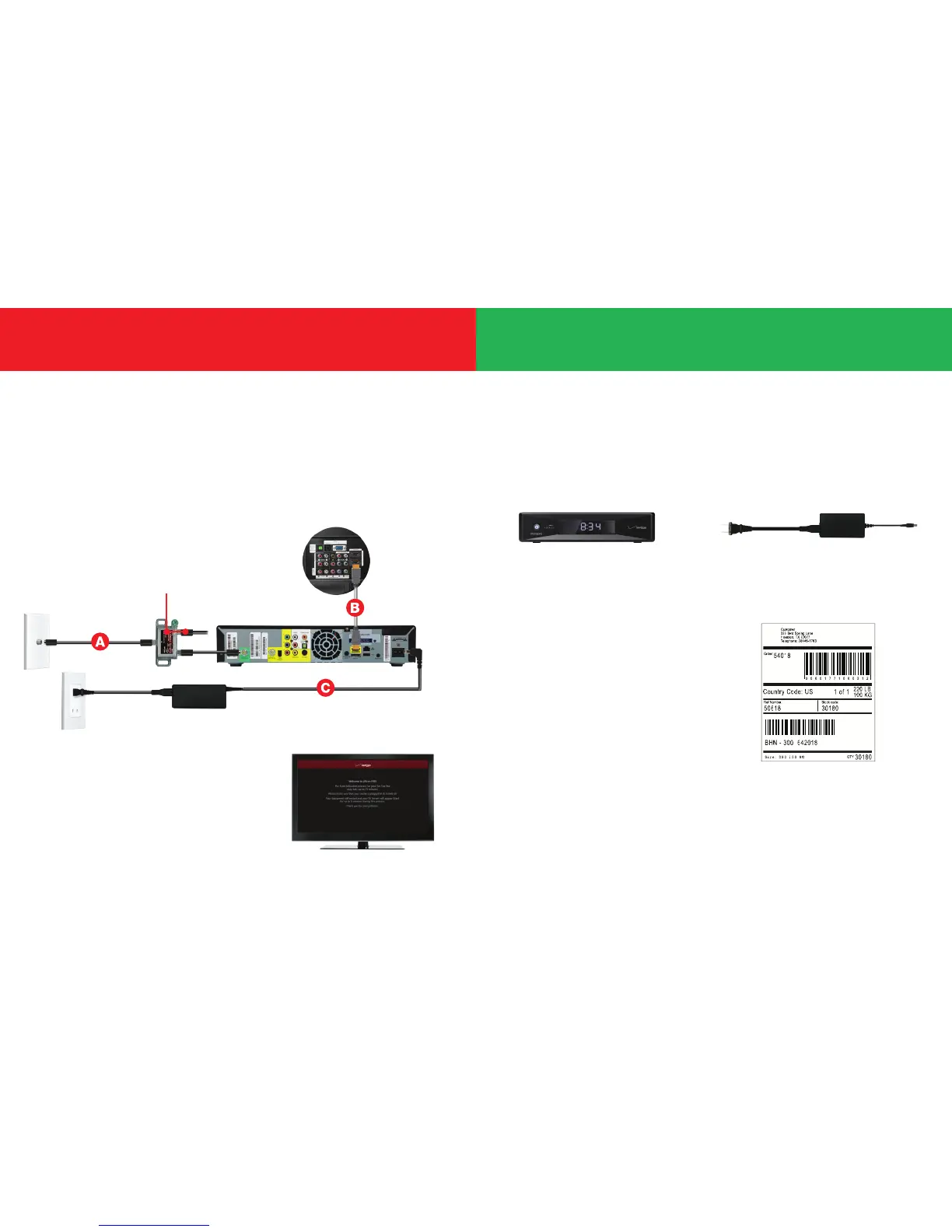
Turn on your Video Media Server and
TV. Using your Fios TV remote, follow
the on-screen instructions.
For support, visit Activate.verizon.com.
Step 1: Make the connections
A. Connect the coax cable from your Video Media Server to
a coax outlet.
B. Connect the HDMI cable from your Video Media Server
to your TV.
C. Connect the power cord from your Video Media Server
to an electrical outlet.
Optional: use splitter to connect a TV
and router to the same coax outlet.
Back of TV
• Disconnect the Media Client you’ll be replacing.
• Keep the HDMI cable to use with your new Media Client.
• Use the shipping box from your new equipment to pack up your
old Media Client and power cord.
• Seal the box and apply the return label provided over the
original shipping label.
• Take the box to any UPS location.
To find the location nearest you,
visit TheUPSStore.com or
call 1.800.789.4623.
Add your new Video Media Server. Exchanging a Media Client?


 To Next Page