Vertiv
™
|Liebert® EXL
™
S1 Touchscreen Control User Manual | Rev. 1 | 12/2017 | 1
1.0 INTRODUCTION
The Touchscreen Control Panel’s integrated interface simplifies monitoring and managing single or multiple
Liebert UPS modules. The control collects a profusion of information about the health of the modules and
presents it in a standardized format. This simple, dynamic display speeds operator response to changing power
input and demand.
Many of the settings will depend on the UPS type and features. Many settings will be made by Vertiv personnel
when setting up the UPS.
The Touchscreen Control Panel’s interface will display data either graphically or in text. The Status Scroll Bar at
the top of the touchscreen display summarizes system conditions. The bar changes color to indicate status and
includes an icon matched to the status. The Status Gauge displays such details as power demand from the
connected load, input power quality, output and bypass on each phase and battery capacity.
The Touchscreen Control Panel’s mimic display shows the comprehensive system information that the operator
needs:
• Is input power connected?
• Are there any alarms?
• Which breakers are open and which are closed?
• Is the UPS on battery?
• How much battery run time is available?
Checking a particular component is as simple as touching it on the mimic display—Detailed data appears,
allowing the operator to respond.
Visual and audible alarms alert personnel to faults and alarms requiring immediate attention.
Passcodes for each level of access—Operator, Administrator and Service—secure the UPS against unauthorized
changes. Personnel without a passcode can view UPS status, but cannot change any functions or the
appearance of the interface.
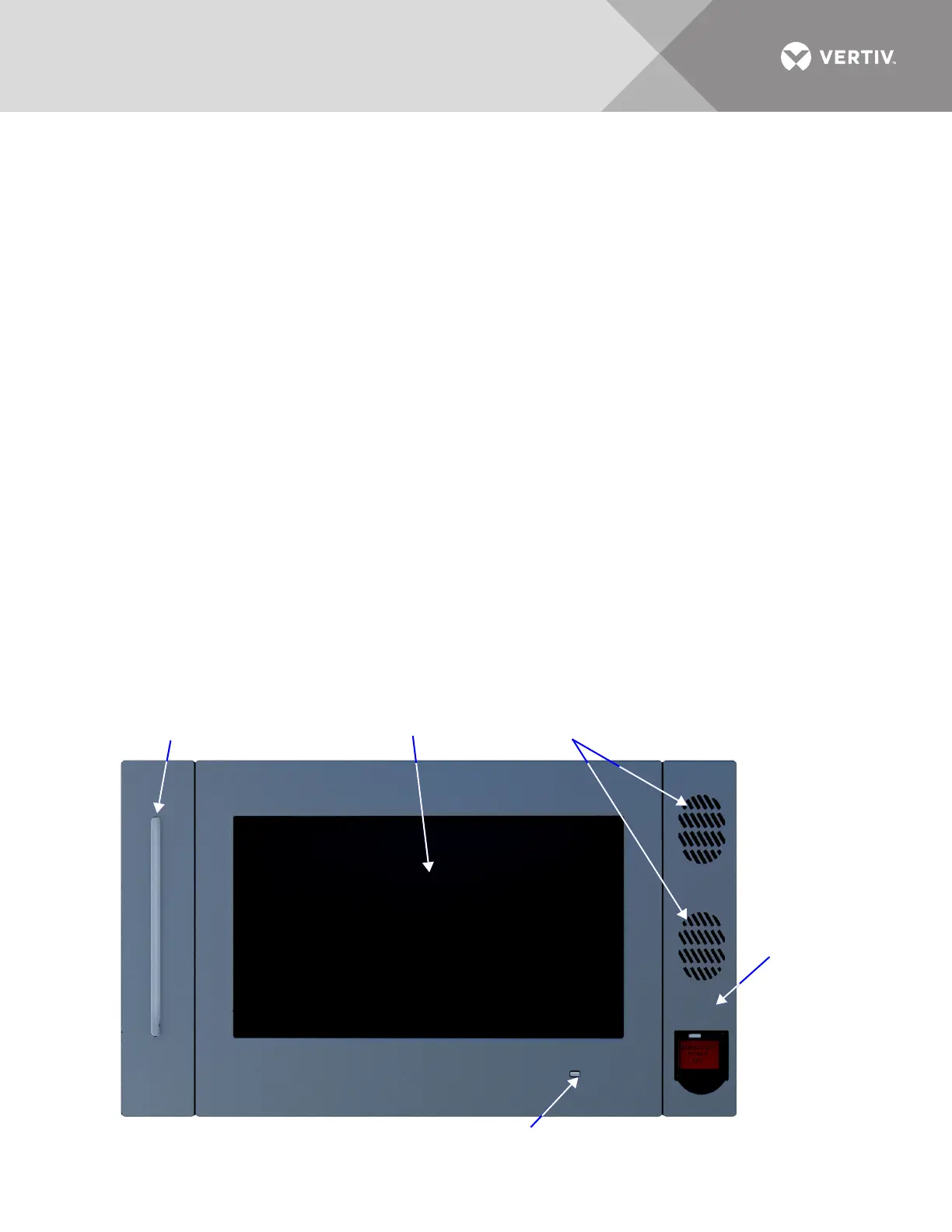
Figure 1 Touchscreen Control Panel components
Speakers (not used)
Touchscreen LCD
EPO Switch
UPS Status LED
UPS Status LED



 To Next Page