Version V2C22021 Vesticam™ User Manual Page | 12
4 ways to transfer Patient videos (mp4 files) from your Android Recorder or tablet:
OPTION 1: USING SUPPLIED CABLE
Supplied Cable CABLE file copy
Use the supplied power
cable and File Explorer (PC)
or Find (Mac) to copy files
A: Using PC Windows Computer (Windows 10)
STEP 1
Hold the button at the side of your device and press “Restart” on your Android Recorder – This is important to
update the file system and file naming.
Ensure your Android Recorder is ON and the screen is unlocked
STEP 2
Connect the USB cable/charging cable (provided) from the Android Recorder microUSB (charging port) to your PC
USB port (for USB C ports, use the supplied adaptor).
Your successful connection is usually confirmed with a “beep” on PC and Phone and/or the automatic opening of
Windows Explorer on the PC.
Note: Ignore any popup window eg. “Camera Upload …. Keep your memories safe” when connecting devices.
STEP 3
A notification box may pop up on your Android Recorder screen. Select “Transfer files”
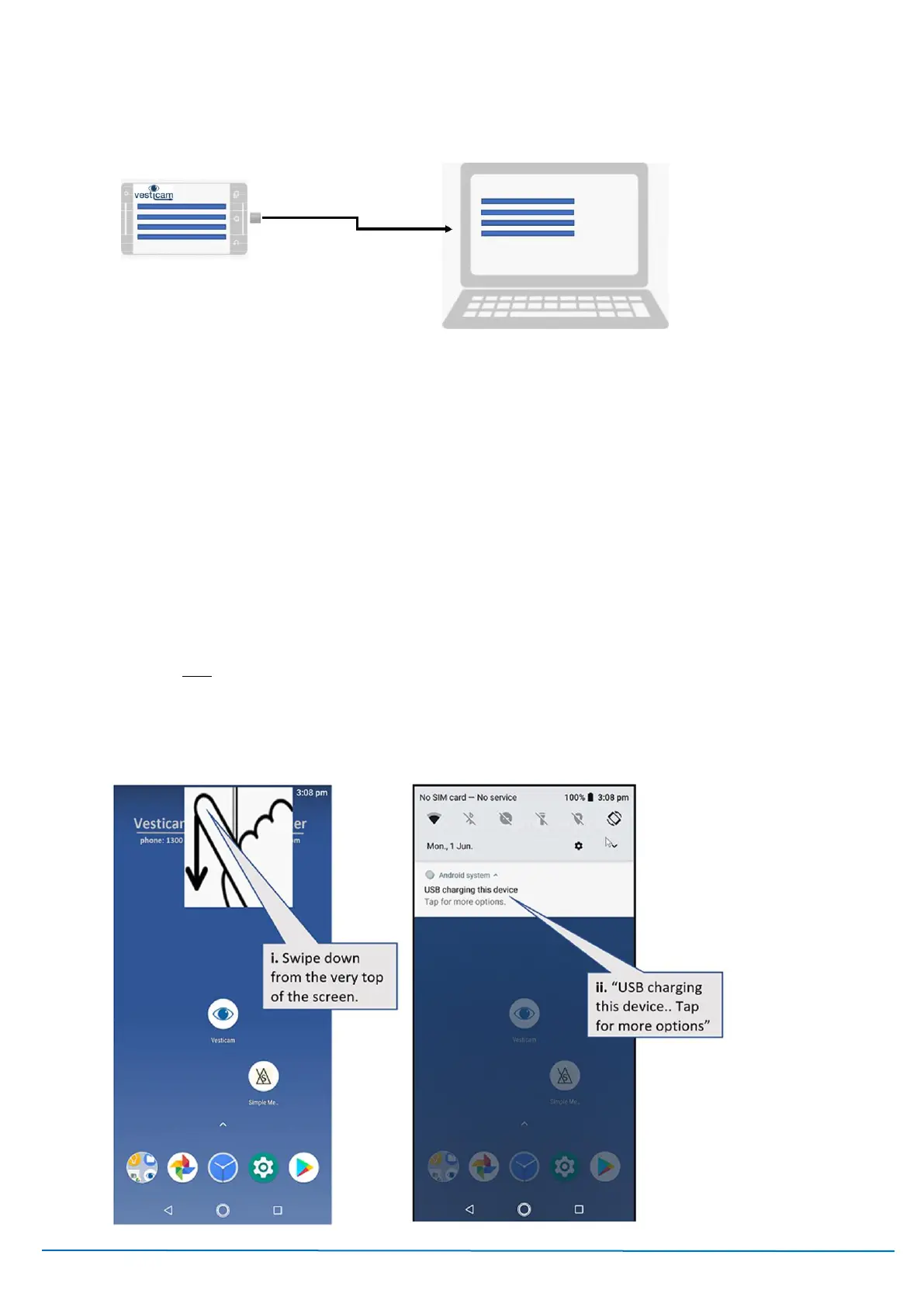
If no notification box appears:
i Swipe down from the very top of the device screen,
ii “USB charging this device” appears. Tap screen for more options.



 To Next Page