Version V2C22021 Vesticam™ User Manual Page | 13
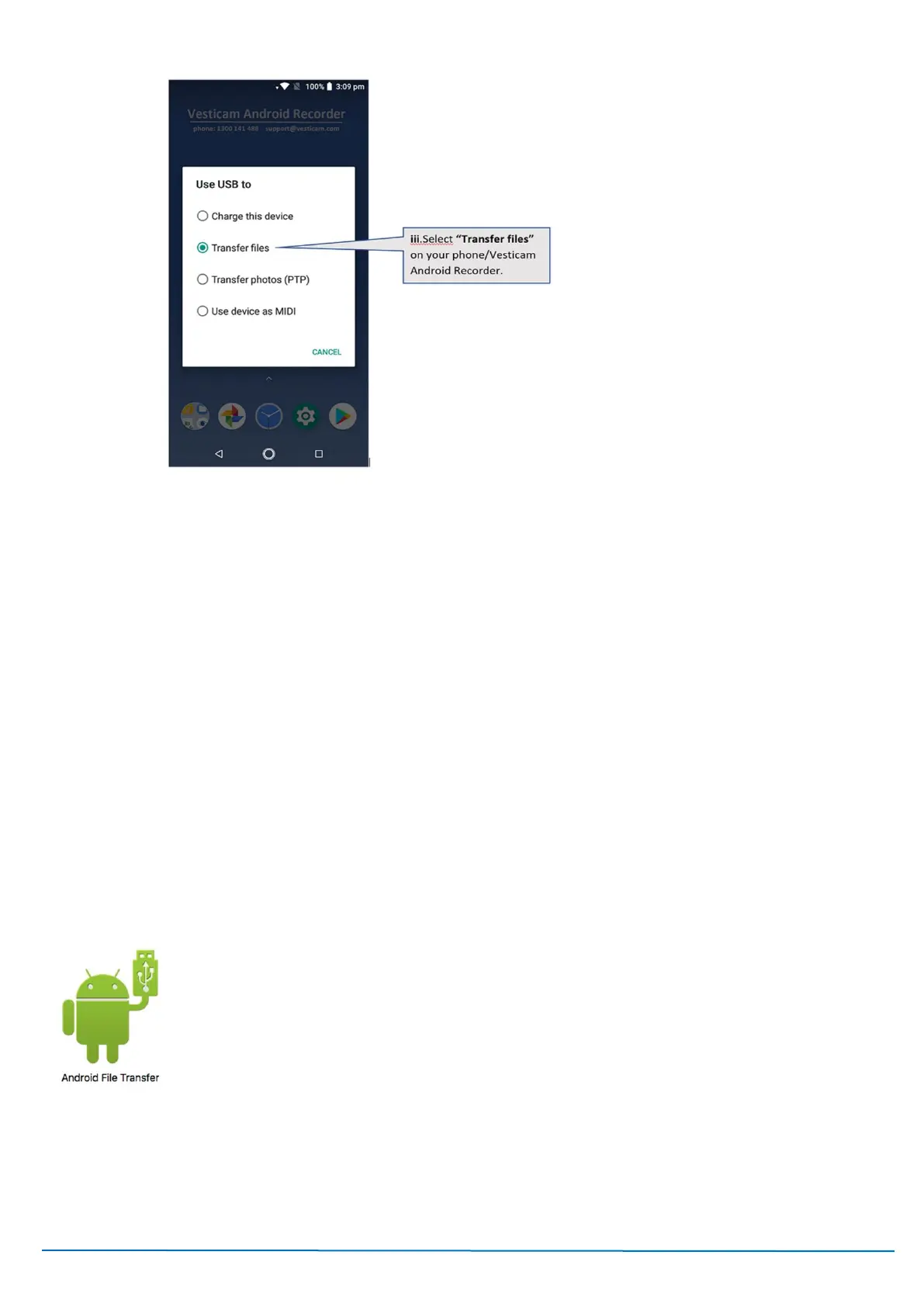
iii Select “Transfer files”
STEP 4
On your Laptop/PC open “File Explorer”
Open “This PC” then “Devices & Drives”
Click on the “Android Recorder” or other “<ANDROID PHONE NAME>”
Next, click on “Internal storage”… then “Vesticam” … then “Videos”
The location for your Vesticam Videos is:
MyPC\\Vesticam Android Recorder\Internal storage\Vesticam\Videos
STEP 5
Still on your Laptop/PC, Select and “Copy” the “Videos” folder on the Android Recorder then Paste in a folder on
your PC (eg. a folder called “Vesticam Archives”).
Once you have successfully copied the video/image files to the PC you can delete them from the Android Recorder.
B: Using Apple Mac (macOS 10)
PREPARATION – Download and Install the Android File Transfer utility on you Mac
https://www.android.com/filetransfer/
Follow STEPS 1-4 as for PC Windows, above.
STEP 5
Still on your Mac … Select and “Copy” the “Videos” folder on the Android Recorder then Paste in a folder on your PC
(eg. a folder called “Vesticam Archives”).
Once you have successfully copied the video/image files to the PC you can delete them from the Android Recorder.



 To Next Page