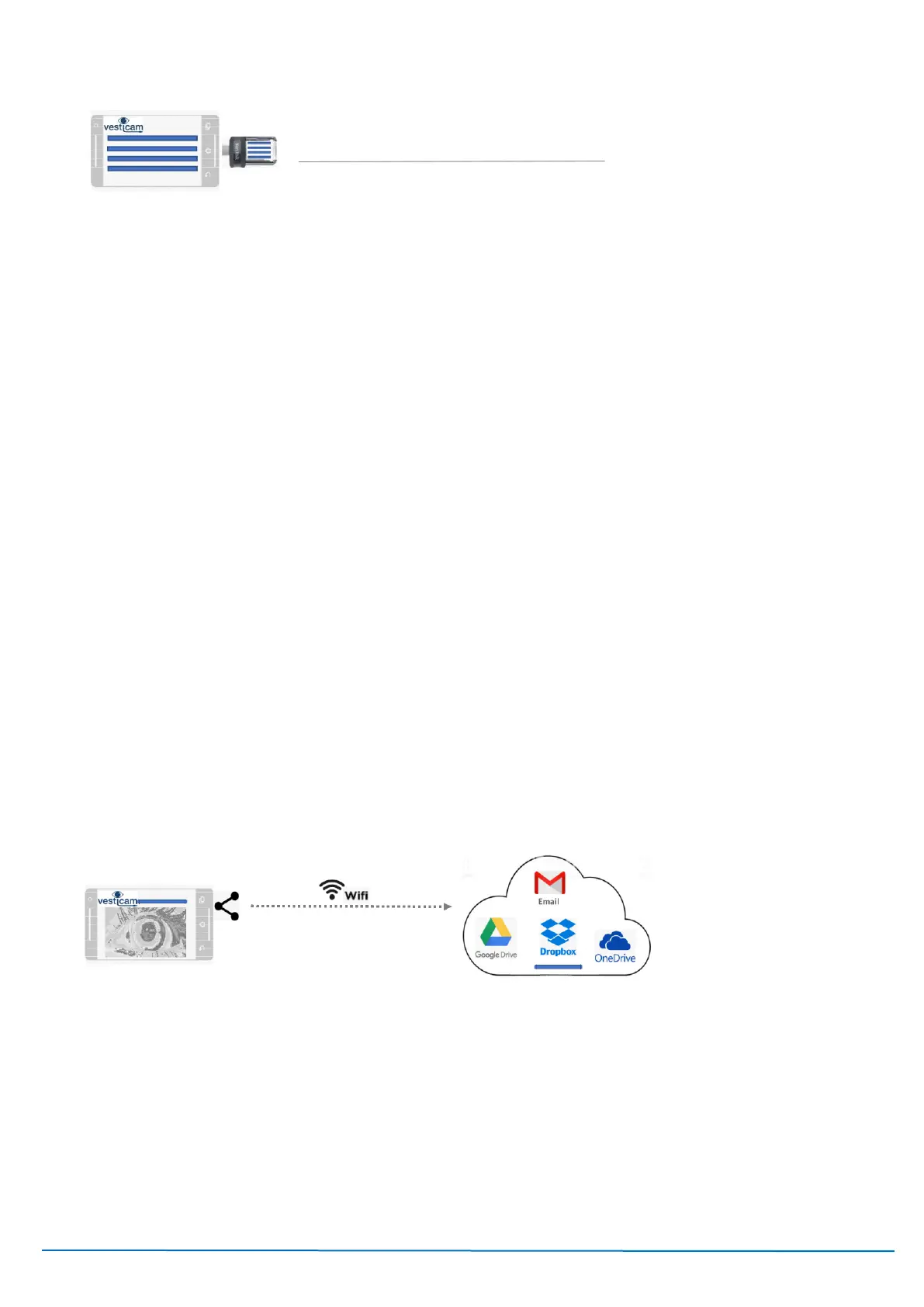
Examples of flash drives: Verbatim 32GB Store N Go USB3.0/Micro USB Flash Drive, San disk Ultra Dual drive, or
Kingston Micro Duo)
STEP 1
Insert the micro-USB memory stick into the Android Recorder
STEP 2
Open the Files App on the Android Recorder and navigate to the Vesticam folder - “Internal storage”… then
“Vesticam” … then “Videos”. Copy the Videos folder
STEP 3
Paste the Folder into the USB memory stick directory
STEP 4
“Eject” the memory stick in software before removing the memory stick from the phone
STEP 5
Insert the other side of the USB stick into a PC or Mac, copy files as usual. Remember to “Eject” before removal
OPTION 3: WITH WIFI CONNECTED, USING THE VESTICAM APP
WiFi Share
Use "Share" in the Vesticam
App to send individual files
You can upload individual Video files to Cloud Storage service (e.g. email, Dropbox, Google Drive) using “share”.
STEP 1:
Connect your Android Recorder to WiFi
Access Android Settings Cog (hint from the top swipe down twice), select WiFi and enter locate the SSID and enter
the password.
STEP 2:
On your phone use Google Play to install the cloud storage service you want to use (eg. Dropbox or Google drive).



 To Next Page