Version V2C22021 Vesticam™ User Manual Page | 15
Note: If you can access your cloud storage on the Android Recorder then you can upload videos/images to that
service.
STEP 3:
On the Android Recorder, Open Vesticam App > Image Library. Select the Video, select Send, select the destination
…. eg. Dropbox or Google drive or Gmail/email.
Note: Video files exceeding 25MB cannot to emailed.
OPTION 4: WITH WIFI SYNC COPYING TO CLOUD STORAGE/ GOOGLE PHOTOS
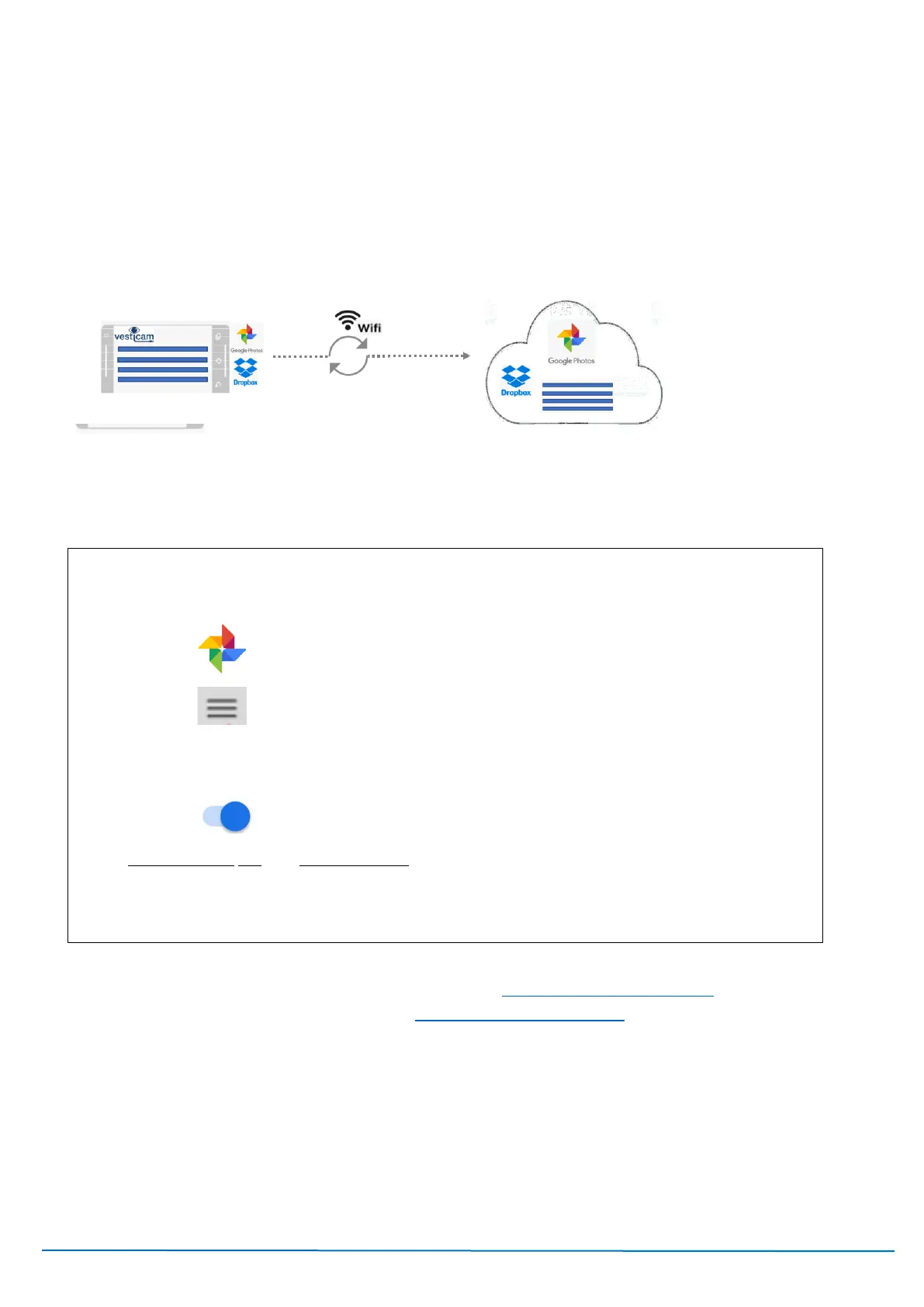
WiFi Sync
Enable Syncing on your phone to
copy files to cloud storage
Patient Videos can be set up to automatically upload to the Google photos library in your Google Cloud Drive.
To enable this service, you need to turn Back up & Sync ON in the Photos App on your Android Recorder.
STEP 1
Access “synced” videos …. On your computer, sign into https://photos.google.com/ using your
supplied google account. EXAMPLE LOGIN: vesticam10345@gmail.com …. Temporary Password =
temp345abcd <<EXAMPLE!
STEP 2
Once logged into “Google Photos”, you can play, rename, organise and download your videos.
Sync. Warning: The Back up and sync is TWO WAY…. Deleting Patient videos on either the Android
Recorder OR in Google Photos (via your Google Account) WILL DELETE THE PATIENT VIDEOS
PERMANENTLY.
Turn “Back up & Sync” ON - for automatic upload of Vesticam Videos on your Android Phone to
Google Photos/Cloud Storage. You only need to set this once.
Open Photos App on the Android Device/Phone
Select Menu (top left hand corner)
Select “Device folders”
Select “Videos” …. ie. where Vesticam Videos are saved
Note: If this folder does not appear, you will need to open the Vesticam App and
record one test video.
Turn ON “Back up & sync”
With Back up & sync ON, and WiFi connected, your saved Vesticam Videos will now be automatically
uploaded to Google Photos in the cloud (via the Google Account that has been pre-setup on the
Android Device/Phone).



 To Next Page