EasyManua.ls Logo

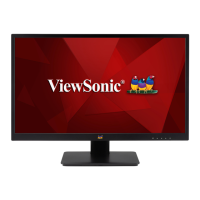
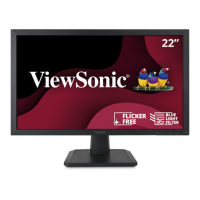
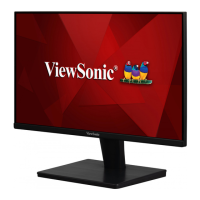
ViewSonic VA2209-H-2 - User Manual

ViewSonic VA2209-H-2
49 pages
Print Icon
To Next Page IconTo Next Page
Loading...
IMPORTANT: Please read this User Guide to obtain important information on installing and using your product in
a safe manner, as well as registering your product for future service. Warranty information contained in this User
Guide will describe your limited coverage from ViewSonic® Corporation, which is also found on our web site at
http://www.viewsonic.com in English, or in specific languages using the Regional selection box of our website.
VA2209-H-2
Display
User Guide
Model No. VS18797
P/N: VA2209-H-2

Questions and Answers

  • D
    Dr. Christopher Shannon MDSep 23, 2025
    Why USB devices connected to ViewSonic Monitor do not work?
    • J
      Jonathan MooreSep 23, 2025
      If USB devices connected to your ViewSonic monitor aren't working, make sure the USB cable is connected properly. Try changing to another USB port if available. Some USB devices need more power, so connect them directly to the computer.
  • J
    jsilvaAug 25, 2025
    How to adjust screen brightness on ViewSonic Monitor?
    • L
      Lisa StephensonAug 25, 2025
      If the screen image on your ViewSonic Monitor is too light or dark, adjust the brightness and contrast settings via the OSD Menu. If that doesn't resolve the issue, reset the monitor to its factory settings.
  • D
    Daniel BrayAug 25, 2025
    How to fix a ViewSonic VA2209-H-2 Monitor that has no power?
    • T
      Travis HawkinsAug 26, 2025
      If your ViewSonic Monitor isn't powering on, ensure it's turned on using the power button. Also, verify that the power cord is correctly and securely plugged into both the monitor and the power outlet. To check if the outlet works, plug another device into it.
  • D
    Daniel McmillanAug 27, 2025
    What to do if my ViewSonic Monitor has power but no image?
    • R
      Richard DrakeAug 27, 2025
      If your ViewSonic Monitor has power but no image, ensure the video cable connecting it to your computer is properly and securely connected. You may also need to adjust the brightness and contrast settings. Lastly, verify that you've selected the correct input source.
  • S
    Spencer EstradaAug 27, 2025
    Why are the colors wrong on my ViewSonic Monitor?
    • H
      herreradianeAug 27, 2025
      If your ViewSonic Monitor is displaying wrong or abnormal colors, and if any colors (red, green, or blue) are missing, check the video cable to make sure it is properly and securely connected, as loose or broken pins in the cable connector could cause an improper connection. You can also connect the monitor to another computer to check if the issue persists.
  • H
    Haley MillsSep 14, 2025
    How to troubleshoot no audio output on ViewSonic VA2209-H-2 Monitor?
    • R
      Rodney DavisSep 14, 2025
      If you're not getting any audio output from your ViewSonic Monitor, make sure the mini stereo jack is connected if you're using headphones. Also, check that the volume isn't muted or set to 0. Finally, verify the Audio Input setting.
  • W
    William HartSep 12, 2025
    What to do if the control panel keys on my ViewSonic Monitor don't work?
    • J
      jasonkramerSep 12, 2025
      If the control panel keys on your ViewSonic Monitor do not work, make sure you press only one key at a time. If the issue persists, restart the computer.
  • A
    Amber LesterSep 13, 2025
    Why will my ViewSonic VA2209-H-2 Monitor not adjust?
    • K
      Kristin ParkerSep 13, 2025
      To troubleshoot adjustment issues with your ViewSonic monitor, ensure there are no obstructions near or on the monitor and that there is adequate spacing. For more information, see 'Adjusting the Viewing Angle'.
  • J
    John WilliamsSep 5, 2025
    How to fix no audio output on ViewSonic VA2209-H-2 Monitor?
    • A
      Ashley KramerSep 5, 2025
      If you're experiencing no audio output from your ViewSonic Monitor, first ensure that the mini stereo jack is connected, if you are using headphones. Next, check that the volume isn't muted or set to 0. Finally, check the Audio Input setting.
  • E
    Eric GarnerSep 2, 2025
    What causes screen image to cut in and out on ViewSonic VA2209-H-2 Monitor?
    • J
      Jason LewisSep 2, 2025
      If the screen image on your ViewSonic Monitor cuts in and out, first ensure that the correct input source is selected. Also, check the video cable connector for any bent or broken pins. Finally, make sure the video cable connecting the monitor to the computer is properly and securely connected.

ViewSonic VA2209-H-2 Specifications

General IconGeneral
Resolution1920 x 1080 (Full HD)
Aspect Ratio16:9
Brightness250 cd/m²
Refresh Rate75 Hz
Screen Size21.5 inches
Contrast Ratio1000:1
Response Time5 ms
ConnectivityVGA, HDMI
VESA Mount CompatibleYes
Viewing Angle178º (H) / 178º (V)
Input ConnectorsVGA x 1, HDMI x 1
Power Consumption20W (typical)

Related product manuals