EasyManua.ls Logo

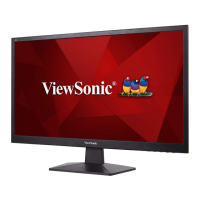
ViewSonic VA2447-mhu - User Manual

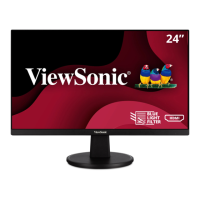
ViewSonic VA2447-mhu
46 pages
Print Icon
To Next Page IconTo Next Page
Loading...
VA2447-mhu
Display
User Guide
Model No. VS18764
P/N: VA2447-MHU
IMPORTANT: Please read this User Guide to obtain important information on installing and using your product in
a safe manner, as well as registering your product for future service. Warranty information contained in this User
Guide will describe your limited coverage from ViewSonic® Corporation, which is also found on our web site at
http://www.viewsonic.com in English, or in specific languages using the Regional selection box in the upper right
corner of our website.

Questions and Answers

  • P
    Paul RobinsonAug 20, 2025
    How to troubleshoot a ViewSonic Monitor with no power?
    • J
      Jillian BrownAug 20, 2025
      If your ViewSonic Monitor shows no power, ensure it's turned on via the power button, the power cord is securely connected to both the monitor and outlet, and the outlet is supplying power by testing it with another device.
  • F
    fbensonAug 22, 2025
    What to do if my ViewSonic VA2447-mhu Monitor has power but no image?
    • C
      Collin GuerraAug 22, 2025
      If your ViewSonic Monitor has power but no image, make sure the video cable is properly connected, adjust the brightness and contrast settings, and ensure the correct input source is selected.
  • C
    Christina MccoyAug 25, 2025
    Why does the screen image cut in and out on my ViewSonic VA2447-mhu Monitor?
    • M
      Marcus GillAug 25, 2025
      If the screen image on your ViewSonic Monitor cuts in and out, verify that the correct input source is selected, inspect the video cable connector for bent or broken pins, and ensure the video cable is securely connected to both the monitor and the computer.
  • K
    Karen ChungAug 26, 2025
    Why does my ViewSonic VA2447-mhu Monitor display wrong or abnormal colors?
    • L
      Lauren StewartAug 26, 2025
      If you see wrong or abnormal colors on your ViewSonic Monitor, check the video cable to ensure it's properly connected. If colors are still off, try connecting the monitor to another computer. If you have an older graphics card, contact ViewSonic for a non-DDC adapter.
  • E
    Elizabeth ScottAug 28, 2025
    How to fix a ViewSonic VA2447-mhu screen that is too light or dark?
    • D
      Daniel HeathAug 28, 2025
      If the screen image on your ViewSonic Monitor appears too light or dark, adjust the brightness and contrast settings via the OSD Menu, or reset the monitor to its factory settings.
  • L
    Lisa FloresAug 30, 2025
    How to resolve a blurred screen image on my ViewSonic Monitor?
    • M
      Mark BurkeAug 30, 2025
      If the screen image on your ViewSonic Monitor is blurred, adjust the resolution to the correct Aspect Ratio or reset the monitor to factory settings.
  • S
    sharon58Sep 1, 2025
    Why does no image appear on my ViewSonic VA2447-mhu Monitor when an external device is connected?
    • P
      Patrick ChoiSep 1, 2025
      If the external device is connected to your ViewSonic Monitor, but no image appears on the screen, make sure the power is on, adjust brightness and contrast via the OSD Menu, and check the connecting cable to ensure it's properly and securely connected.
  • N
    nichole03Sep 3, 2025
    Why are my USB devices not working when connected to my ViewSonic Monitor?
    • G
      gpowellSep 3, 2025
      If the USB devices connected to your ViewSonic Monitor do not work, ensure the USB cable is properly connected. Try changing to another USB port, if available. Some USB devices require a higher electric current, so connect the device directly to the computer.
  • B
    Brittany AllenSep 5, 2025
    How do I center the screen correctly on my ViewSonic VA2447-mhu?
    • J
      Jessica MartinSep 5, 2025
      If the screen on your ViewSonic Monitor isn’t centered correctly, adjust the horizontal and vertical controls via the OSD Menu, check the Aspect Ratio, or reset the monitor to factory settings.
  • F
    Felicia WebsterSep 7, 2025
    What to do if the OSD Menu on my ViewSonic VA2447-mhu Monitor doesn't appear?
    • Z
      Zachary BruceSep 7, 2025
      If the OSD Menu does not appear or the OSD controls are inaccessible on your ViewSonic Monitor, check if the OSD Menu is locked. If so, unlock it. Otherwise, turn off the monitor, unplug the power cord, plug it back in, and then turn on the monitor. You can also try resetting the monitor to factory settings.

Summary

Safety Precautions

Initial Setup

Installing the Stand

Step-by-step guide for attaching the monitor stand.

Wall Mounting

Making Connections

Connecting to Power

Instructions for connecting the monitor to a power source.

Connecting External Devices

Using the Monitor

Turning the Device On;Off

Configuring the Settings

General Operations

Explains how to navigate and use the OSD menu.

On-Screen Display (OSD) Menu Tree

Specifications

Troubleshooting

Maintenance

Cleaning the Screen

Instructions on how to safely clean the monitor screen.

Limited Warranty

Mexico Limited Warranty

What the warranty covers

Details the scope of the Mexico warranty coverage.

What the warranty excludes and does not cover

Lists items and conditions not covered by the Mexico warranty.

How to get service

Procedures and requirements for obtaining warranty service in Mexico.

ViewSonic VA2447-mhu Specifications

General IconGeneral
Product colorBlack
Frameless designYes
Market positioning-
NVIDIA G-SYNCNo
Panel typeMVA
Screen shapeFlat
Display diagonal24 \
Anti-glare screenAlways gives an optimal view, even in direct sunlight.
Display technologyLED
Native aspect ratio16:9
Maximum refresh rate75 Hz
Contrast ratio (dynamic)50000000:1
Display number of colors16.7 million colors
Display brightness (typical)250 cd/m²
RMS rated power4 W
Number of speakers2
HDMI version1.4
Headphone connectivity3.5 mm
USB Type-C downstream ports quantity1
Cable lock slot typeKensington
Panel mounting interface100 x 100 mm
AC input voltage100 - 240 V
Power supply typeInternal
AC input frequency50/60 Hz
Power consumption (max)49 W
Power consumption (standby)0.5 W
Power consumption (typical)28 W
Power consumption (PowerSave)20 W
Operating temperature (T-T)0 - 40 °C
Operating relative humidity (H-H)20 - 90 %
Cables includedAC, HDMI
Package typeBox
Package depth414 mm
Package width600 mm
Package height131 mm
Package weight4600 g
Sustainability certificatesCB, ENERGY STAR, EPEAT Silver, ICES, RoHS, cTUVus
Warranty period3 year(s)
Weight and Dimensions IconWeight and Dimensions
Depth (with stand)206 mm
Height (with stand)403 mm
Weight (with stand)3300 g
Depth (without stand)48 mm
Width (without stand)540 mm
Height (without stand)323 mm
Weight (without stand)2900 g

Related product manuals