Settings
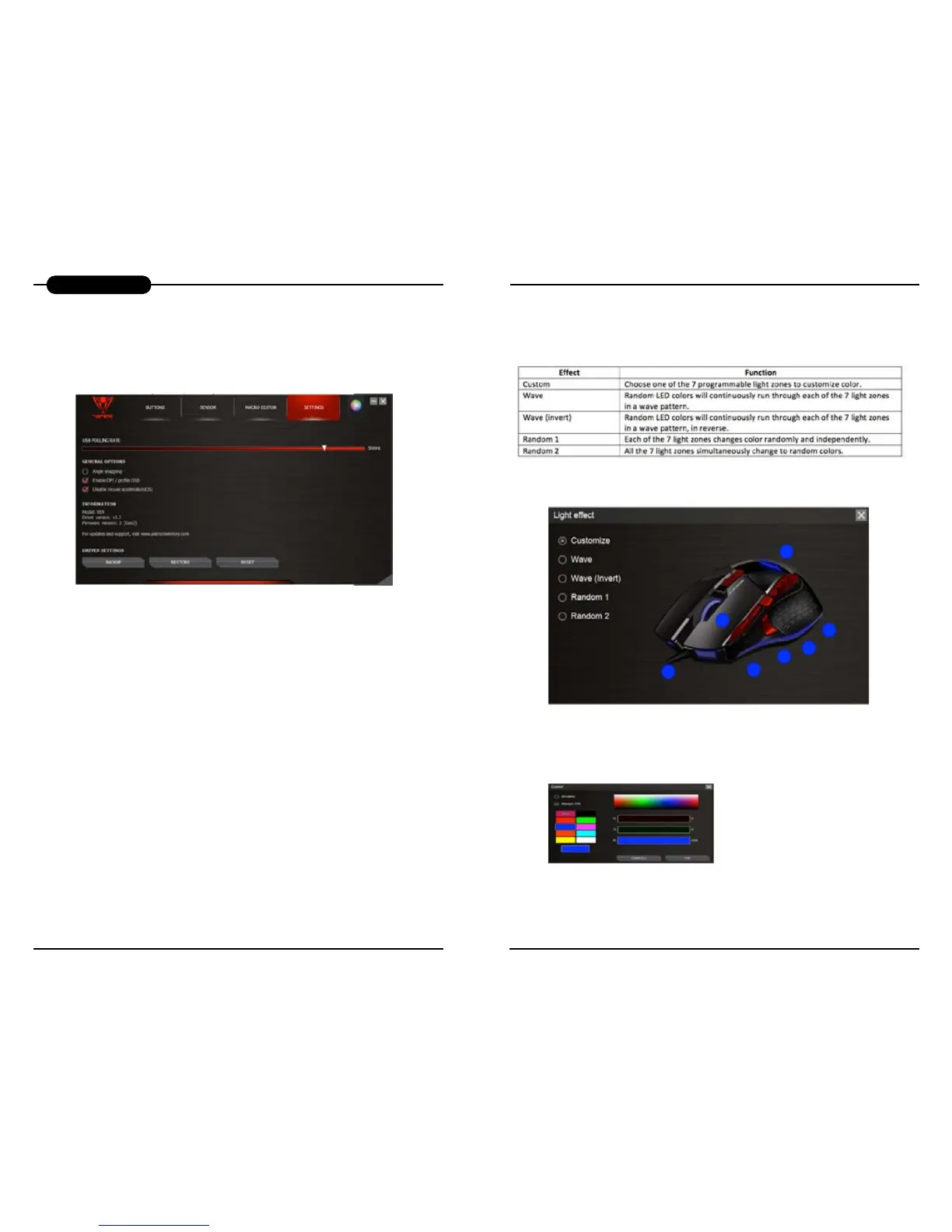
Click the Settings button to access the general settings for the mouse.
USB Polling Rate
You may adjust the polling rate up to 1000 Hz. The higher to polling rate, the more often the computer
receives the mouse information, thus increasing the mouse reaction speed.
Angle snapping
The angle snapping function helps to move the cursor in horizontal and vertical straight lines.
Enable DPI/Prole OSD
A pop up will display on screen when changing to a different DPI or prole setting.
Note: Full-screen games or software don’t support the on-screen display for DPI and mode change.
Disable Mouse Acceleration (OS)
You may choose to disable the mouse acceleration in OS to have precise control of the cursor for First
Person Shooter (FPS) games.
Backup
Backup your mouse setting to a system le.
Restore
Restore your mouse settings from a system le.
Reset
Restore factory setting defaults.
Note: Macros will be deleted.
Light Effect
Click the Light effect button to access the light effect window.
Creating a custom Light Effect
Click on the Light effect button.
Click the Customize button.
Click on the color tab for one of the 7 light zones, and select a color from the color pallet.
Select one of the options Breathe (light will glow and fade), or Always ON (constant on)
Click OK.
Repeat for the other light zones.
Prole Buttons


 To Next Page