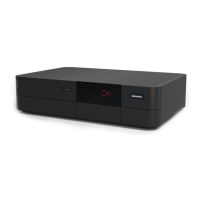
This manual describes the installation and usage of the Virgin TV 360 system, which includes upgrading an existing V6 box to Virgin TV 360, uninstalling a TiVo box, installing a Virgin TV 360 Mini box, and setting up the Virgin TV Go app. The system is designed to provide a comprehensive television viewing experience with advanced features and multi-device compatibility.
Function Description
The Virgin TV 360 system is a digital television service that allows users to watch live TV, on-demand content, and recorded shows. It consists of several components:
- Virgin TV 360 Box (Upgraded V6 Box): This is the primary receiver for the Virgin TV service. An existing V6 box is upgraded to become the 360 box, which serves as the main hub for recording and accessing content. It supports 4K resolution, offering a high-quality viewing experience.
- Virgin TV 360 Mini Box: This secondary receiver extends the Virgin TV 360 experience to another room. It allows users to watch live TV and on-demand content on a second television, often connecting via Wi-Fi for flexibility.
- Virgin TV 360 Remote: This new remote control features voice control, allowing users to navigate menus, search for content, switch channels, and open apps using voice commands. It is designed to simplify interaction with the TV box.
- Virgin TV Go App: This mobile application allows users to watch live TV and on-demand content on up to five registered mobile or tablet devices. It extends the TV viewing experience beyond the living room, enabling users to watch content wherever they are.
- TiVo Box (Old System): This is the previous generation TV box that is replaced by the Virgin TV 360 Mini box. The manual provides instructions for its safe uninstallation.
Usage Features
The Virgin TV 360 system offers a range of features designed to enhance the user's TV experience:
- Seamless Upgrade Process: The manual guides users through upgrading their existing V6 box to the Virgin TV 360 software. This involves a software update and pairing a new 360 remote.
- Multi-Room Viewing: With the Virgin TV 360 Mini box, users can enjoy their TV service in a second room. The Mini box can connect to the Hub via Wi-Fi or Ethernet, providing flexibility in placement.
- Voice Control: The new 360 remote features voice control, allowing users to perform various actions by speaking into the remote. This includes switching channels, opening apps, searching for programmes, navigating the guide, and controlling playback.
- On-Demand and Catch-Up TV: Users can access a wide array of on-demand content and catch-up TV, ensuring they don't miss their favorite shows.
- Recording Capabilities: The system allows users to record multiple shows simultaneously (e.g., 6 things while watching a 7th), providing extensive recording flexibility.
- Personalized Experience: The Virgin TV 360 system offers a personalized experience, remembering user preferences and viewing history. Voice control further enhances this by allowing users to easily find content.
- Parental Controls: Users can set parental controls to manage what their children watch, with a default PIN of 1234 that can be changed.
- Accessibility Features: The system includes accessibility options such as audio description and subtitles, which can be enabled or disabled through settings or voice control.
- Multi-Device Streaming (Virgin TV Go App): The Virgin TV Go app allows users to watch live TV and on-demand content on up to five registered mobile or tablet devices. It supports Android, iOS, Windows 10, and PC/Mac, offering access to over 110 live TV channels.
- Internet Security: Virgin Media Internet Security, powered by F-Secure, offers protection against viruses, malware, ransomware, and spyware on unlimited devices. It also includes features for safer online shopping, parental controls, and locating/wiping Android devices.
- Virgin Media Connect App: This app helps users scan their home for Wi-Fi blackspots, reboot their Hub 3 remotely, connect to Virgin Media Wi-Fi hotspots, and share their Wi-Fi password with guests.
- Easy Installation: The manual provides clear, step-by-step instructions with diagrams for each stage of the installation process, from upgrading the V6 box to installing the Mini box and app.
- Troubleshooting Support: The manual includes a dedicated troubleshooting section for common issues, such as remote control pairing problems and Wi-Fi connectivity issues, with advice on how to resolve them. Online resources and contact information are also provided for further assistance.
Maintenance Features
While the manual primarily focuses on installation and usage, it touches upon several aspects related to maintenance and care:
- Remote Control Battery Check: For issues with remote control pairing, users are advised to check and replace the batteries, ensuring they are inserted correctly.
- Automatic Software Updates: The Virgin TV 360 service will automatically update within 5 days of the package arriving, ensuring users always have the latest features and improvements.
- Disposal of Old Kit: Users are instructed to dispose of their old TiVo box responsibly and are advised to keep the old TV box, HDMI cable, and power supply together without re-using them with other devices.
- Keeping the Box Turned On: During the upgrade process, users are reminded to keep the V6 box turned on and connected to the internet for the update to complete successfully.
- Placement of the 360 Box: The 360 box is small and can be placed out of sight. The remote does not require a line of sight to work, offering flexibility in placement. If the remote doesn't work after placing the box out of sight, users are directed to the troubleshooting section for re-pairing instructions.
- Connectivity Advice: For optimal performance, users are advised to use an Ethernet cable for the 360 Mini box if it's close enough to the Hub. If Wi-Fi is used and issues arise, VM Boosters are recommended.
- Online Help Resources: Virgin Media provides online resources (virginmedia.com/360install, virginmedia.com/QShelp, virginmedia.com/help, virginmedia.com/contact, virginmedia.com/helptvonthego, virginmedia.com/shop/virgin-media-internet-security, recycle-more.co.uk) for further assistance, FAQs, troubleshooting tips, and responsible recycling information.

 Need help?
 General

 To Next Page