3
Changing the Picture Aspect Ratio
To change the screen aspect ratio:
Menu > Picture > Picture Aspect
Use the Navigation buttons to highlight the aspect ratio you wish to view.
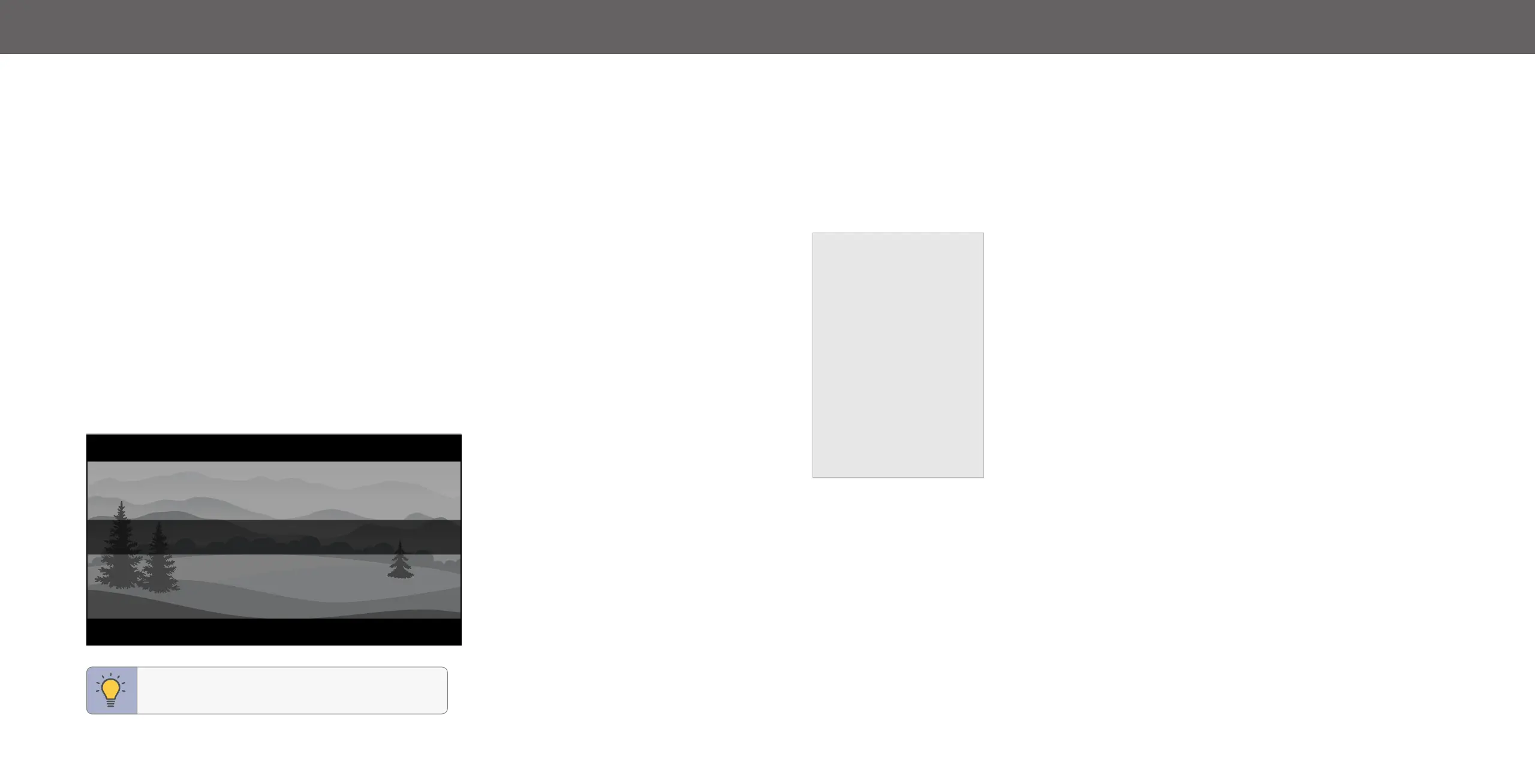
Your TV can display images in different modes:
• Normal (default) — No change to aspect ratio.
• Panoramic
*
— Stretches a 4:3 image to fill 16:9 screen with an algorithm so the
center doesn’t look stretched.
• Wide — Stretches a 4:3 aspect ratio to fill 16:9 screen. If a 16:9 image, adds
black bars to top and bottom.
• Zoom — Expands image both horizontally and vertically by 14%.
• Stretch
*
— When the 16:9 signal is a 4:3 image with black bars left and right,
stretches to fill the screen.
Some programs have black bars on the top or sides of the screen so that the
picture keeps its original shape. Examples include widescreen movies and older TV
programs.
Normal
Stretch Wide Zoom
TIP: The aspect ratio cannot be changed for Ultra
HD content or HDR content.
Adjusting Advanced Picture Settings
To adjust advanced picture settings:
Menu > Picture > Advanced Picture
Use the Navigation buttons to highlight the setting you wish to adjust, then press
the Left/Right Navigation buttons to change the setting:
• Black Detail — Adjusts the average
brightness of the picture to compensate for
large areas of brightness.
• Super Resolution — Configures the
resolution to enhance dim and blurred
pictures resulting in a sharper image.
• Edge Enhancement — Smooths out
jagged lines or edges caused by content
with low resolution.
• Local Contrast — Adjust the contrast of
the picture locally.
• Peak Luminance — Peak Luminance
boosts the bright highlights for the overall
picture of the OLED TV.
• Motion Control:
Advanced Picture
Black Detail Off
Super Resolution Medium
Edge Enhancement Low
Local Contrast Low
Peak Luminance Medium
Motion Control
Reduce Noise
ProGaming Engine™
Film Mode On
Gamma 2.1 - Normal
− Judder Reduction: Increases frame rate to reduce judder for film and 30
hertz video. As the setting increases, judder is reduced.
− Motion Blue Reduction: Increases frame rate to reduce motion blur of 60
hertz video. As the setting increases, motion blur is reduced.
− Clear Action: Reduces blur in scenes with fast action but limits the range for
the Backlight setting.
• Reduce Noise:
− Signal Noise: Reduces background picture noise when viewing analog
sources. This function helps to correct "speckle" noise with a slight reduction
in sharpness.
− Block Noise: Reduces the side effects of digital compression such as
"blocking" and noise on sharp edges. The High setting will cause a slight
reduction in sharpness.
− Contour Smoothing: Removes visible contour noise without loss of the
complex detail.
• ProGaming Engine™:
− Game Low Latency: Reduces video delay (lag) when gaming. When set to
Auto and Automatic Low Latecy Mode (ALLM) is detected, ALLM will apply
for the duration of the game.
− Variable Refresh Rate: Adjusts the refresh rate of the screen based on
the content.
− Game HDR: Optimizes picture quality for HDR game.
• Film Mode — Optimizes the picture for watching films. Select On or O.
• Gamma — Set the shape of the Gamma curve. Use lower Gamma values for
bright room conditions, and higher values when it’s dark.
• Color Calibration — Calibrate colors using HSB, gain, offset and 20 point white
balance and test or reset colors to defaults.


 To Next Page