EasyManua.ls Logo

VistaQuest HS-500X - User Manual

VistaQuest HS-500X
32 pages
Print Icon
To Next Page IconTo Next Page
Loading...
User’s
Manual
HS-500X
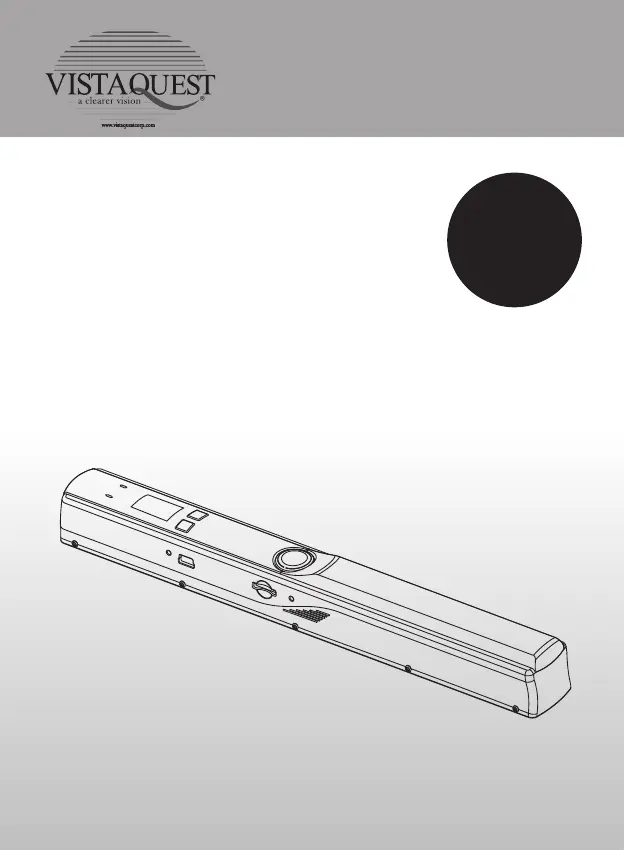
Portable Scanner

Questions and Answers

  • C
    Christopher LongAug 5, 2025
    What to do if computer does not recognize VistaQuest HS-500X?
    • M
      Matthew BlairAug 5, 2025
      If your computer isn't recognizing your VistaQuest Scanner when it's connected (and you can't find the removable disk), ensure all cable connections are secure. If the problem persists, try restarting your computer.
  • V
    vanessa34Aug 11, 2025
    How to fix blurry images on VistaQuest HS-500X?
    • J
      Janet RichardsonAug 11, 2025
      If you're getting blurry images with your VistaQuest Scanner, it's likely that the lens is dirty. Clean the lens carefully with a soft, dry cloth.
  • R
    Rebecca AcostaAug 15, 2025
    Why is the battery life so short on my VistaQuest HS-500X?
    • B
      Bill RogersAug 15, 2025
      If the battery life of your VistaQuest scanner is very short, it might be due to using the wrong type of battery. Replace the batteries with new 2xAA alkaline batteries.
  • H
    hoovertammyAug 20, 2025
    How to turn on VistaQuest HS-500X Scanner?
    • J
      John RodgersAug 20, 2025
      If your VistaQuest Scanner won't turn on, the issue could be due to low battery power or the battery not being inserted correctly. Try replacing the battery or ensuring it's properly installed.
  • R
    robert54Aug 26, 2025
    What to do if ERR LED is on when scanning with VistaQuest HS-500X?
    • S
      Sarah WheelerAug 26, 2025
      If you see an 'ERR' LED light when scanning a document with your VistaQuest Scanner, it means the scanning speed is too fast. Press the Power/Scan button to reset and try scanning the document again.
  • J
    Jonathan McdonaldAug 30, 2025
    What to do if VistaQuest HS-500X doesn't save pictures?
    • S
      Stephanie CooperAug 30, 2025
      If your VistaQuest Scanner isn't saving pictures while scanning, this could be due to a few reasons: * A microSD card might not be installed. * The memory could be full. * The microSD card might not be formatted correctly. To resolve this: 1. Install a microSD card. 2. Download pictures from the scanner to your computer to create storage space. 3. Refer to section 4:3 for formatting instructions.

Summary

Safety Precautions

Preparation and Components

Standard Accessories

Lists all items included in the scanner package for initial setup and use.

Parts Identification and Functions

Details the names and functions of each component on the scanner.

Key Features

Status Icons Explained

Scanner Operation Guide

Setup and Configuration

Steps for installing batteries, memory card, setting date/time, and configuring scan modes/resolution.

Scanning and Calibration

Instructions on performing a scan and performing white balance calibration.

LED Indicator Guide

Computer Connectivity

Technical Specifications

Software System Requirements

Troubleshooting Common Issues

NimoDoc Lite Software Operations

Installation, Interface, and Startup

Steps for installing, starting, and navigating the main interface of the software.

Software Functions and Usage

Comprehensive guide to using various features like input, output, editing, and recognition.

NimoDoc Lite System Requirements

Minimum hardware and software requirements for the NimoDoc Lite application.

VistaQuest HS-500X Specifications

General IconGeneral
BrandVistaQuest
ModelHS-500X
CategoryScanner
LanguageEnglish