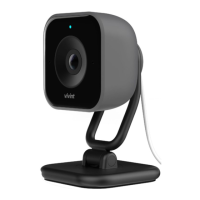
Indoor Camera Pro (front view) —
Installation Instructions
Installing the
indoor camera essentially involves selecting the location, mounting the camera, applying power, initiating the setup procedure and then following prompts. The
an be installed by a Vivint Field Service Pro (FSP)/technician or the homeowner. The technician should carefully read all of these steps in order to ensure a successful
installation and optimal performance. For additional information, refer to the Field Service Pros website.
4931 N 300 W Provo, UT 84604
Wall Mount Back Plate and Camera Base (bottom view) —
Vivint Indoor Camera Pro is a powerful multi-purpose video and audio communication device that can be added
an integrated Vivint Smart Home system, enhancing safety and security by letting the homeowner view a live video
at both the panel/hub screen and remotely with the mobile app. Activity history in the viewing area can also
ed via recorded video clips. Additionally, you can engage in two-way talk
with anyone at the camera with the call
initiated from either the app or the camera itself
; as well as receive notifications when the camera detects a person in
zones. The LED light on the front of the camera indicates real-time function and status. The
Indoor Camera Pro is an indoor use only device.
rofessionally installed by a Vivint technician (or customer DIY), the indoor camera is added to the system either
WPS, Wi-Fi Connect, or NFC. The camera can be installed on any flat surface or mounted on a wall with the
back plate, and the field-of-view configured with the camera's full-motion (tilt and swivel) hinge and base.
include: Night vision with IR LEDs; 155° x 80° FOV (field of view); 1080p HD; Pinch-to-zoom video;
-triggered notifications; Micro SD card for 24/7 playback DVR; Complete control and configuration via the app.
This document includes a product description,
illustrations, basic operation / user functionality overview, and
instructions; as well as technical specifications, standards listings, and regulatory compliance references.
Indoor Camera Pro
S-IDC350-GRY)
Quick Reference (User Manual — Installation & Operation)
PRINT INSTRUCTIONS: !!! DRAFTr7 !!!
REFERENCE SHEET
FOR VS-IDC350-GRY P/N 77-600061-001 REV 1.0 |
BLACK | MATERIAL: 20 LB MEAD BOND | SIZE: 8.50" X 11.00" SCALE 1:1 |
BI-FOLD VERTICAL, BI-FOLD HORIZONTAL (TO FIT IN BOX)
To install the indoor camera, follow these steps:
1. Determine where to place the camera inside the home, consulting with the homeowner.
IMPORTANT: Do NOT install outdoors. T
he IDCPro is an indoor use only device.
2. Locate the nearest unswitched power outlet and plug in the power supply adapter.
3. To install the camera on a flat surface: Place the camera in the desired location, and
connect the camera's power cable to the cable coming from the power supply.
4. To install the camera on a wall: Attach the wall mount back plate with standard screws
(use anchors if necessary), place the base of the camera on the back plate pushing
down until it latches securely, and then connect the power cables.
5. Verify power is present. The LED light will illuminate. (See LED descriptions.)
6. To pair the camera to the system: First, at the panel, tap the menu icon (…) in the
bottom right corner > tap Software version > enter PIN code 2203 > tap Smart Home
devices > Cameras > and then tap Add camera. Next, use one of these methods to pair.
• For WPS pairing: Tap WPS Pro, wait for the "listening for device" message, then
go to the camera, press the top button, and follow the prompts until it shows online.
• For Wi-Fi Connect pairing: Tap Wi-Fi Connect, wait for the panel to find the camera
device, then select the camera, tap Add, and wait for the camera to show online.
• For NFC pairing (Note: Use only before installing!): Tap NFC, align the bottom right
of the front of the camera with the white light on the panel and hold until pairing is
complete. Then install, power on, and wait for the camera to show online.
7. Verify that you can view live video at the panel and with the app.
Operation Overview / User Functionality
Once the
indoor camera is up and running — similar to other Vivint cameras — the user can perform the following functions
at the panel and via
the app. For detailed instructions, refer the homeowner to the online Help resources (articles and video tutorials) at the Vivint Support website.
• View recorded video clips
• Engage in two-way talk conversations
• Receive person detection notifications
Additionally, for camera management and configuration tasks,
at the
Devices > Cameras settings page, the user can:
• Adjust person detection & video settings (app only)
• Reboot the camera
• Delete the camera


 To Next Page
 Need help?
 General