The Vivitar Audio Stream Sound Mixer (Item: VIVAUDMIX-NOC) is a versatile device designed for recording, streaming, and broadcasting sound mixes live. It allows users to connect multiple audio inputs and apply various sound effects and adjustments, making it suitable for podcasting, live streaming, and music recording.
Function Description:
The sound mixer serves as a central hub for managing audio inputs from microphones, headsets, and smart devices, and for outputting a mixed audio stream. It features multiple ports for connecting up to two headsets and three microphones, including specific ports for dynamic and condenser microphones. The device includes a control panel with various knobs, faders, and buttons for adjusting volume levels, applying sound effects, and managing audio output. It supports both PC and Bluetooth connections for recording and broadcasting.
Important Technical Specifications:
- Output Adoption Rate: 44 kHz
- Input: DC5V 500mA
- Product Size: 16.5 x 14 x 5 cm
- Net Weight: 300g
- Microphone Ports: 3 (1 Dynamic Mic Port, 2 Condenser Mic Jacks)
- Headphone Jacks: 2
- Music Player/Smart Phone Port: 1
- Power/Charging Port: USB-C
- Connectivity: USB-C to USB-A, USB-C to USB-C, Bluetooth
Usage Features:
Powering On:
To power on the device, connect the included USB-C power cable to the charging port and a suitable USB charging port (preferably a computer). Press and hold the Power button until the unit powers on and the button illuminates.
Plug-In Ports:
- Headsets: Connect up to two headsets to the dedicated jack ports at the front of the mixer.
- Microphones:
- Dynamic Microphones: ONLY insert into the Dynamic Mic Port.
- Condenser Microphones: ONLY insert into Microphone Jack 1 or Microphone Jack 2.
- Caution: Inserting the wrong type of microphone into a port can cause extensive damage to the microphone or the sound mixer. Consult the microphone's manufacturer if unsure about its type.
- Music Player/Smart Phone: Connect your music player or smartphone to the Music Player Port using the appropriate cable (e.g., 3.5mm AUX cable).
Adjustment Knobs and Faders:
- Volume Control Knobs (Microphone, Headphone, Music): Twist these knobs to control the volume output to headphones, volume input from microphones, and volume input from your music player/smartphone. The Volume Level Display will show the current volume levels.
- Monitor Volume Knob: Adjusts the mixer's input volume to a computer connected via USB. If microphone audio is not audible on the connected device during recording or broadcasting, twist this knob to the right.
- Sound Faders: Use these to adjust and add effects to the microphone audio.
- MUTE ALL Sound Button: Press to mute all audio; press again to resume.
- VOICE OVER Button: Press and hold to quiet any audio or music, allowing you to speak over it. Release to resume audio.
- Microphone MUTE Button: Mutes your microphones; press again to unmute.
- Microphone FX OFF Button: Turns off all voice effects; press again to resume.
- SHIFT VOICE HIGHER Button: Adds a high-pitched sound effect to your voice. Press again for a higher shift. Press a third time to turn off the effect.
- SHIFT VOICE LOWER Button: Adds a low-pitched sound effect to your voice. Press again for a lower shift. Press a third time to turn off the effect.
- MUSIC VOCAL CANCEL Button: Drowns out vocals in music, allowing the instrumental track to take over. Press again to stop the effect.
- BLUETOOTH Button: Activates Bluetooth pairing (flashes blue). Press again to stop pairing (blue light turns off). All activated buttons will emit a back light.
Sound Boards (Sound Panels):
- Right Sound Panel: Press buttons to play different reaction sounds such as clapping, applause, cheering crowd, booing, laughter, rim shot, thunder, suspense, and scream. Buttons emit a back light when activated.
- Left Sound Panel: Press buttons to play different sound effects such as custom sound, DJ air horn, record scratch, ding, buzzer, crickets, censor beep, sad trombone, and car horn. Buttons emit a back light when activated.
To record a custom sound:
- Press and hold the Custom Sound button for 3-4 seconds, then release.
- You will hear a beep through your headset, and the button will light up, indicating it's ready to record.
- Record your custom sound. Another beep will sound, and the button light will flash and turn off when the recording reaches 10 seconds.
- To stop recording manually before 10 seconds, press and hold the button.
- After successful recording, press the button to play your custom sound.
Recording and Broadcasting:
- Recording: Open sound recording software on your connected device and start recording. If no default software is available, download one.
- Live Broadcasting/Streaming: Open a live broadcasting program or streaming platform on a connected device.
- Important Note: Live broadcasting and recording functionality is compatible with most laptops, desktop computers, and Google Android smartphones. It is not compatible with Apple iPhones and other iOS devices.
- Software Compatibility: The device is compatible with most standard sound recording software. It is recommended to test the device with your chosen software; if it doesn't perform, try a different software.
PC Connection:
- Open the settings menu on your PC.
- Go to the Bluetooth & Devices menu.
- Ensure "Vivaud1" is paired as an audio device. If not, find "Vivaud1" in the list of available devices and click to pair. The device should be listed as an audio source.
Bluetooth Connection:
- Enable Bluetooth on your Bluetooth-enabled device (e.g., smartphone).
- Press the Bluetooth button on the sound mixer's control panel. The button will flash blue, indicating it's available for connection.
- On your device, go to the Bluetooth menu and select "Vivaud1" from the list of available devices.
- Once connected, the mixer's Bluetooth button will stop flashing and remain steadily lit blue.
- To turn off Bluetooth mode, press the Bluetooth button again. The blue light will turn off.
Operational Setups:
The manual illustrates various setups:
- Recording Music With a Smartphone: Connect a smartphone, headset, and microphone to the mixer.
- Smartphone and Computer Duo Live Broadcasting: Connect a smartphone, computer, headset, and microphone to the mixer.
- Live Broadcast By Computer: Connect a computer, headset, and microphone to the mixer.
- Recording or Broadcasting with Two Headsets and Microphones: Connect two headsets, two microphones, and a computer or smartphone to the mixer.
Maintenance Features:
- Cleaning: Clean the device with a soft cloth.
- Disposal/Recycling: Recycle or dispose of the product properly according to local laws and rules. Contact local recycling facilities or the manufacturer for information.
- Safety Precautions: Avoid extreme heat or fire, temperatures exceeding 100°F, crushing, throwing, or subjecting the product to extreme physical force. Do not use near water. Adult supervision is advised; this product is not a toy.
The Vivitar Audio Stream Sound Mixer comes with a one-year warranty covering defects in material or workmanship under normal usage. Damages from unauthorized repairs, tampering, modification, accidents, or abnormal use are not covered. For warranty service, contact Vivitar at 1-800-592-9541 or visit www.vivitar.com. Proof of purchase is required for service.

 Need help?
 General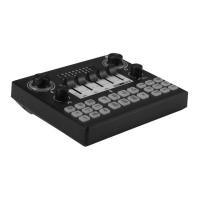

 To Next Page