EasyManua.ls Logo

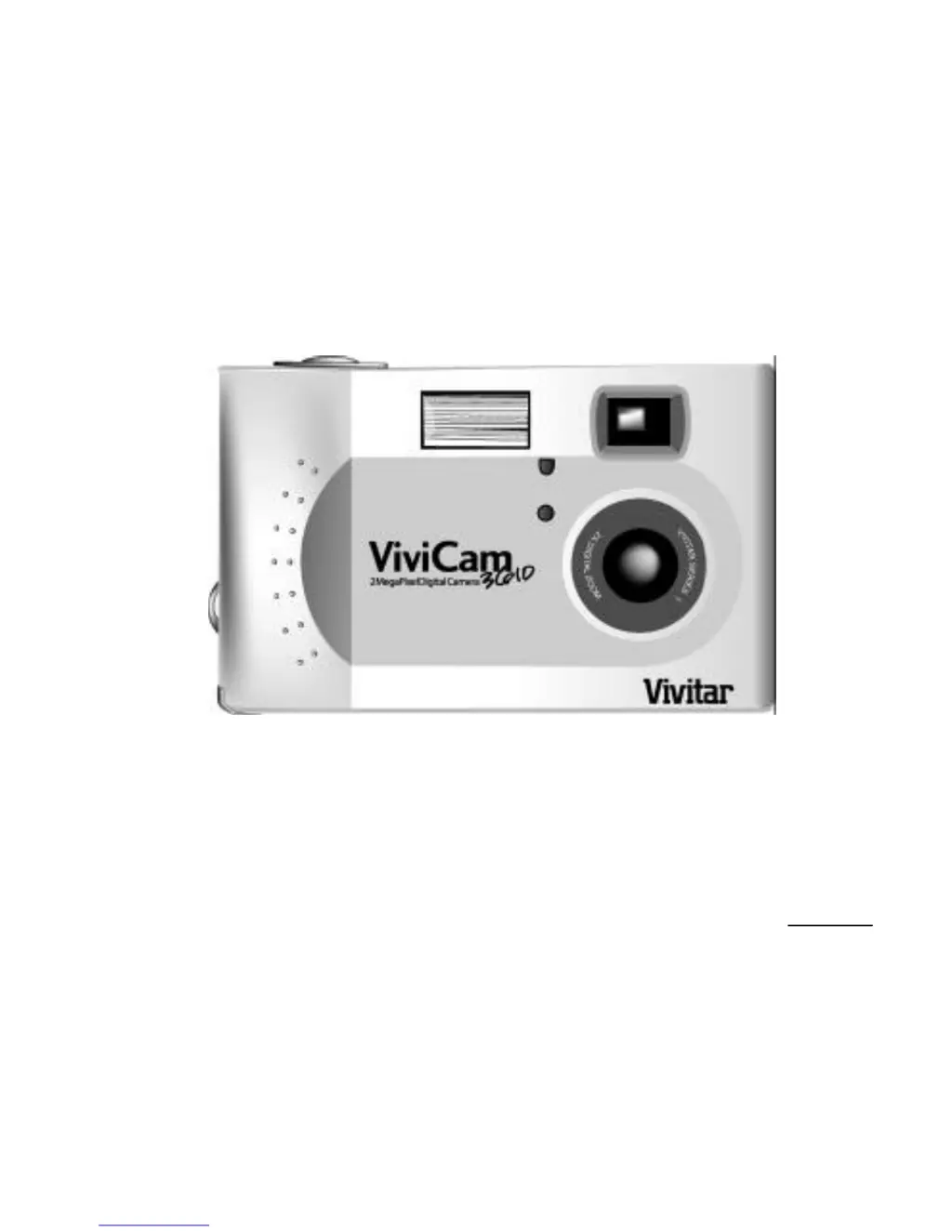
Vivitar Vivicam 3610 - User Manual

Vivitar Vivicam 3610
52 pages
Print Icon
To Next Page IconTo Next Page
Loading...
Digital Camera
User Manual
020910

Questions and Answers

  • K
    Katrina MolinaJul 30, 2025
    Why is my Vivitar Vivicam 3610 not turning on?
    • M
      Michael RushJul 30, 2025
      Your Vivitar Digital Camera might not be turning on because it is switched off. Ensure that you press the power button to turn the camera on. Also, check if the batteries are discharged and replace them with fresh ones. Finally, verify the battery orientation to ensure they are correctly inserted.
  • M
    mcdonaldstephanieAug 3, 2025
    Why is the flash not working on my Vivitar Vivicam 3610?
    • A
      Aaron LinAug 4, 2025
      If the flash on your Vivitar Digital Camera isn't working, first ensure that the flash is set to auto or always on. Also, the batteries may be weak. If so, turn the camera off, wait a few seconds, and then turn it back on. If the flash still doesn’t work, replace the batteries with fresh ones.
  • A
    Andrew ClarkAug 9, 2025
    Why do images lose formatting data during image capture in "PC Camera" mode on my Vivitar Digital Camera?
    • P
      pjeffersonAug 9, 2025
      If your hard disk's DMA setting is turned off (Windows 98 and Windows ME only), images may lose formatting data during image capture. Please check to make sure your hard drive's DMA setting is enabled, as follows: 1. From the Windows Start menu, select Settings, then Control Panel. 2. In the Control Panel double-click System, then click the Device Manager tab. 3. Select your hard drive from the list, then click Properties. 4. Click the Settings tab. 5. Make sure the box marked DMA is checked. If not, check the box to ensure that your hard drive will protect image attributes during capture.
  • T
    Thomas RamirezAug 14, 2025
    What to do if my Vivitar Vivicam 3610 won't take a picture?
    • J
      John DavidsonAug 14, 2025
      If your Vivitar Digital Camera isn't taking pictures, and the light is flashing, wait until it emits a steady light before trying again, as the camera may be waiting for the flash to charge. Also, if the camera is connected to a computer, disconnect it, since the camera’s buttons are not functional when connected to a PC.
  • L
    Lisa TorresAug 18, 2025
    How to fix blurry images on my Vivitar Digital Camera?
    • S
      Steven MorganAug 18, 2025
      If your images are blurry when using the Vivitar Digital Camera, it could be due to movement of the camera or the subject while taking the shot. To resolve this, hold the camera steady or use a tripod to stabilize it.
  • J
    Jonathan LarsonAug 25, 2025
    What to do if my computer does not recognize my Vivitar Digital Camera?
    • J
      Jennifer HuffmanAug 25, 2025
      If your computer isn't recognizing your Vivitar Digital Camera, and you connected the camera via USB before installing the software, connect the camera to the computer with the USB cable. Then, go to [My computer] > [Control panel] > [System] > [Device manager]. From [other devices] in [device manager], delete [Composite USB device] or [unknown device]. Disconnect the camera, install the software, and then reconnect the camera.

Summary

Preface

About this manual

Provides an overview of the manual's purpose and accuracy disclaimer.

Copyright Information

States the copyright holder and year for the document.

Trademarks Acknowledged

Lists registered trademarks used in the manual.

Chapter 1 - Getting Started

Product Features

Lists the key capabilities and specifications of the digital camera.

Safety Precautions

Details important safety guidelines for using the camera and handling batteries.

Included Components

Lists all items included in the camera package.

Camera Views and Components

Details the front, back, and bottom views of the camera and its components.

Chapter 2 - Taking Pictures

Preparing the Camera for Use

Steps to ensure the camera is ready for taking pictures.

Selecting Camera Operation Mode

Explains how to choose between Snapshot, Timer, and Preset modes.

Framing and Capturing Images

Guidance on how to compose and capture images.

Zooming and Shooting Process

Instructions on using zoom and the actual picture capture process.

Shutting Down the Camera

Steps to safely turn off the camera to conserve battery.

Chapter 3 - Reviewing Your Pictures

Accessing Playback Mode

How to access stored images on the camera.

Full-Screen Picture Viewing

Navigating and viewing individual pictures in full screen.

Thumbnail Picture Browsing

Viewing multiple images simultaneously for quick browsing.

Chapter 4 - Connecting to a Computer

Software and Driver Installation

Instructions for installing necessary drivers and software for PC connection.

Establishing Computer Connection

Steps to connect the camera to a computer.

Transferring Images to Computer

Guide on copying photos from the camera to a computer.

Using Camera as PC Webcam

How to use the camera for video conferencing or capture.

Chapter 5 - Mode; Operation Guide

Snapshot Mode Operation

Basic operation for taking standard pictures.

Timer Mode Operation

Using the self-timer for group shots or steady pictures.

Preset Mode Operation

Selecting special effects like Sepia or Monochrome.

Playback Mode Operation

Navigating and viewing saved images.

Setup Mode Configuration

Accessing and adjusting camera settings like date, language, and quality.

Appendix 1 - Button Function Guide

REC;DSC Mode Button Functions

Details button operations for recording and still capture.

Timer Mode Button Functions

Explains button usage when the self-timer is active.

Preset Mode Button Functions

Details button operations for different preset image styles.

Playback Mode Button Functions

Describes button operations for reviewing images.

Setup Mode Button Functions

Explains button functions for navigating setup menus.

Appendix 2 - Troubleshooting

Power and Camera Operation Issues

Solutions for problems like no power or camera not taking pictures.

Flash and Image Quality Problems

Addresses issues with the flash not working or blurry images.

PC Connectivity and Recognition Issues

Resolves problems with the PC not detecting the camera.

Data Management and Storage Errors

Solutions for issues related to data loss or formatting.

Vivitar Vivicam 3610 Specifications

General IconGeneral
Sensor Resolution3.2 MP
Image Resolution2048 x 1536
Optical Zoom3x
Digital Zoom4x
Lens TypeFixed
LCD Screen Size1.5"
Storage MediaSD Card
Battery Type2 x AA
Video Resolution320 x 240
Resolution3.2 MP
Dimensions2.4 x 1.5"

Related product manuals