Need help?
Do you have a question about the Vivo Y11s and is the answer not in the manual?
Identifies and describes the external keys and interactive widgets on the Vivo Y11s phone.
Step-by-step guide on how to correctly insert Nano SIM and Micro SD cards into the phone's tray.
Details on connecting the phone to a charger or compatible device for charging.
Explanation of various icons displayed in the status bar indicating phone functions and network status.
Instructions on managing multiple home screens, apps, widgets, and wallpapers.
Guidance on capturing photos and videos, including zoom and focus functionalities.
Introduction to various Google applications available on the phone for entertainment and productivity.
Guide to enabling, disabling, and connecting to Wi-Fi networks.
Settings for managing SIM cards and mobile data connections.
How to enable or disable airplane mode to turn off all wireless communications.
How to set and manage location functions for apps and services.
Guide to enabling developer options and USB debugging for advanced users.
Instructions on how to upgrade the phone's system software.
Steps for connecting the phone to a computer and transferring files via USB.
This document provides a comprehensive overview of the Y11s mobile phone, detailing its physical components, basic operations, and various software features. It is designed to help users understand and effectively utilize their device.
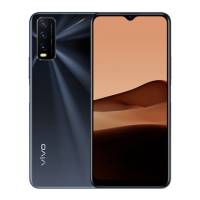
The phone's physical layout includes several key components. On the front, there's an Ambient light sensor & Proximity sensor (5) which automatically adjusts screen brightness based on ambient light intensity and turns off the screen during calls to prevent accidental touches. The Receiver (4) allows you to hear callers during phone conversations. The Front camera (3) is used for taking photos and recording videos. On the side, there's a Volume button (6) for adjusting audio levels and a Card tray (2) for installing or removing SIM and SD cards. The Power button & Fingerprint sensor (7) serves multiple functions: a long press in power-off mode turns the phone on, while a long press in boot mode allows you to turn off or reboot the device. This button also integrates a fingerprint sensor for unlocking the phone. If the phone becomes unresponsive, a simultaneous long press of the Power button and Volume button (-) for more than 10 seconds will force a restart. The Pin port (9) is used to eject the card tray. On the back, there's a Rear camera (8) for capturing photos and videos, and a Rear flash (9) which acts as a flashlight source. At the bottom, you'll find the USB port (10) for connecting to chargers or computers, a Speaker (11) for audio output, a Microphone (12) for transferring sound during calls, and an Earphone jack (13) for connecting headphones.
Installing SIM and SD cards is a straightforward process. The Y11s supports hot swapping of Nano SIM cards (SIM1/SIM2) and Micro SD cards, meaning the phone can automatically recognize them when inserted while the device is on. To install, insert the provided pin into the SIM pin port to eject the card tray. Place the Nano SIM or Micro SD card onto the tray with the metal face downward, ensuring the oblique angle matches the tray's design. Then, with the screen facing up, slide the tray back into the phone. It's important not to cut your SIM card yourself; if a Nano card doesn't fit, it's recommended to obtain a standard Nano card from your carrier. The phone uses a "Dual card dual standby single-pass" design, which means that if one SIM card is active for a voice call, the other cannot receive calls. Similarly, if one card is using data, the other can still access data services. This single-chip design helps improve battery life and energy efficiency. Users are encouraged to enable services like "Missed call reminder" through their local operators to avoid missing calls under these conditions.
Connecting headphones is as simple as plugging the headphone jack fully into the designated port on the phone. To charge the phone, insert one end of the data cable into the USB port and the other into the charger or a compatible device. The phone will begin charging. Once fully charged, disconnect the phone and charger. It is recommended to use the data cable and charger that came with the phone.
The phone is equipped with a built-in antenna. To ensure optimal communication quality and battery life, avoid touching the antenna area (marked with dotted lines in the manual) when the phone is transmitting or receiving signals. This area should not be covered when holding the phone.
The status bar at the top of the screen provides essential information through various icons, including signal strength, SIM card status, airplane mode, Wi-Fi connection, network type (2G/3G/4G), Bluetooth connection, vibration mode, silent mode, do not disturb mode, new messages, alarms, battery power, charging status, missed calls, location services, and downloading activity. When a new notification arrives, its content appears on the status bar. Sliding down the status bar and tapping the notification reveals more details.
The home screen is the central hub of your phone. The Y11s supports multiple home screens, which you can navigate by swiping left or right. Swiping up from the home screen reveals all installed apps. To customize the home screen, tap and hold a blank area to change settings, add widgets, or select a wallpaper. The Google search bar allows for quick searches. Apps can be added to the home screen by dragging them from the app drawer. The Shortcut Center, accessed by swiping down from the top of the screen, provides quick access to frequently used functions.
The "Desktop" section, accessible from the iManager home page via the "Settings" icon, allows for detailed adjustments and access to relevant information, promoting a secure and efficient mobile experience.
The Camera feature enables users to capture photos and videos. To zoom in or out, use a two-finger pinch gesture on the screen. The camera automatically focuses on objects, indicated by a rectangular box, but users can also manually tap the screen to set the focus point. Captured photos and videos, along with other images, can be viewed in the Photos and videos section. Location information is only available for pictures that include geographical data.
The Slideshow function allows you to view photos and videos in a continuous presentation. This can be initiated from the "Photo" screen (More > Slideshow) or from a folder in "Albums" (More > Slideshow). Photos and videos can be shared or deleted by selecting them in editing mode. Images can also be edited directly from the "Photo" or "Albums" screens.
The Calculator provides standard and scientific calculation functions. The standard calculator is displayed by default, and rotating the phone horizontally reveals the scientific calculator.
The Recorder allows the phone to be used as a portable recording device. Users can start, pause, and stop recordings, then play them back, fast forward, or rewind using a slider. Recording files can also be shared or deleted.
The Clock feature includes four main functions:
The Compass displays directions, longitude, latitude, and a horizontal line. For accuracy, ensure the phone is horizontal and away from electromagnetic interference. Network connection and location services must be enabled to check current location. The compass will recalibrate if severe interference is detected and is intended to assist navigation, not for precise location or distance determination.
The Home/Products section provides information about vivo products and allows users to submit feedback via the "Support" page. Network access is required for this function.
The phone integrates various Google Apps for entertainment, social networking, and productivity. These include Chrome/Google for web browsing, Gmail for email, Maps for navigation, YT Music for streaming, YouTube for videos, Photos for managing images, Assistant for voice commands, Duo for video calls, Phone for making calls, Contacts for managing contacts, and Files for file management. Other apps like Google Pay, Calendar, and Play Store offer payment services, event reminders, and access to a vast library of Android apps and content. Messages allows for sending SMS, photos, videos, and audio files. App availability and functions may vary by region and service provider.
Under Settings, users can manage various phone functionalities:
Maintenance is crucial for safe and effective phone use and to extend its service life. Refer to the "Important Information and Warranty Card" for details. The phone runs on the Android operating system. To view the version, go to "Settings > About phone". Safety considerations are available under "Settings > About phone > Legal information > Safety information". For problems, contact your network carrier or vivo after-sales service center via "Settings > About phone > Customer service > Service Center".
The phone supports various file formats:
File transfer to a computer is done via a USB cable. Slide down the notification bar, select "File transfer" to manage files.
mtpfs software. Install mtp-tools mtpfs, create a directory /media/mtp, modify its permissions (chmod 755), then mount the device (mtpfs -o allow_other /media/mtp). Unload with umount /media/mtp. Do not disconnect the USB cable during installation. If issues persist, restart the computer or reinstall. General
| Screen shape | Flat |
|---|---|
| Display diagonal | 6.51 \ |
| Display resolution | 1600 x 720 pixels |
| Color name | Glacier Blue |
| Form factor | Bar |
| Product color | Blue |
| Video call | - |
| Processor family | Qualcomm Snapdragon |
| Processor frequency | - GHz |
| Audio formats supported | AMR-NB, APE, FLAC, MIDI, MP2, MP3, Vorbis, WAV |
| Video formats supported | 3GP, AVI, FLV, MKV, MP4 |
| RAM capacity | 3 GB |
| Compatible memory cards | MicroSD (TransFlash) |
| Internal storage capacity | 32 GB |
| Rear camera type | Dual camera |
| Front camera type | Single camera |
| Rear camera aperture number | 2.2 |
| Front camera aperture number | 1.8 |
| Video capture resolution (max) | - pixels |
| Rear camera resolution (numeric) | 13 MP |
| Front camera resolution (numeric) | 8 MP |
| Second rear camera aperture number | 2.4 |
| Second rear camera resolution (numeric) | 2 MP |
| Talk time (3G) | - h |
| Battery capacity | 5000 mAh |
| 4G standard | LTE-TDD & LTE-FDD |
| 3G standards | WCDMA |
| SIM card type | NanoSIM |
| Bluetooth version | 5.0 |
| SIM card capability | Dual SIM |
| Mobile network generation | 4G |
| Cables included | Micro-USB |
| USB version | 2.0 |
| Platform | Android |
 Weight and Dimensions
| Depth | 164.41 mm |
|---|---|
| Width | 76.32 mm |
| Height | 8.41 mm |
| Weight | 191 g |

 To Next Page