3
22
To turn color channels o and on:
1. From the COLOR CALIBRATION menu, use the Arrow buttons to
highlight Color Tuner, and then press OK. The COLOR TUNER menu
is displayed.
2. Use the Arrow buttons on the remote to highlight Red, Green, or
Blue.
3. Press the OK button to turn the color channel o or on. An X
appears over a color channel that has been turned o.
4. Use the Arrow buttons to highlight another color channel to turn o
or on. Only two color channels can be turned o at the same time.
5. When you have nished with the color channels, press the Exit
button.
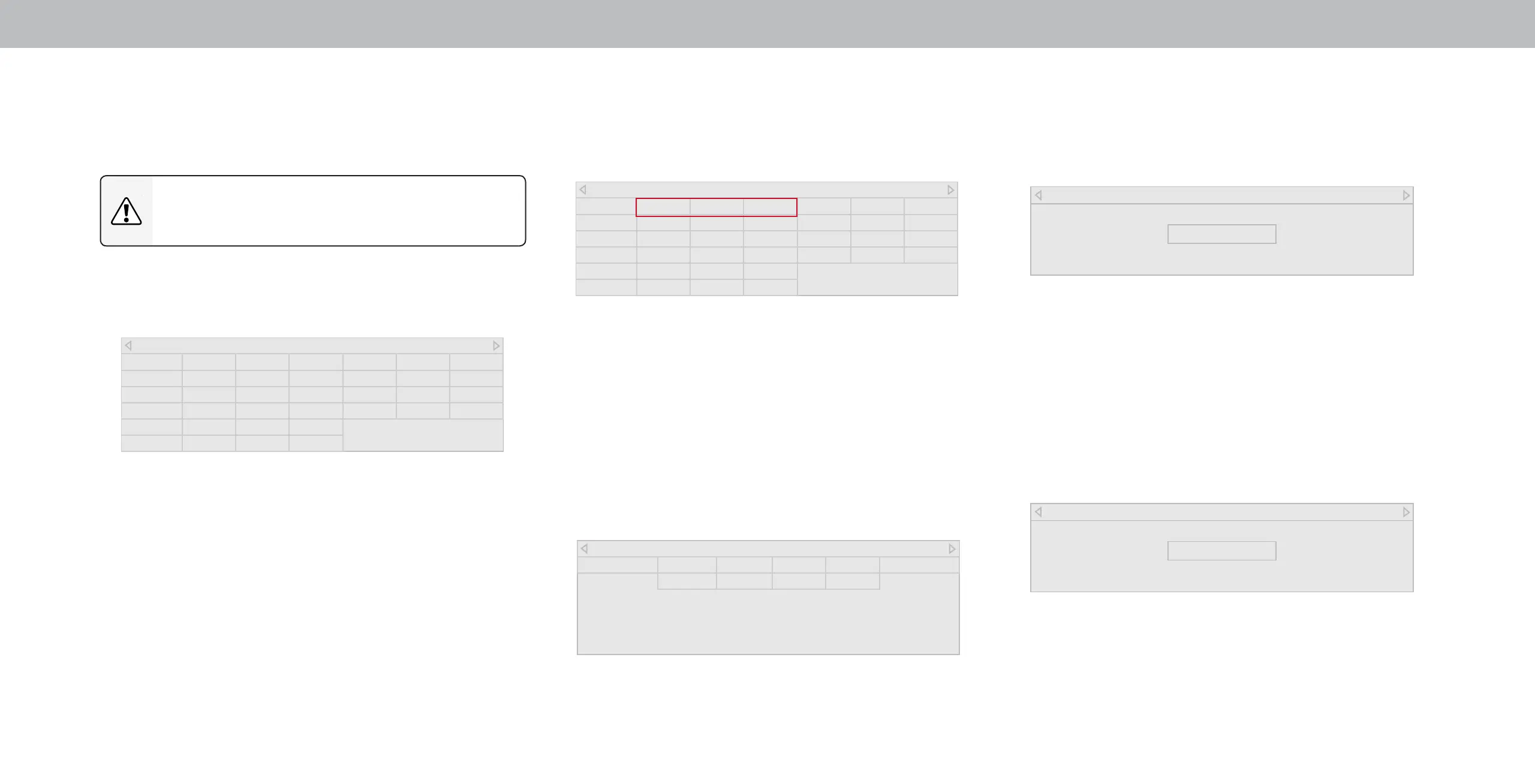
Color Tuner
Red Green Blue Cyan Magenta Yellow
Hue 0 0 0 0 25 -14
Saturation -1 5 -4 0 -2 0
Brightness -24 0 -22 0 0 0
Oset 0 0 0
Gain 0 0 0
To adjust the 11 Point White Balance settings:
1. From the Color Tuner menu, use the Arrow buttons to highlight
Color Tuner, and then press the Left/Right Arrow buttons until the
11 POINT WHITE BALANCE menu is displayed.
2. Use the Arrow buttons on the remote to highlight the Gain and
Color values you wish to adjust. Press the OK button and use the
Left/Right Arrow buttons to adjust the value. When you are nished,
press the OK button to save the setting.
3. When you have nished, press the Exit button.
11 Point White Balance
Gain Red Green Blue
5% 0 0 0
Adjusting the Color Tuner Settings
The Color Tuner settings allow you to adjust the HSB color and 11 point
white balance, turn color channels o for testing, and display color bar,
at, and ramp test patterns.
The Color Tuner, 11 Point White Balance, and test patterns
allow technicians to manually calibrate the TV. Calibration
requires specialized training, an input with precisely set
colors, and a specialized light meter.
To adjust the HSB color settings:
1. From the COLOR CALIBRATION menu, use the Arrow buttons to
highlight Color Tuner, and then press OK. The Color Tuner menu is
displayed.
2. Use the Arrow buttons on the remote to highlight the Hue,
Saturation, Brightness, Oset, or Gain of the color you wish to adjust.
Press the OK button.
3. Use the Left/Right Arrow buttons to adjust the value. When you are
nished press the OK button to save the setting.
4. When you have nished adjusting the color tuner settings, press the
Exit button.
Color Tuner
Red Green Blue Cyan Magenta Yellow
Hue 0 0 0 0 25 -14
Saturation -1 5 -4 0 -2 0
Brightness -24 0 -22 0 0 0
Oset 0 0 0
Gain 0 0 0
To show or hide the Flat Test Pattern:
1. From the Color Tuner menu, use the Arrow buttons to highlight
Calibration Tests, and then press the Left/Right Arrow buttons until
the FLAT TEST PATTERN menu is displayed.
2. Use the Arrow buttons on the remote to highlight O. Use the Left/
Right Arrow buttons to select the percentage brightness for the
at test pattern. Selecting a percentage immediately shows the at
pattern at that brightness.
—or—
To disable the Flat Test Pattern, use the Left/Right Arrow buttons to
highlight O.
3. When you are nished, press the Exit button.
To show or hide the SMPTE Test Pattern:
1. From the Color Tuner menu, use the Arrow buttons to highlight
Calibration Tests, and then press the Left/Right Arrow buttons
until the SMPTE TEST PATTERN menu is displayed.
2. Use the Arrow buttons on the remote to highlight O. Use the Left/
Right Arrow buttons to highlight On to show the SMPTE Pattern.
—or—
To hide the SMPTE Test Pattern, use the Left/Right Arrow buttons to
highlight O.
3. When you are nished, press the Exit button.
SMPT Test Pattern
O
Flat Test Pattern
O



 To Next Page
 Loading...