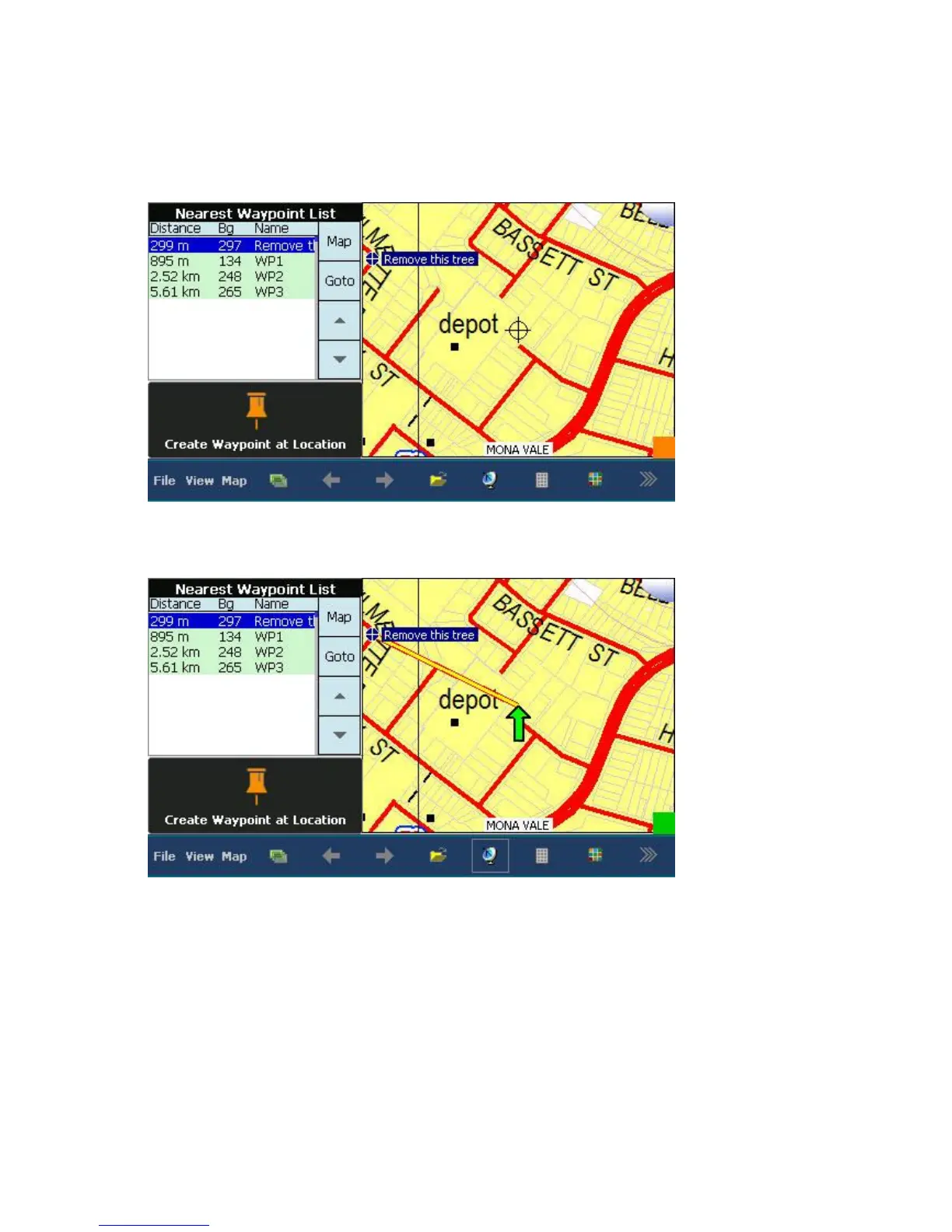
How to navigate to this position:
Change the GPS so that it displays the "Waypoint" page. Do this by tapping the top right hand corner
of the screen until this screen appears:
Highlight (Tap) on the desired waypoint in the table on the LHS, then tap on the "Goto" option. A
Yellow/Red line will then be drawn from your current position to the desired waypoint:
The Distance and Bg (bearing) will be updated as you move to your destination.



 To Previous Page