3
Once your Vodafone Business Broadband Service has been activated, follow the steps below
to connect the Broadband to the internet.
If the red LED power light at the bottom of the Vodafone Broadband router does not come on during
setup, please check that the cable connections are all correct and the power is on at the wall socket.
1
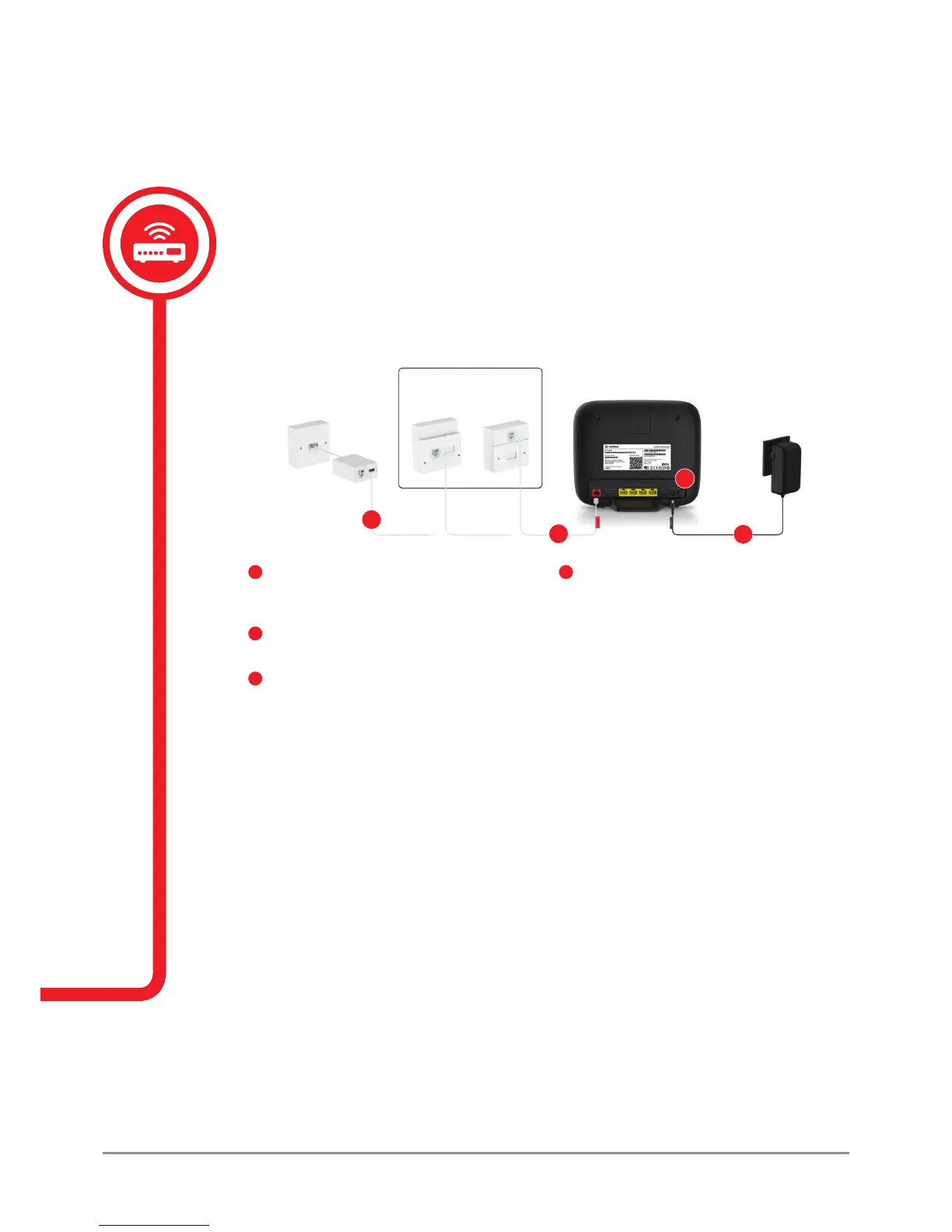
Connect the phone and internet cables to the
microlter
and then plug the microlter into
your phone socket.
2
Attach the other end of the internet cable to
the red internet port on the back of your router.
3
Connect the power adapter cable to the power
adapter port and plug into an electrical socket.
4
Press the power switch to turn on the router.
The power LED light on the bottom of the router
will turn red and the internet status LED light on
the top of the router will turn green once your
internet connection is set up. If the lights don’t
appear straight-away, please don’t unplug or
switch off your router for 60 minutes as it may
interrupt the set-up process.
1. Setting up your Vodafone
Broadband router
Connecting your router to the internet
If your phone socket looks
like either of these, you don’t
need to use a microlter.
1
2
3
4



 To Next Page