4
1.1 Connecting devices wirelessly to the internet
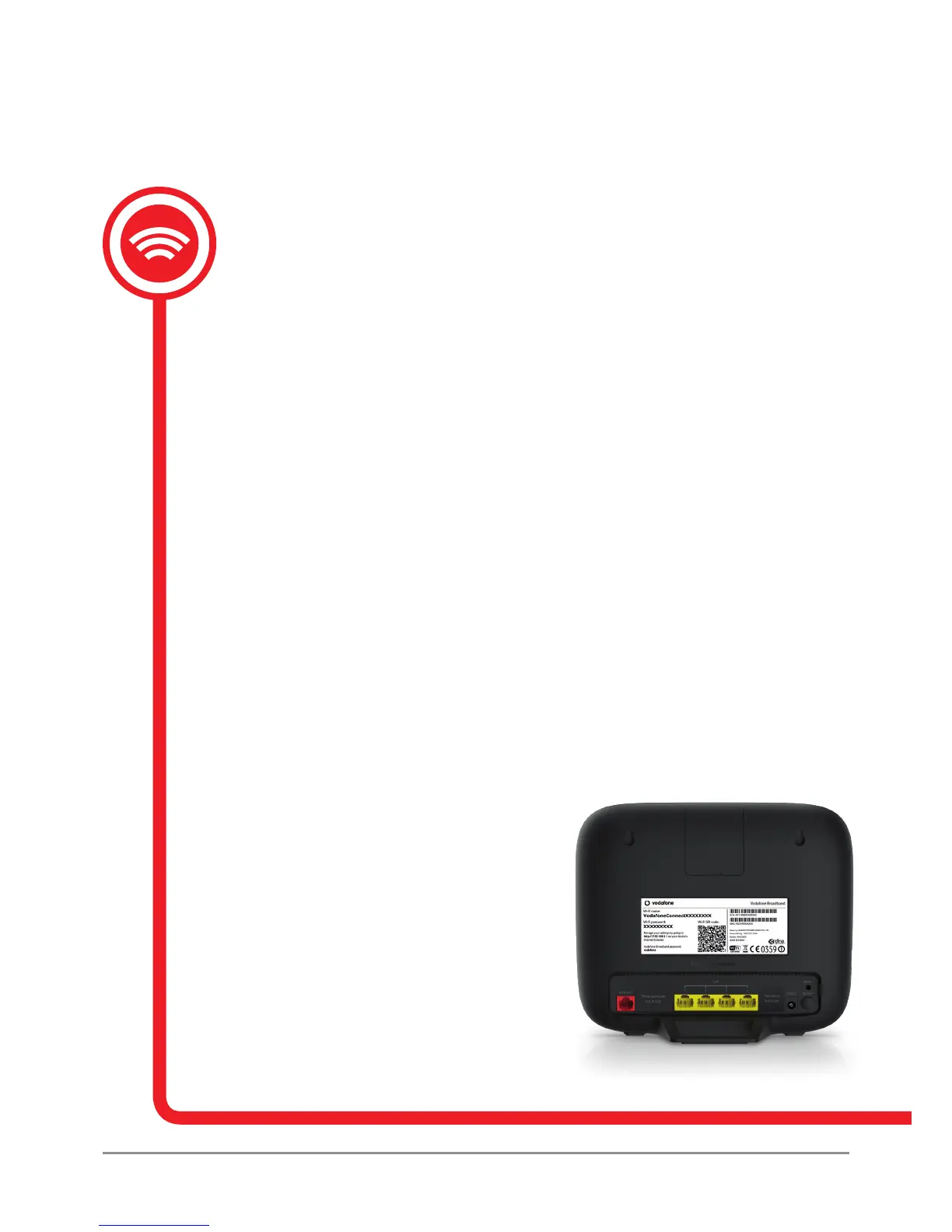
Once your Vodafone Broadband router is set up and the Wi-Fi is working, you’ll need the
information on your Vodafone Broadband router’s label to get devices like PCs, laptops,
tablets and smartphones connected wirelessly to the internet. The Wi-Fi name and password
can be found on the back of the Vodafone Broadband router.
Using wireless broadband (Wi-Fi)
To use wireless broadband – or Wi-Fi, as it’s more commonly known – your computer needs
a compatible wireless network card or a wireless adapter – most devices are tted with these
as standard.
Wi-Fi name
The Wi-Fi name is what you’ll need to look for when connecting any device wirelessly to the
internet through your Vodafone Broadband router. This can be changed or personalised
if you wish, for example, ‘Vodafone Business Broadband’ or ‘Julian’s Barber’s Broadband’
– the steps on how to complete this follow later in the guide.
Wi-Fi password
While connecting to the Wi-Fi network you will be asked to enter the Wi-Fi password.
This password is printed on the back of the router, so for business users we recommend
changing this to something memorable so only administrators can access the device’s
settings. The steps on how to complete this are explained later in the guide.
Vodafone Broadband router password
You‘ll need this password to change your Vodafone Broadband router settings through the
Vodafone Broadband online portal or Vodafone Broadband router app.
Vodafone Broadband router app
You can use the Vodafone Broadband router
app to change your Wi-Fi password and
manage your Vodafone Broadband router
settings. It’s available to download and install
from the Apple App Store or Google Play Store
– search Vodafone Broadband.



 To Next Page
 Loading...