Installation options
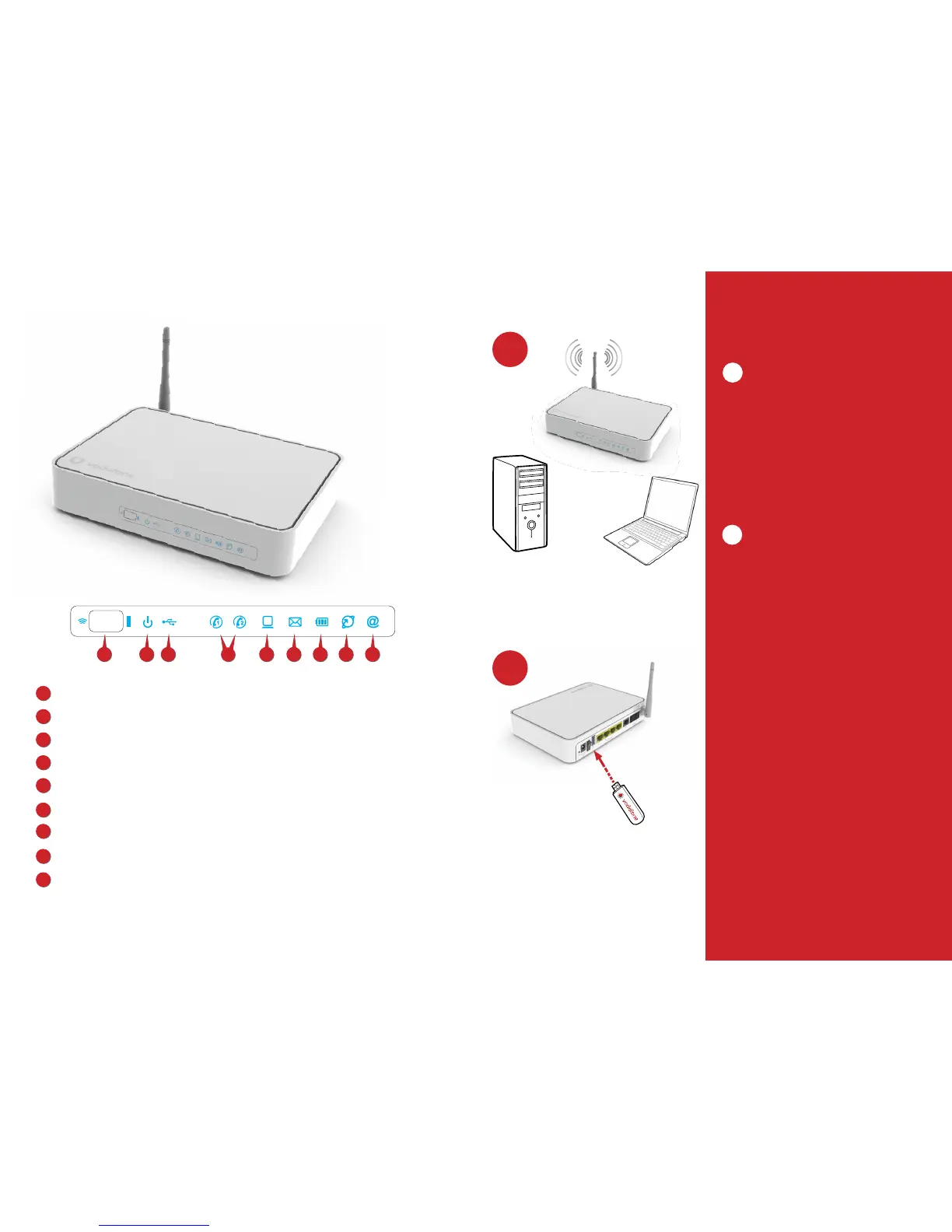
Wireless Internet connection
Turn on your computer’s wireless connection (Wi-
Fi) by following its manufacturer’s instructions.
From the list of available wireless networks,
choose the one designated as Vodafone-XXXXX,
where ΧΧΧΧΧ are the last 5 digits of the device
serial number printed on the back of the Vodafone
DSL Router, in the (S/N) field. When the Wi-Fi Key
is requested, enter the WPA alphanumerical key
printed on the back of the Vodafone DSL Router.
Direct Internet access with computer
Vodafone Mobile Internet services
• Alternatively, you may connect to the Internet
through a Vodafone Mobile Broadband service
plan, by using the Vodafone USB modem.
• Insert the Vodafone USB modem to the back of
the Vodafone DSL Router.
• To complete the settings, follow the
corresponding instructions in the User Guide.
A
B
Front illuminated indicators
1
2
3
6
5
7
8
9
4
Wi-Fi button and indicator:
Power supply indicator
USB indicator
Telephone line indicator
Ethernet indicator
New voice message
Battery charge indicator
ADSL indicator
Broadband indicator
1
2
3
4
5
7
6
8
9
B
A
1
To connect to the Internet via the Vodafone USB modem, you should have activated the computer (desktop or laptop)
Vodafone Mobile Broadband service plan. Corresponding charges shall apply.
Vodafone USB modem
Installation options
Installation help and instructions:
Visit www.vodafone.gr/business
or call 1399 (Corporate Customer Care Department)
free of charge from you Vodafone mobile.



 To Next Page