6
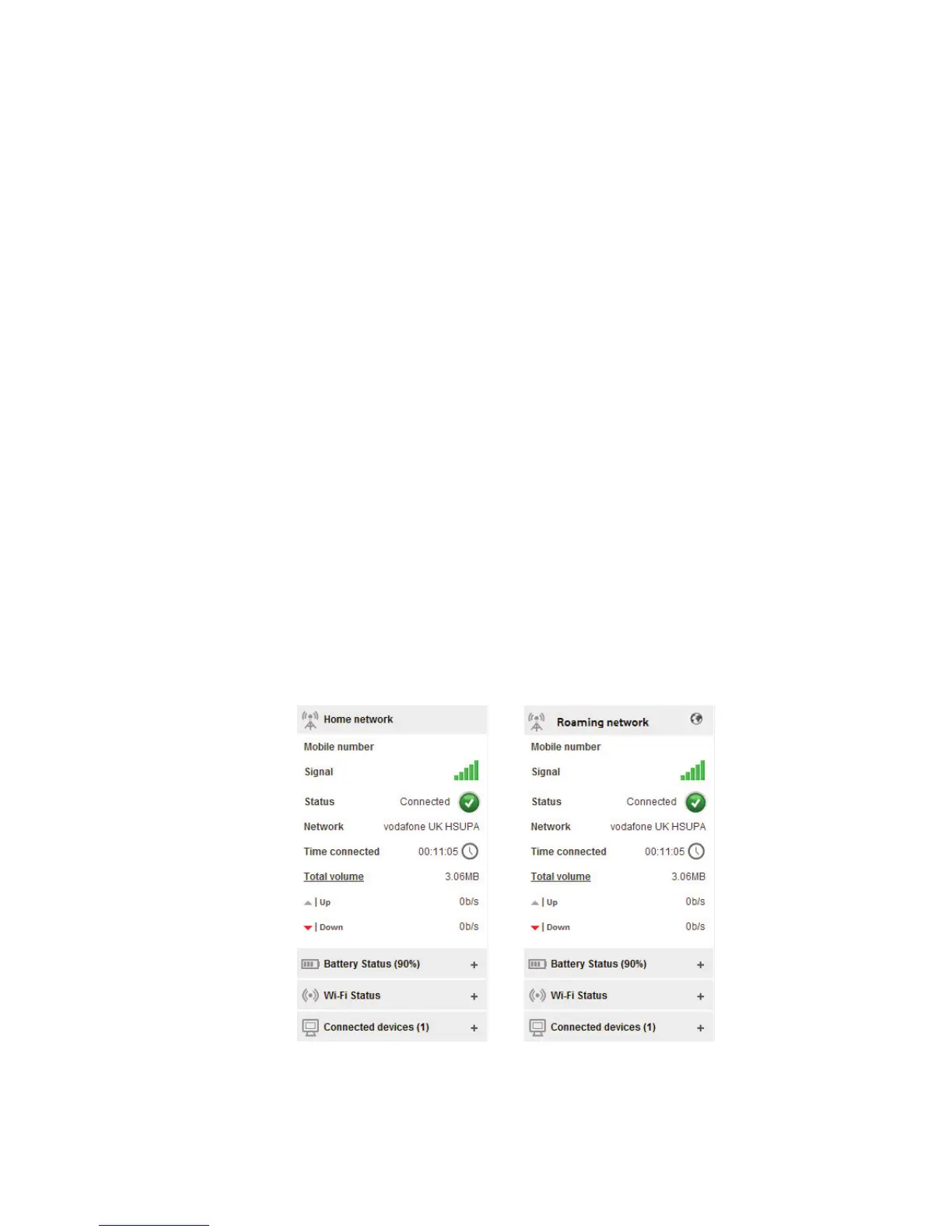
The Current network panel appears on the right-hand side of
every screen within the Vodafone Mobile Wi-Fi web UI application,
with additional panels for battery, Wi-Fi and connected device
status below. ‘Roaming network’ is shown at the top of the panel
when you are roaming on another operator‘s network, or ‘Home
network’.
Mobile number – Shown if permitted by your network operator
Signal – More bars indicates better mobile broadband network
signal. For best performance position the device so 3 or more
bars are displayed with 3G/HSUPA coverage in the Network fi eld
Status – Tick when connected to network; Cross when not
connected
Network – Name and bearer of currently connected network
Time connected – For current connection to network
Total volume – Approximate cumulative data usage
Up / Down – Approximate connection speed: ‘Up’ to the network
from your computer, and ‘Down’ from the network.
Current
network
panel
Note: In addition
to the Current
network panel,
there are drop-down
panels for Battery
status (percentage
charge / battery time
remaining), Wi-Fi
status and Connected
devices (devices
currently connected
to the Vodafone
Mobile Wi-Fi R206).



 To Next Page