Advanced Configuration Guide
Vodafone Mobile Wi-Fi – R215
Vodafone R215 August 2013
Version 0.1
33
2.3 Storage
The Storage view has three options on the Navigation bar covering how files can be accessed from a
Micro SD card that is inserted into the Mobile Wi-Fi device: File Storage, Sharing and Help.
2.3.1 File storage
Choose File storage from the Navigation bar to manage access to the contents of a Micro SD card that
has been inserted into the Mobile Wi-Fi device. Once files are loaded onto a Micro SD card, they can be
read over Wi-Fi by any accessing devices. The default setting is that you must be logged in before you
can upload new files or delete files from the Micro SD card. You can change this setting on the Sharing
screen.
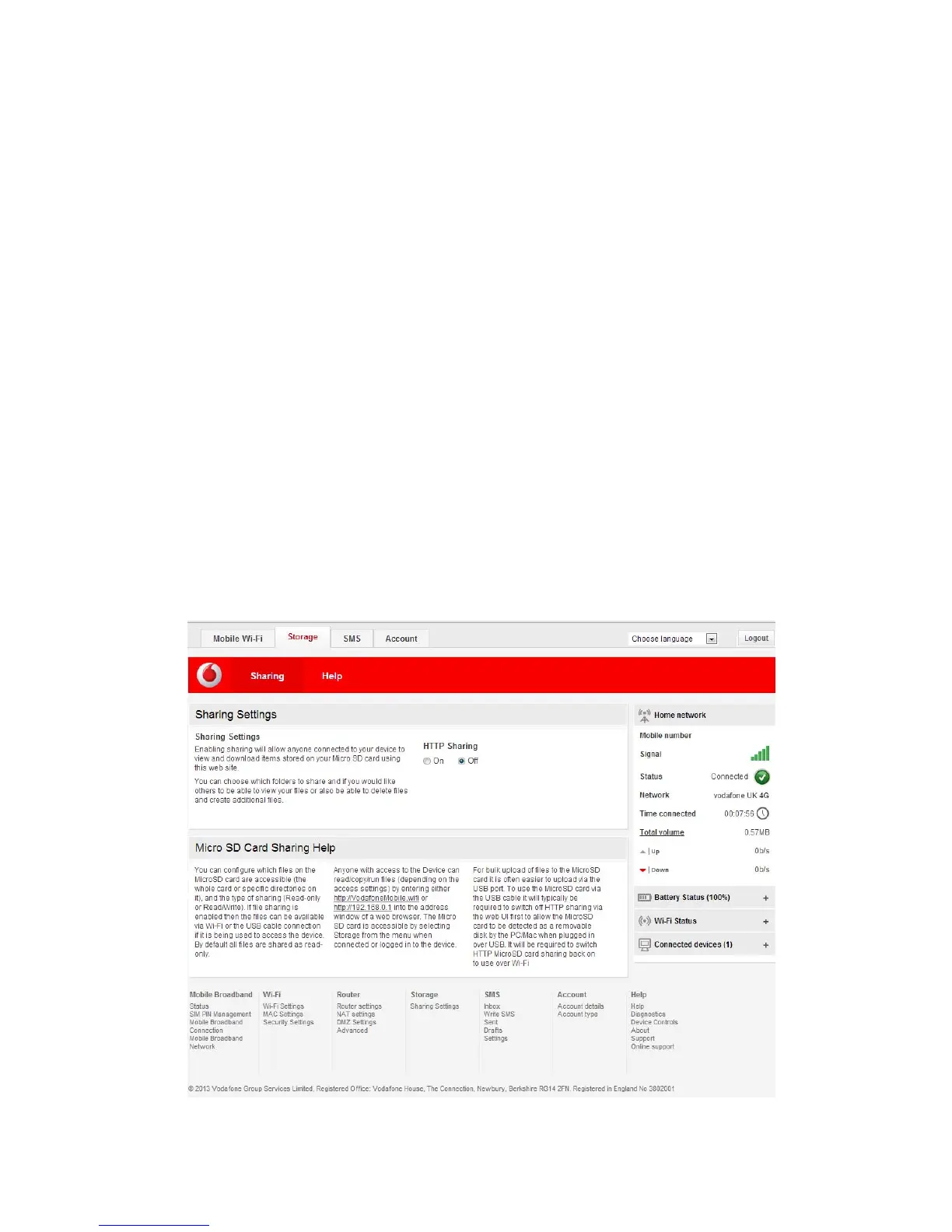
You can configure which files on the Micro SD card are accessible (the whole card or specific directories
on it), and the type of sharing (Read only or Read/Write). If file sharing is enabled then the files can be
available via Wi-Fi or the USB cable connection if it is being used to access the device. By default all files
are shared as read-only.
For bulk upload of files to the Micro SD card it is usually easier to upload via the USB port. To use the
micro SD card via the USB cable:
a) Switch off HTTP sharing via the web UI first to allow the SD card to be detected as a removable
disk by the PC/Mac when plugged in over USB.
b) Upload files using Explorer Drag and Drop or Cut and Paste
c) Switch HTTP SD card sharing back on to allow access over Wi-Fi.


 To Next Page
 Loading...